
SUMMER SAVINGS 90% OFF QuickBooks for 3 months* Ends 8/27

Buy now

Switch to QuickBooks and 70% off for 3 Months
Kurt_MAnswer
QuickBooks Team
Feb 25, 2026 9:30 PM UTC

Hello there, @rwhomeimprove. As the QuickBooks Online app currently only supports the standard Profit and Loss and Balance Sheet views, I recommend using a mobile web browser to access this specific report.

While the mobile app is great for quick check-ins, it does not currently offer the by Customer breakdown or advanced filtering required for that specific report. However, you can still view it on your phone by bypassing the app and using your device's browser, such as Safari or Chrome, to access the full QuickBooks Online site.
 

  1. Open your mobile browser and log in to qbo.intuit.com. 
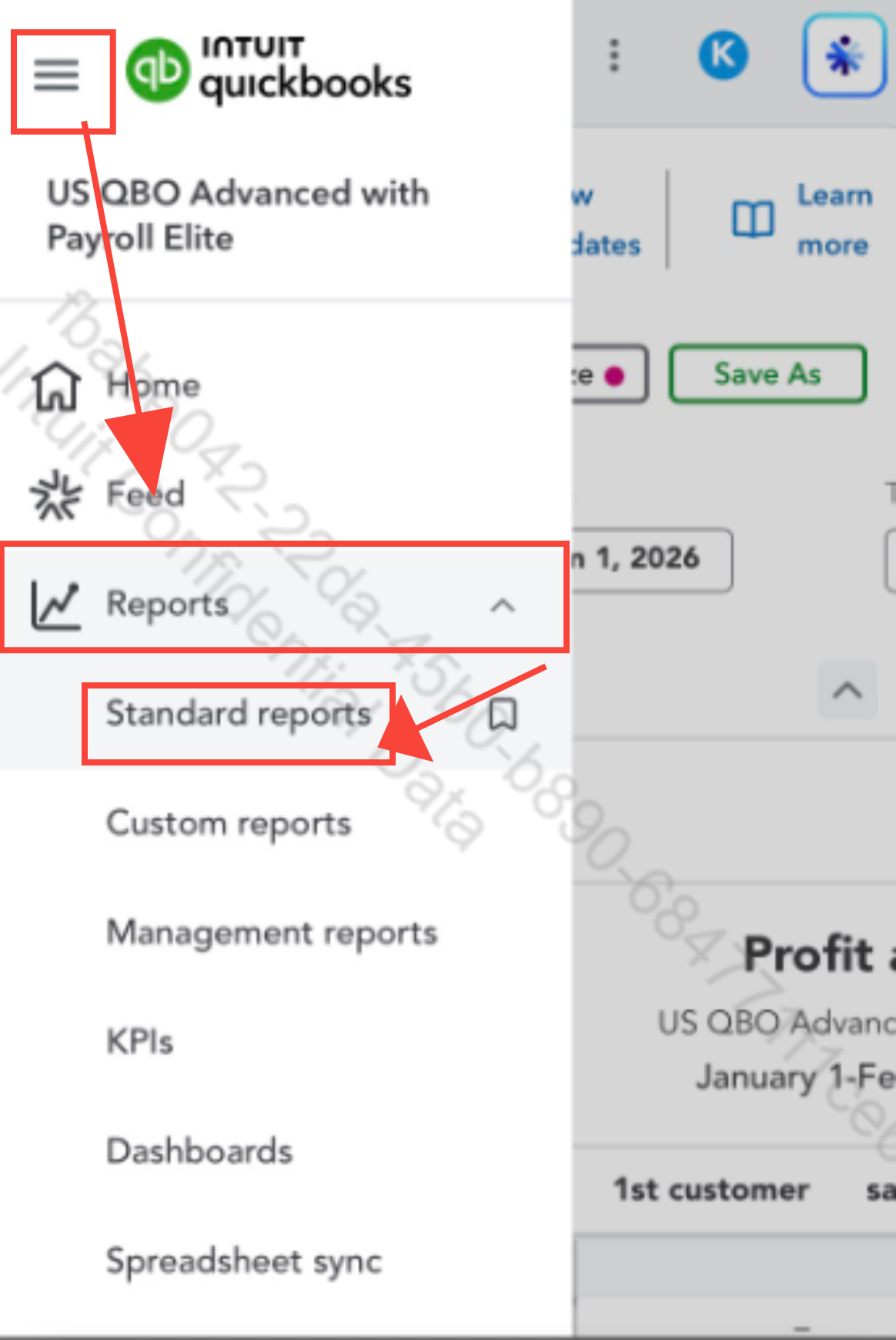
  2. Tap the Menu ☰ icon and select Reports.
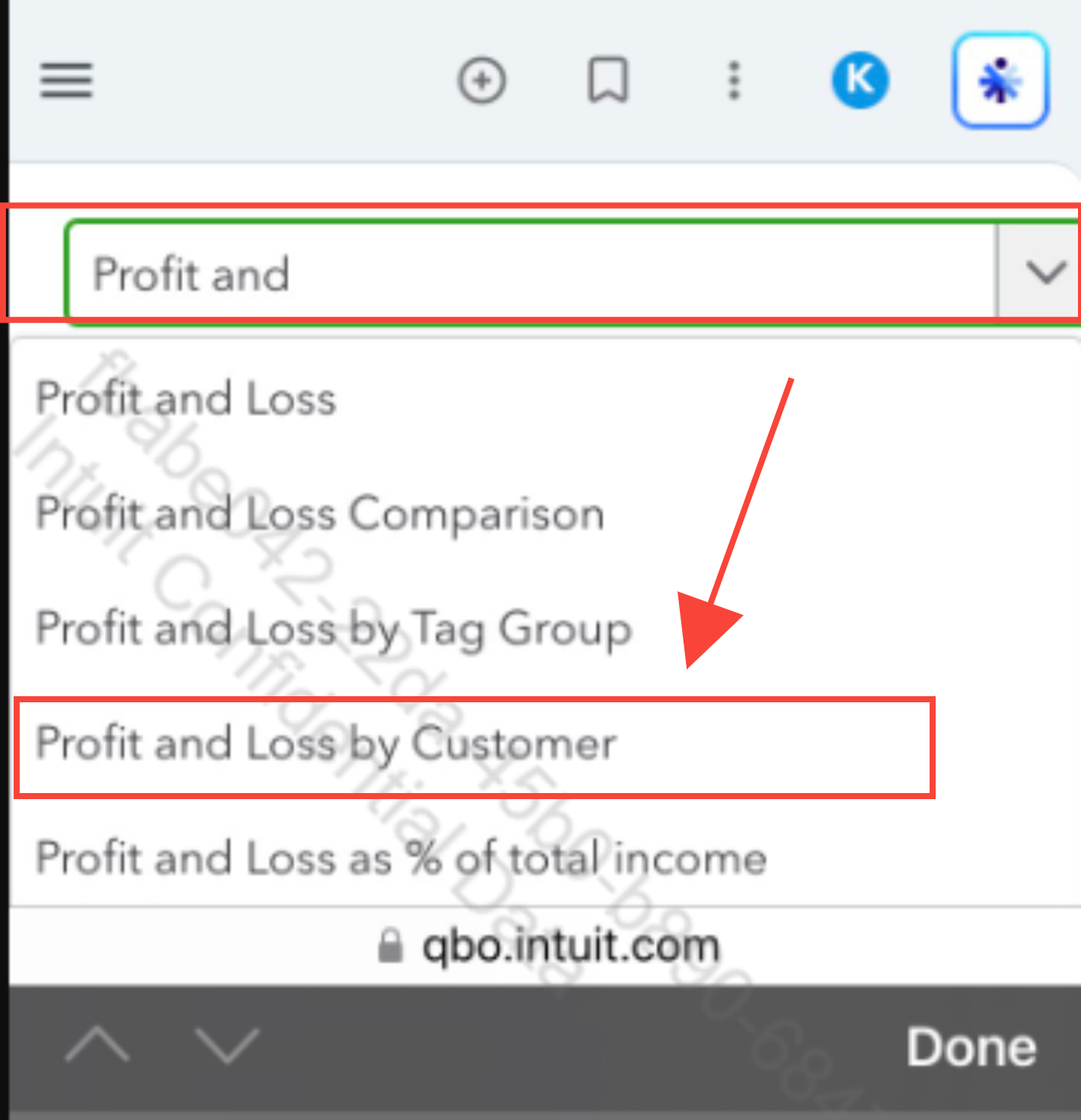
  3. In the Find report by name search box, type Profit and Loss by Customer and select it from the list.
  4. Adjust your Report period as needed and select Run report.


For visual reference, see the image below.


Please don't hesitate to click the Reply button if you have other questions about QuickBooks. 

1 reply

Kurt_MQuickBooks TeamAnswer
QuickBooks Team
Feb 25, 2026 9:30 PM UTC

Hello there, @rwhomeimprove. As the QuickBooks Online app currently only supports the standard Profit and Loss and Balance Sheet views, I recommend using a mobile web browser to access this specific report.

While the mobile app is great for quick check-ins, it does not currently offer the by Customer breakdown or advanced filtering required for that specific report. However, you can still view it on your phone by bypassing the app and using your device's browser, such as Safari or Chrome, to access the full QuickBooks Online site.
 

  1. Open your mobile browser and log in to qbo.intuit.com. 
  2. Tap the Menu ☰ icon and select Reports.
  3. In the Find report by name search box, type Profit and Loss by Customer and select it from the list.
  4. Adjust your Report period as needed and select Run report.


For visual reference, see the image below.


Please don't hesitate to click the Reply button if you have other questions about QuickBooks.