You can extract your data by running specific reports and exporting them or use the Export data feature and export your expense data using a customised Transaction List by Supplier report using a web browser instead of using the app, Alexandre.
Before extracting your QuickBooks data, log in to QuickBooks Online through a compatible web browser. Then, you can run particular reports and click the Export icon. In addition, using the Export Data feature available under the Gear icon also helps you pull them. This special functionality allows you to export and save data, including the General Ledger, Profit and Loss, Balance Sheet, Trial Balance, and Journal entries to a local file.
To access and export your expense data, follow the steps outlined below using a relevant report:
- Hover to Reports and then select Standard reports.
- From the Expenses and suppliers section, choose Transaction List by Supplier.
- Then, set the Report period to All Dates.
- Click Filter and check Transaction type.
- Use the equals condition to identify expense transactions that have cleared your bank or cash accounts. Examples include Bill Payments made via Cheque, Cash Expense, Credit Card Charge, Cheque, Expense, etc.
Once done, click the Export icon on the top right to save it with the following options like Excel, PDF, or CSV locally on your computer.
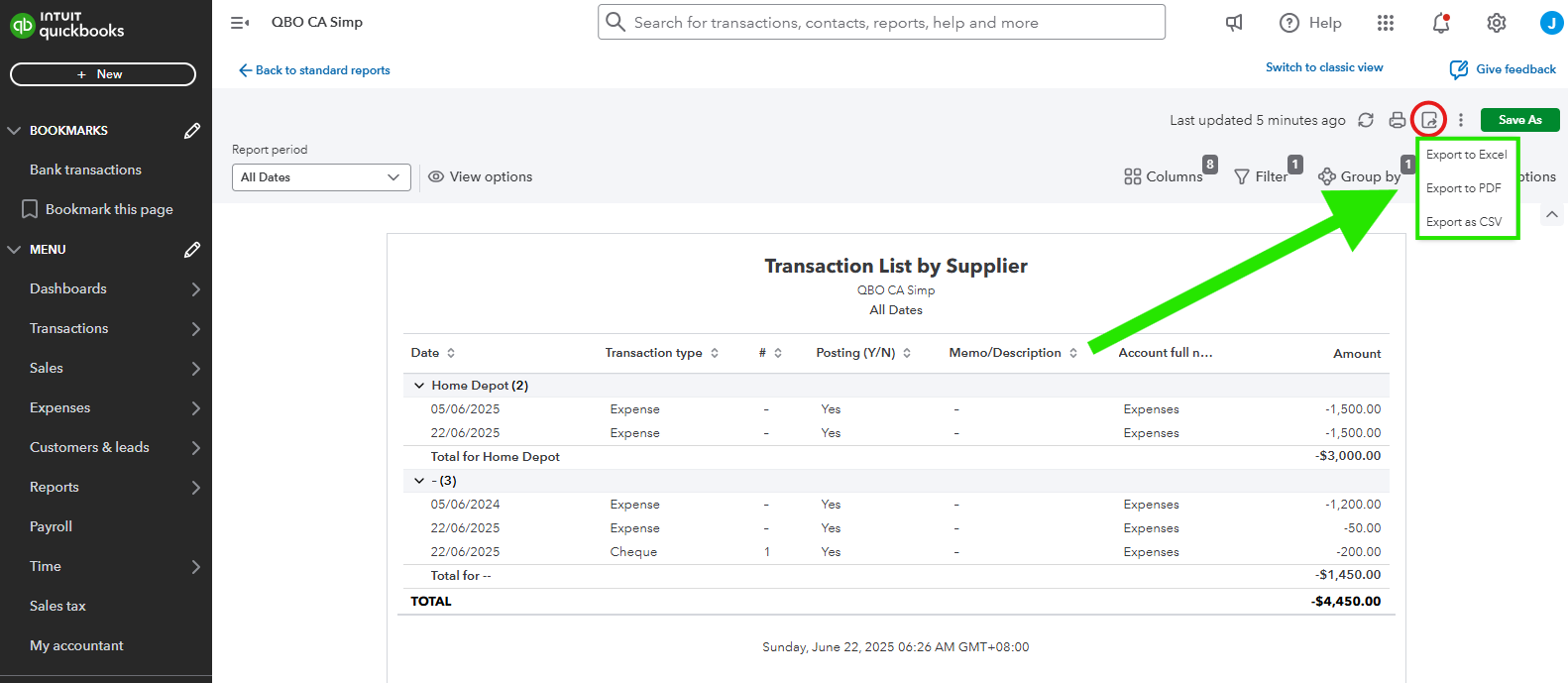
Also, if you're referring to extract other transaction data, you can run reports and click the Export icon or use the Export Data feature available under the Gear icon. This option allows you to export and save data, including the General Ledger, Profit and Loss, Balance Sheet, Trial Balance, and Journal entries to a local file.
For more details about filtering your financial data in a report, I suggest checking this article: Customize reports.
If you would like to run the same report without following the same instructions above in the future, utilize the Save As button to memorize it in QBO. Saved reports will be seen from the Reports' Custom reports tab.
Remember to comment if you need more help extracting your data in QuickBooks Online.


