Yes, you can correct the posting of an income transaction between subaccounts in QuickBooks Online (QBO) without causing them to cancel each other out, Marta.
To start, could you please provide more details about the transaction you want to move to the correct account? Are you using a journal entry to make the adjustment? Having this information will help us offer a more targeted solution.
In QBO, subaccounts roll up into their parent account, meaning adjustments made between subaccounts don't change the overall balance of the parent account but simply reallocate amounts within the subaccounts.
To ensures the transaction is moved accurately to the correct subaccount we can edit the original transaction without affecting your parent account totals or duplicating entries. Here’s how you can do it:
Here's how:
- Go to the Accounting tab in the left-hand menu and select Chart of Accounts.
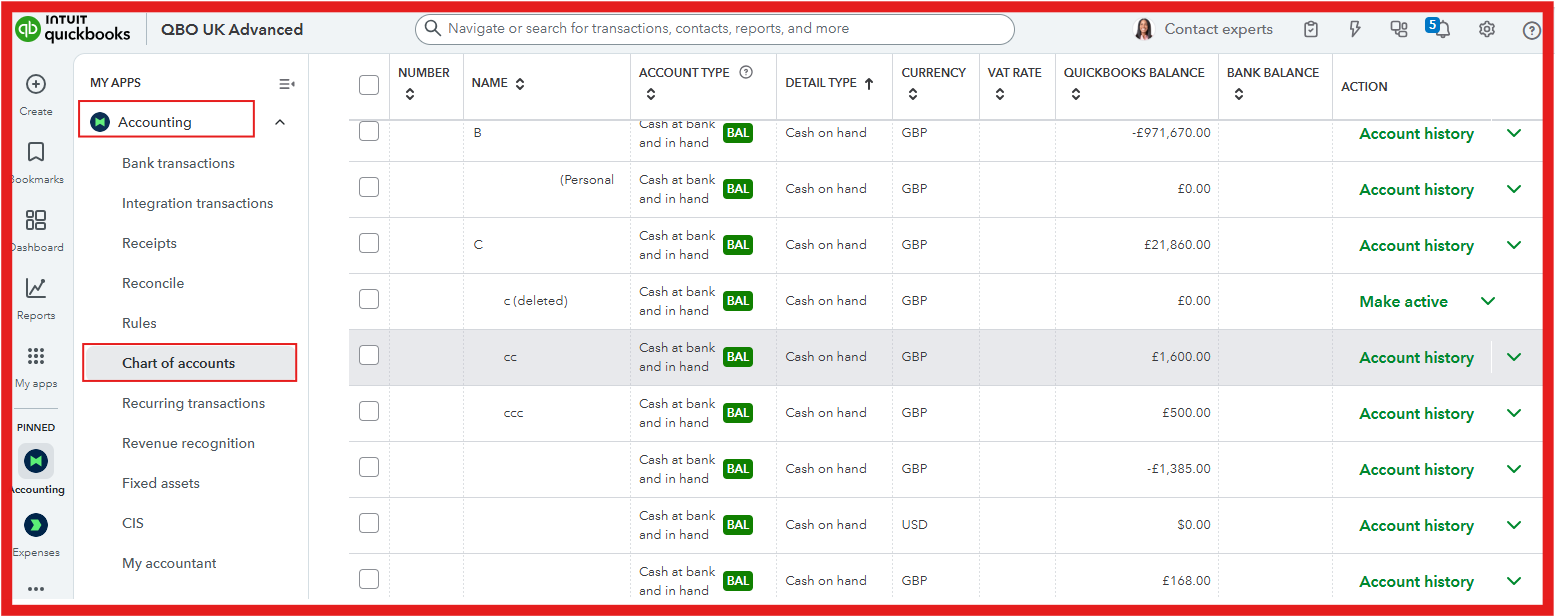
- Find the account you initially posted the transaction to.
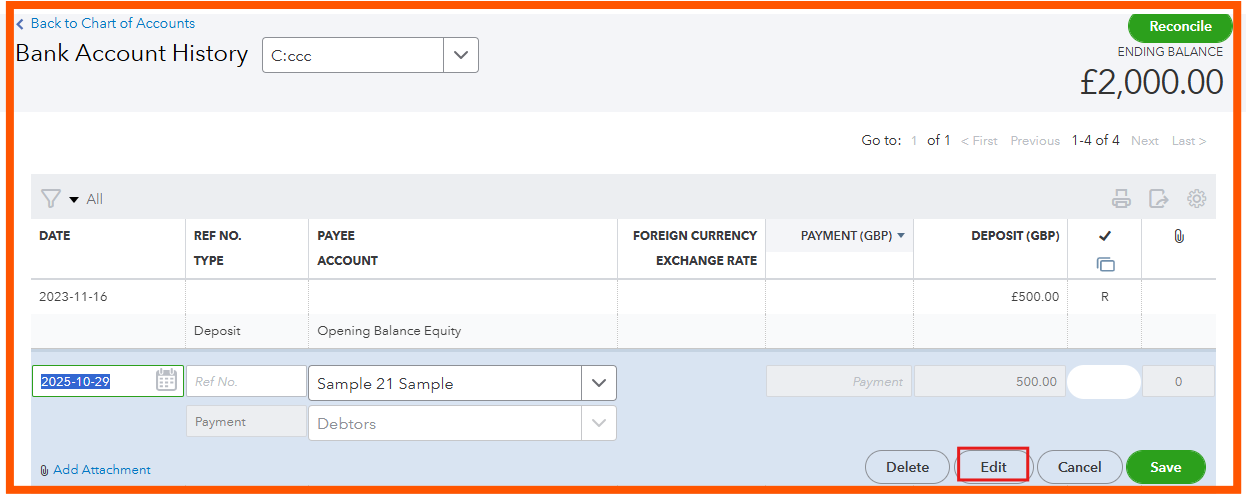
- Click Account history for the account associated with the subaccount.
- Locate the transaction dated June 27 and select Edit to view details.
- In the Deposit to section of the transaction, change it to the correct subaccount.
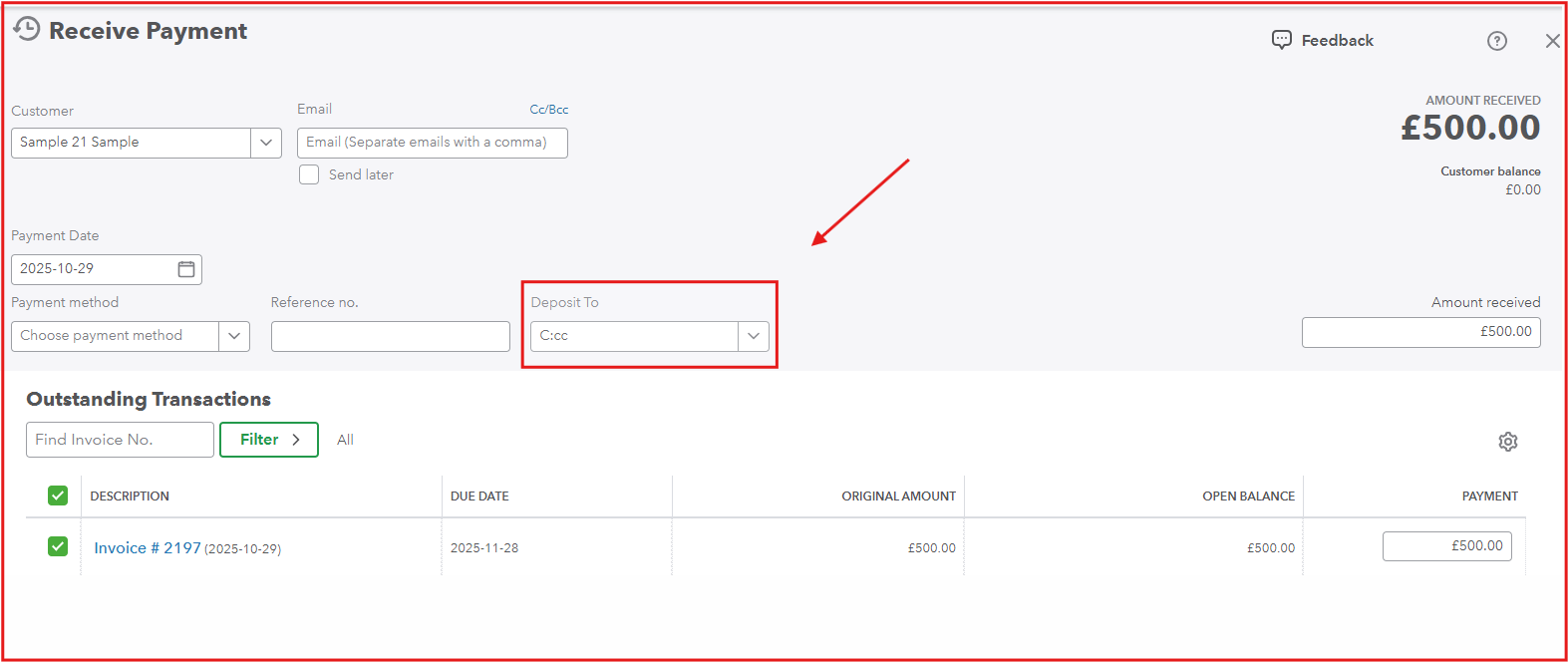
- Once done, select Save and close to apply changes.
If you have additional questions please feel free to leave a comment below for further assistance. We're always happy to help.


