 QuickBooksHelpIntuit
How to fix Error: 6123, 0
by Intuit• Updated 2 weeks ago
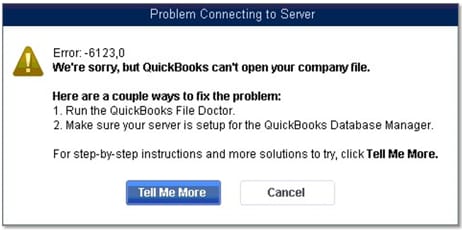
Learn what to do if you see Error: -6123,0 in QuickBooks Desktop.
If you see Error: -6123,0, don’t worry. We’ll walk you through how to fix this by closing some programs or modifying your company file.
To begin, choose the section below that fits your situation.
If you see Error: -6123,0 while opening, upgrading, or restoring your company file
Make sure you open your company file from QuickBooks and not from Windows Explorer. If you open your file from Windows Explorer you may get an error.
Important: Error: -6123,0 might be related to your computer’s hardware. This usually happens on ARM-based computers (like those with Snapdragon or Qualcomm processors). QuickBooks Desktop is designed for Intel or AMD processors and doesn’t work properly on ARM systems.
Before you proceed, make sure to check which processor you have on your computer.
Step 1: Check your computer’s processor
- Select Start from the taskbar.
- In the search bar, enter About your PC, then press Enter on your keyboard. This opens the Settings window.
- In the Device specifications section, find Processor:
- If you see Snapdragon, ARM, or Qualcomm—Your computer isn’t compatible with QuickBooks Desktop. You can’t fix this with a software update. Do any of the following:
- Move your QuickBooks software and data to a computer with an Intel or AMD processor.
- Cloud hosting - Use a virtual desktop through an authorised hosting provider. This lets you use QuickBooks on their supported servers and access your company file from your ARM computer via the internet.
- QuickBooks Online - Switch to the cloud-based version of QuickBooks. Since it runs in a web browser, it’s fully compatible with all processor types, including ARM, Snapdragon, and Qualcomm.
- If you see Intel or AMD—Your computer is compatible with QuickBooks Desktop. The error is likely caused by a network or file issue. Proceed to any of the troubleshooting steps below.
- If you see Snapdragon, ARM, or Qualcomm—Your computer isn’t compatible with QuickBooks Desktop. You can’t fix this with a software update. Do any of the following:
Step 2: Run QuickFix my Program
- In the QuickBooks Tools Hub, select Program Problems.
- Select QuickFix my Program. It will take about a minute to run. If you have multiple versions of QuickBooks installed, it can take longer. Wait until the progress bar is done.
- When QuickFix my Program is finished, open QuickBooks and verify your issue is fixed.
If you still see Error: -6123, 0, move on to Step 3.
Step 3: Run File Doctor
If QuickFix my Program didn't work, we can use File Doctor to repair your company file. File Doctor automatically scans and fixes common QuickBooks Desktop data issues.
- In the QuickBooks Tools Hub, select Company File Issues.
- Select Run QuickBooks File Doctor.
- When QuickBooks File Doctor opens, select your company file from the ▼ dropdown. If you don't see it, select Browse to search your computer for the file. The file will look like this: [your company name].qbw.
- Select Check your file, then Continue.
- Enter your QuickBooks admin password, then select Continue. File Doctor will start repairing your file. This may take a while.
- When the repair is finished, select your company from the list, then select Open QuickBooks.
If you can open your file without any issues, everything is fixed. Be sure to make a backup of your company file once you're able to open it.
If you repaired your file with File Doctor but still see Error: -6123,0, don’t worry. Your data should be safe. Reach out to our data services team for additional fixes.
If you see Error: -6123,0 while restoring your company file (.qbw)
Restore your company file directly from the hard drive
If you’re restoring your company file from a backup (.qbb):
- If your file resides on the network or external storage device, move the backup file to your local hard drive. Don’t open them from an online storage folder or a removable drive.
- Follow the steps to restore your company file from a backup.
If you see Error: -6123, 0 while restoring a backup (.qbb) on a new computer
Create a portable company file (.qbm). Then use it to restore your company file.
- Open QuickBooks Desktop on the same computer you used to create the backup company file.
- Open your original company file as usual (not the backup).
- Create a portable copy (.qbm) of your company file.
- Open QuickBooks Desktop on the new computer.
- Restore your company file using the portable copy (.qbm) instead of the backup.