Turn on suggestions
Auto-suggest helps you quickly narrow down your search results by suggesting possible matches as you type.
Showing results for
Get 50% OFF QuickBooks for 3 months*
Buy nowWhen viewing a SALES ORDER in QBO (Premier, 2021) for that sales order that has previously already shipped a quantity against the original amount, when VIEWING this sales order on screen, we can clearly see the INVOICED quantity. However, when PRINTING this same sales order, there is no option (in Customize Data Layout) to print that SAME quantity.
Surely as this INVOICED QTY is available for this sales order, and in the database, it could be added as a "selectable column" so we could get it to print?

Hello there, @MyCableMart1. I understand that you're facing an issue with QuickBooks Desktop (QBDT) when it comes to printing sales orders. I can see how this can be frustrating, as having the invoiced quantity printed would provide a more comprehensive view of the order. No worries, I've already explored the program and I have a solution ready for you.
In QuickBooks Desktop, we have the option to customize the templates of our forms such as sales orders for better and more comprehensive business communication. Since the Invoiced field is already shown on the screen, let's go ahead and make sure that it'll also show on printed forms.
Let's explore these steps together:
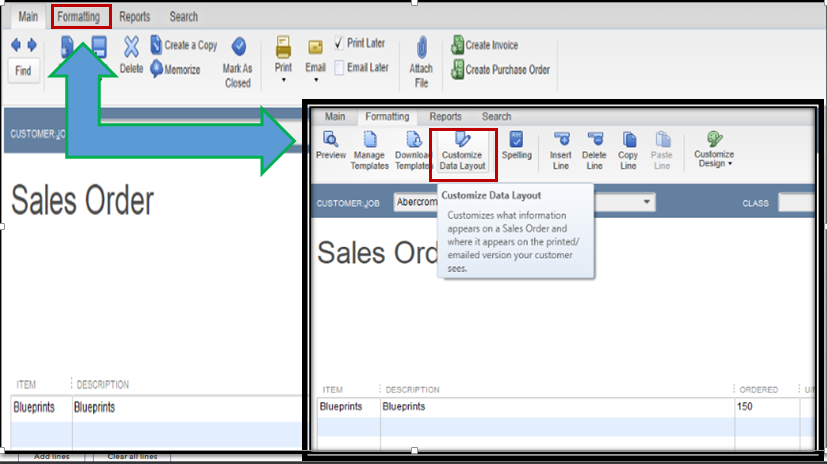
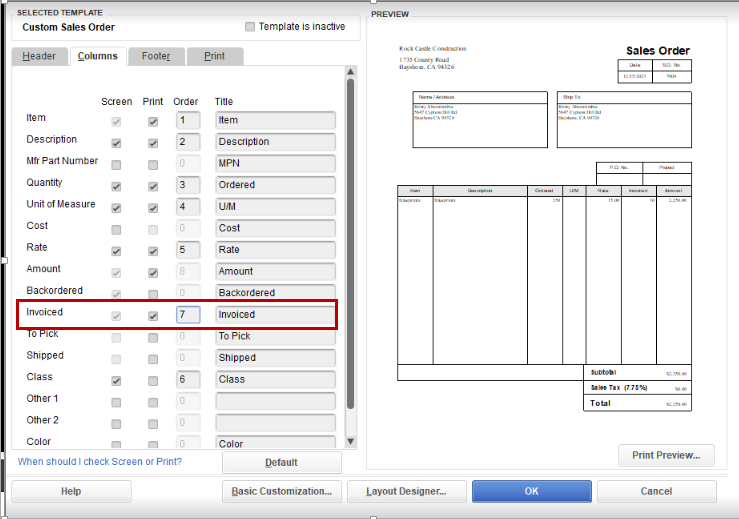
I've included a sample preview of the modified print template:
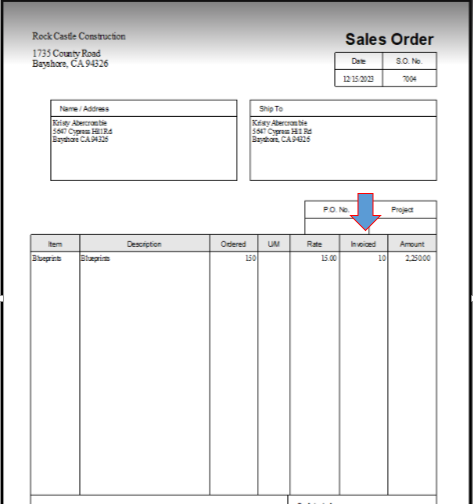
Additionally, here's an article that'll help you set up and use progress invoicing by splitting an estimate into as many invoices as you need instead of asking for full payment: Set up and send progress invoices in QuickBooks Desktop.
It's my pleasure to be able to assist you today. If you need further assistance in printing sales orders in QuickBooks Desktop, please don't hesitate to hit on the Reply button. Keep safe and have a good one.
Thanks for getting back with the Community, MyCableMart1. I appreciate your screenshot.
Since your Invoiced option isn't showing up as a selectable column while customizing sales order templates, I'd recommend troubleshooting initially with the Verify Data utility. This identifies known issues within company files and informs users if their Rebuild Data tool needs to be utilized afterwards.
Here's how it's used:
In the event its results show a "Your data has lost integrity," message, this indicates there's damage in your file. You can use the Rebuild Data utility to fix it. For specific errors, there may already be a resource for them on our support site.
If it displays a "QuickBooks detected no problems with your data," notification, or you've searched our help articles and didn't find any existing resources about the specific error it displayed, you can move on to troubleshooting with our QuickBooks Tool Hub.
Here's how:
If it continues not displaying after performing these troubleshooting steps, you'll want to get in touch with our Customer Care team. They'll be able to pull up your account in a secure environment, conduct further research with you, and create an investigation ticket if necessary.
I'll be here to help if there's any additional questions. Have a great Thursday!
There were NO errors in our database. Could this be the VERSION of our QBD we are using, or should this field value (INVOICED QTY) appear as a selectable column for a SALES ORDER (Customized Form)? We are using QBD 2021. We intend to upgrade to QBD 2023 once we are informed 2021 is being retired.
I appreciate your consistent efforts in providing additional information, MyCableMart1.
The "Invoiced" column ought to be a field that you can choose, particularly when utilizing the Progress Invoicing feature. I also tested this in my QuickBooks Premiere 2021 version and I was able to select it.
I can see from the previous responses that all troubleshooting steps are already shared in this thread. In this case, I would recommend reaching out to our technical support team. They can take a closer at this and check for other options to make sure that you can add an Invoiced column when printing your Sales Order.
Here's how to reach out to them:
Here's an article to get more details about their business hours: Contact QuickBooks Desktop Support.
I also want to share these resources for additional reference when using templates:
You can always rely on us if you have any further inquiries. The QuickBooks Team is readily available to offer additional assistance whenever you may require it.


You have clicked a link to a site outside of the QuickBooks or ProFile Communities. By clicking "Continue", you will leave the community and be taken to that site instead.
For more information visit our Security Center or to report suspicious websites you can contact us here


