 QuickBooksHelpIntuit
Filter, search, and sort with custom fields
by Intuit•21• Updated 5 days ago
Learn how to use custom fields to organize and track data in QuickBooks Online Advanced.
Custom fields let you track specific data across your sales forms, purchase orders, and customer profiles. You can create custom fields to track everything from sales reps to special customer information.
You can also use your custom fields to organize lists, narrow search results, and filter financial reports. This helps you track specific details that are important to your business.
Note: Want to use this feature? You can upgrade to QuickBooks Online Advanced.
Sort your lists by custom field
Organize your invoice, customer, and expense lists so they’re easier to read. For example, you can sort your invoices by sales rep to see which transactions each one worked on.
- Select any one of the following:
- For Invoices: Go to All apps
 , then Sales & Get Paid, then Invoices (Take me there).
 - For Customers: Go to All apps , then Customer Hub, then Customers (Take me there).
- For Expense transactions: Go to All apps , then Expenses & Bills, then Expense transactions (Take me there).
- For Invoices: Go to All apps
- Select the Gear icon on the list (not the Gear menu in the Icon Bar).
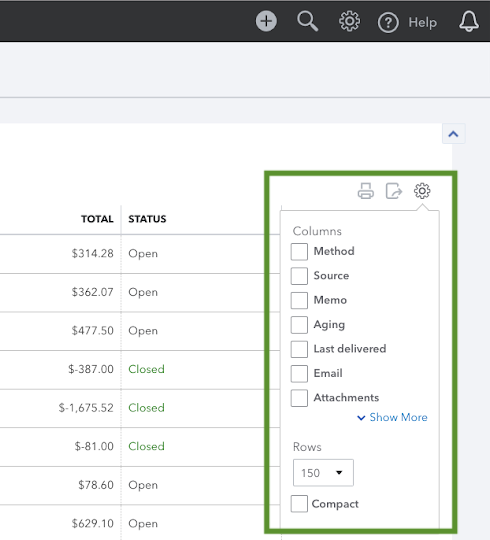
- Select the checkbox next to a custom field to add it as a column.
- Select the Gear icon again to close the window.
- Select the Custom Field column header to sort the list alphabetically.
Search for transactions with a specific custom field
See every transaction using a specific custom field. For example, if you create a customer loyalty program custom field, you can search for all transactions using it.
- Select the Search (magnifying glass) icon.
- Type the custom field name. To see a list of your active custom fields, select the Gear icon from any page and then select Custom fields.
- Select a transaction from the search results.
- To see the full list of transactions, select Advanced Search. Select the custom field from the dropdown menu next to the Contains or Equals field. Then select Search.
Use custom fields in your reports
When you run reports, take advantage of custom fields to get deeper insights into your business. For example, you can filter a report to show just the data you’re interested in. Learn how to use custom fields in reports.
More like this
- Customize reports in QuickBooks Desktop for Mac Plusby QuickBooks
- Search for transactions and other data in QuickBooks Onlineby QuickBooks
- Understanding the Books Close dashboardby QuickBooks
- Modify existing recurring paymentsby QuickBooks