I'd be happy to guide you on manually entering your cash-paid property taxes and vehicle expenses, Amber.
For any cash payment, like your property taxes or vehicle costs, you'll need to manually enter the transaction since it didn't come through a connected bank account.
Here are the steps to follow on a web browser:
- Go to the Transactions menu on the left navigation bar.
- Next, select the Add Transaction button.
- Enter the amount of the cash expense.
- Then, enter a clear description, for example, (Annual Business Property Tax Payment or Fuel Purchase).
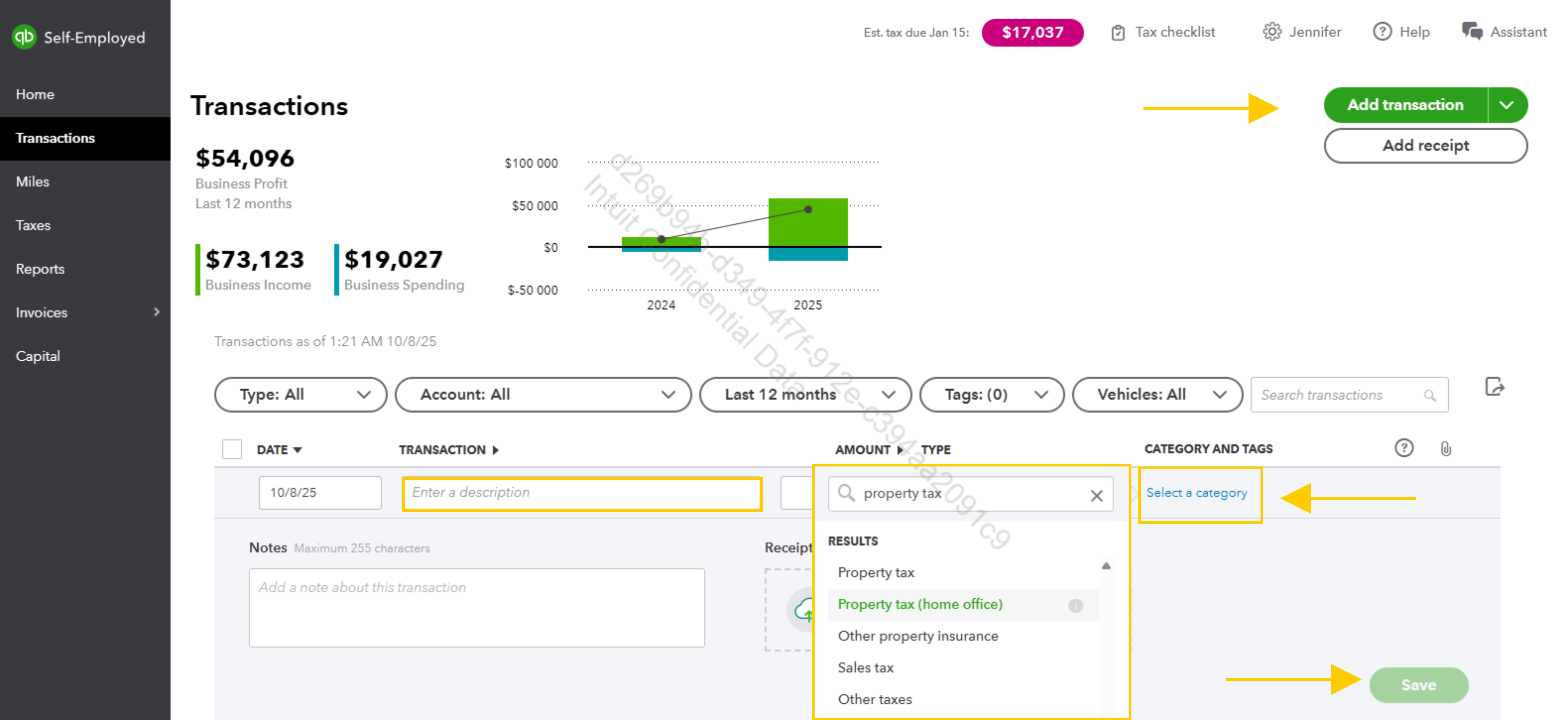
- After that, select the Select a category menu.
- Finally, choose Save when done.
If you're using a Mobile App (iPhone, iPad, or Android), here are the steps:
- Select the Transactions menu.
- Tap the Plus (+) icon.
- Select Add expense manually.
- Fill out the details, including the date and the amount.
- Select Category and choose the appropriate expense category.
- (Optional) Tap Attach receipt to take a picture of your receipt or upload a document.
- Select Save.
If the property tax relates to your business premises or a portion of your home used as a home office, you should look for categories like:
- Taxes and licenses
- Home office deduction (if you are claiming the home office deduction).
However, if the property tax is a personal expense (not related to a business property or home office deduction), it should be marked as Personal.
For vehicle-related expenses (like gas, repairs, insurance, etc.), you will categorize them under:
- Car, Truck, or Vehicle. Within this part, you can usually find more detailed categories such as fuel, insurance, and Vehicle repairs.
QuickBooks Self-Employed tracks vehicle expenses using the standard mileage deduction. If using the actual expense method, categorize cash expenses correctly.
If you have any questions related to other QuickBooks tasks, we're here to help.


