

- Mark as New
- Bookmark
- Subscribe
- Permalink
- Report Inappropriate Content
Account management
I’m here to ensure all your transactions will get exported so you can successfully import them to your new version of QuickBooks, @saturdaysnyc.
QuickBooks Online offers a simple way of moving entries so you can download and import them anytime.
You can export your reports and lists into individual Excel files contained in a zip format in one just one process. You’ll want to make sure to filter the date period to cover year-to-date transactions. Here’s how:
- Go to the Gear icon.
- Under Tools, select Export Data.
- On the Reports tab, set the date range to year-to-date.
- Add items from the Reports/Lists tabs by toggling the slider.
- Press Export to Excel.
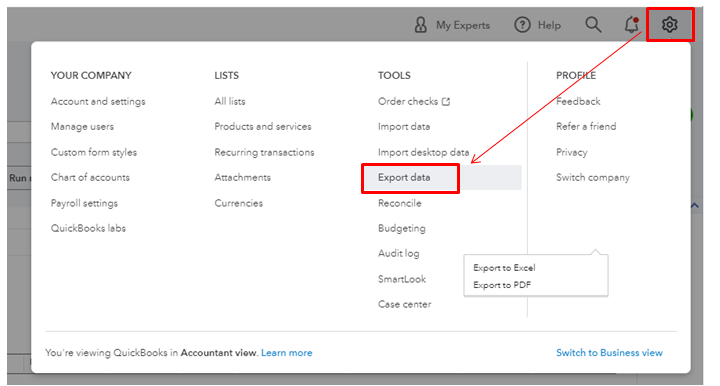

Please know that you’ll need to export non-posting transactions and attachments separately since it doesn’t include in the lists. You can follow the instructions listed in this article to do so: Export reports, lists, and more.
You can also customize your other reports if you wanted to export specific details of your transactions in QuickBooks.

I’ve attached a reference for importing data to Online and Desktop versions. It has information that ensures data imports precisely and into a specific order.

By following these steps, you surely get moving. Let me know if you still need further assistance during the importing process. I’ll always be here to assist you.
