
- Mark as New
- Bookmark
- Subscribe
- Permalink
- Report Inappropriate Content
Schedules for Report Group (modern view) Do Not Have "View all Schedules" Options
In Quickbooks Online's I have a report group containing modern view reports. I have created a schedule for this group by going to the 'Reports' pane, clicking the drop down arrow next to the group name, and clicking the 'Create a Schedule' option. After inputting the desired schedule and clicking 'save and turn on', a popup says "[YOUR_GROUP_NAME] is scheduled. You can view all schedules by selecting **View all schedules** from the **Action** dropdown menu for this custom report."
However, there is not in fact a 'view all schedules' option for group's action dropdown (or for any of the reports within it). I'm therefore unable to access and edit my existing schedule. To change the schedule I need to create a new one from scratch, but if I try to use a 'Workflow name' that I've used for this group in the past, I get an error saying "A workflow with the same name already exists. You need to use a different name and then save." This suggests the my group-level schedules are being retained (rather than just overwritten)... but how can they be accessed (edited, deleted, etc)?
Note: if I create a schedule for an individual report (not a group) the 'view all schedules' option does exist for the action dropdown for that individual report. It is specifically the group-level schedules for which I am unable to find the 'view all schedules' option
Thanks for the assist.


- Mark as New
- Bookmark
- Subscribe
- Permalink
- Report Inappropriate Content
Other Questions
Hello, Skino. Great catch on that missing View all schedules option.
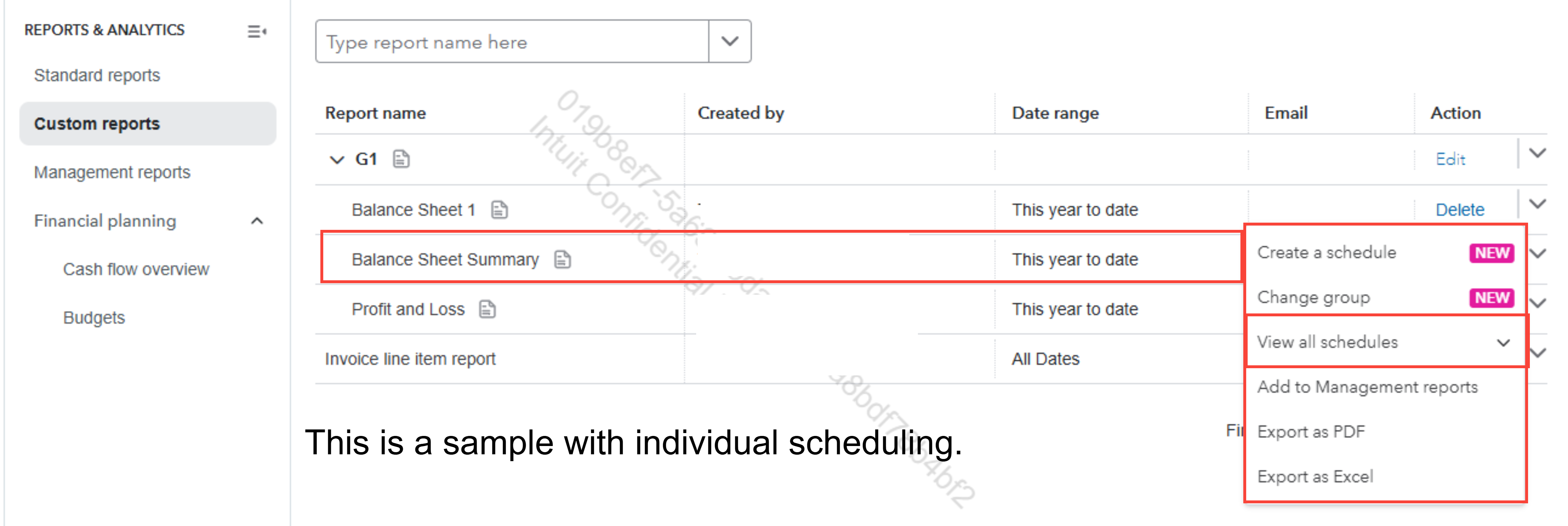
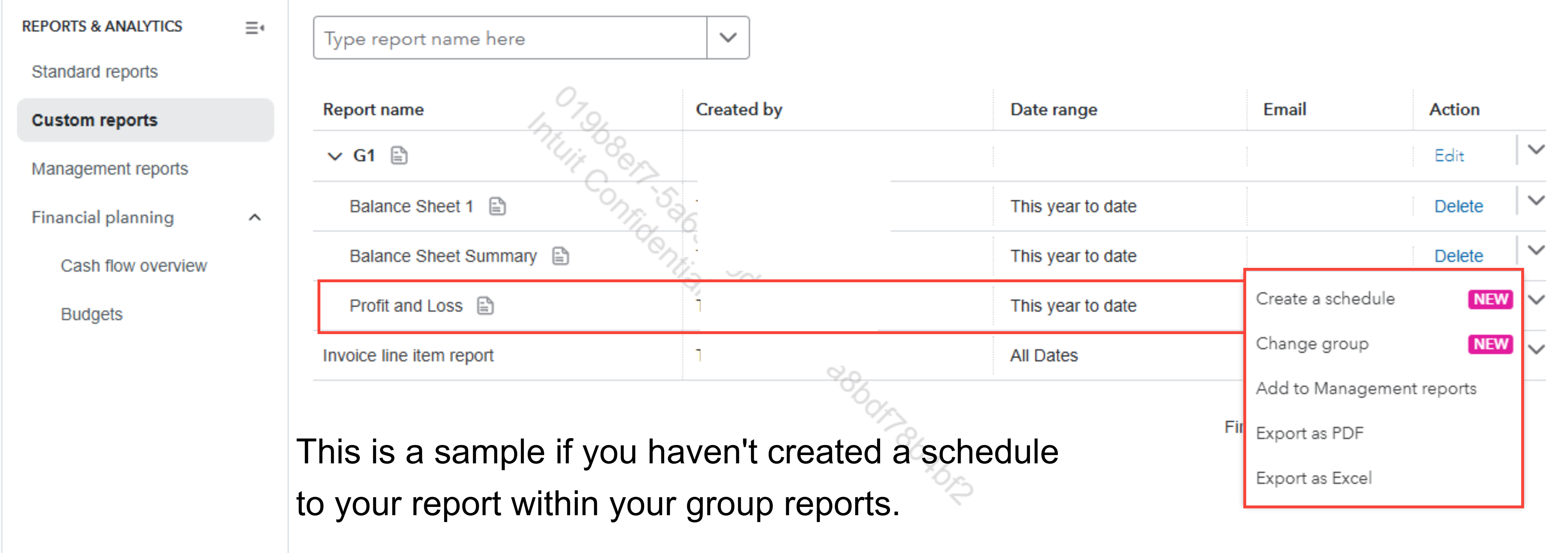
Here's the deal: QuickBooks treats group schedules as background Workflows, which why they play hard to get in the menu. To actually own your schedule, we can flip the script by going directly to your Report, then select Custom Reports and find your workflow instead of digging through menus.
By switching to individual scheduling within your workflow, you'll gain instant visibility. The View all schedules button appears right in the Action dropdown, giving you the bird's-eye view of your entire operation in once click. Command. control, and conquer.
I've attached a picture below to help clear things up:
Picture A:
Picture B.
Feel free to reply to this post if you need further assistance.
- Mark as New
- Bookmark
- Subscribe
- Permalink
- Report Inappropriate Content
Other Questions
Hello,
Thank you for taking the time to respond.
I'm having a hard time understanding what you're suggesting. What do you mean by "own your schedule"?
What do you mean by "select Custom Reports and find your workflow instead of digging through menus"? I am in the 'Custom reports' page, and neither the dropdown action menus for my group or the individual reports within my group have the 'view all schedules' option (see attachment). The issue isn't that I need to dig through menus to find my group schedules— it's that I can't find them anywhere period.
If by "individual scheduling within your workflows" you're suggesting setting schedules for each individual report instead of for the report group, please note that I am specifically interested in how to modify group-level schedules.
Thanks

- Mark as New
- Bookmark
- Subscribe
- Permalink
- Report Inappropriate Content
Other Questions
Hi there, Skino. We appreciate your patience while we clarify how this works in QuickBooks Online, and I understand how overwhelming this must be.
You are correct that on the Custom Reports page, scheduled workflows for individual reports include a View all schedules option in the Action dropdown menu, after a schedule has been created. However, report groups do not offer a similar View All Schedules option for group-level schedules.
We encourage you to send feedback to our Product Development team to help improve workflows like these and deliver solutions that better meet your needs in the future.
To send your input, here's how:
- Open your QuickBooks Online account.
- Go to the Gear icon located at the top-right corner of your screen.
- Under the Profile section, select Feedback.
- Type in your suggestions and then click on Next.
In the meantime, you may also want to explore compatible third‑party applications available through the QuickBooks App Store, some of which offer more flexible scheduling and reporting options.
I’ll ensure this conversation remains open for any future updates and discussions.
- Mark as New
- Bookmark
- Subscribe
- Permalink
- Report Inappropriate Content
Other Questions
Hello Aldren,
Thanks for the reply.
Is there an alternative way to delete group schedules (without deleting the group)?
The primary issue I'm encountering is that is previous schedules for the group continue to run even after a new schedule has been created. So I am currently receiving numerous emails from old schedules that I have no way of disabling.

- Mark as New
- Bookmark
- Subscribe
- Permalink
- Report Inappropriate Content
Other Questions
I appreciate you following up on this thread, Skino. The ability to remove a schedule without deleting the group report is a clearly advantageous feature. However, this option is currently not available in QuickBooks Online due to the platform's current design for group scheduling.
That said, you can stop emails from being sent without removing the report group entirely by simply turning off the schedule. This will keep the group name, email list, and settings intact while ensuring the report remains accessible without sending any emails.

Alternatively, if you'd prefer to reset the schedule data while keeping the group name and its reports, you can delete the specific custom report from the group, recreate it, and manage it without a schedule.
We are always here in the QuickBooks Community to provide clear and supportive guidance. Feel free to reply here if you have any further questions or need more assistance!
- Mark as New
- Bookmark
- Subscribe
- Permalink
- Report Inappropriate Content
Other Questions
Hello
Would you mind clarifying how deleting a single report from within a group to mange it independently without would resolve the issue of being unable to turn off existing group-level schedules?
Thanks
- Mark as New
- Bookmark
- Subscribe
- Permalink
- Report Inappropriate Content
Other Questions
Sorry typo in the above.
It should read "Would you mind clarifying how deleting a single report from within a group to mange it independently would resolve the issue of being unable to turn off existing group-level schedules?"

- Mark as New
- Bookmark
- Subscribe
- Permalink
- Report Inappropriate Content
Other Questions
Hi there, @Skino.
Thank you for following up and clarifying your concern about managing your report schedules effectively, especially when previous group schedules continue sending emails after new ones are created. Let me clarify how this works in QuickBooks Online.
In QuickBooks Online, scheduled emails for management or grouped reports are directly tied to the specific report within the group. Currently, there isn’t a separate option to turn off older group-level schedules independently. To stop the previously scheduled emails, you’ll need to remove/delete the report that contains the active schedule and recreate or re-add it without the old schedule.
Refer to the image below.
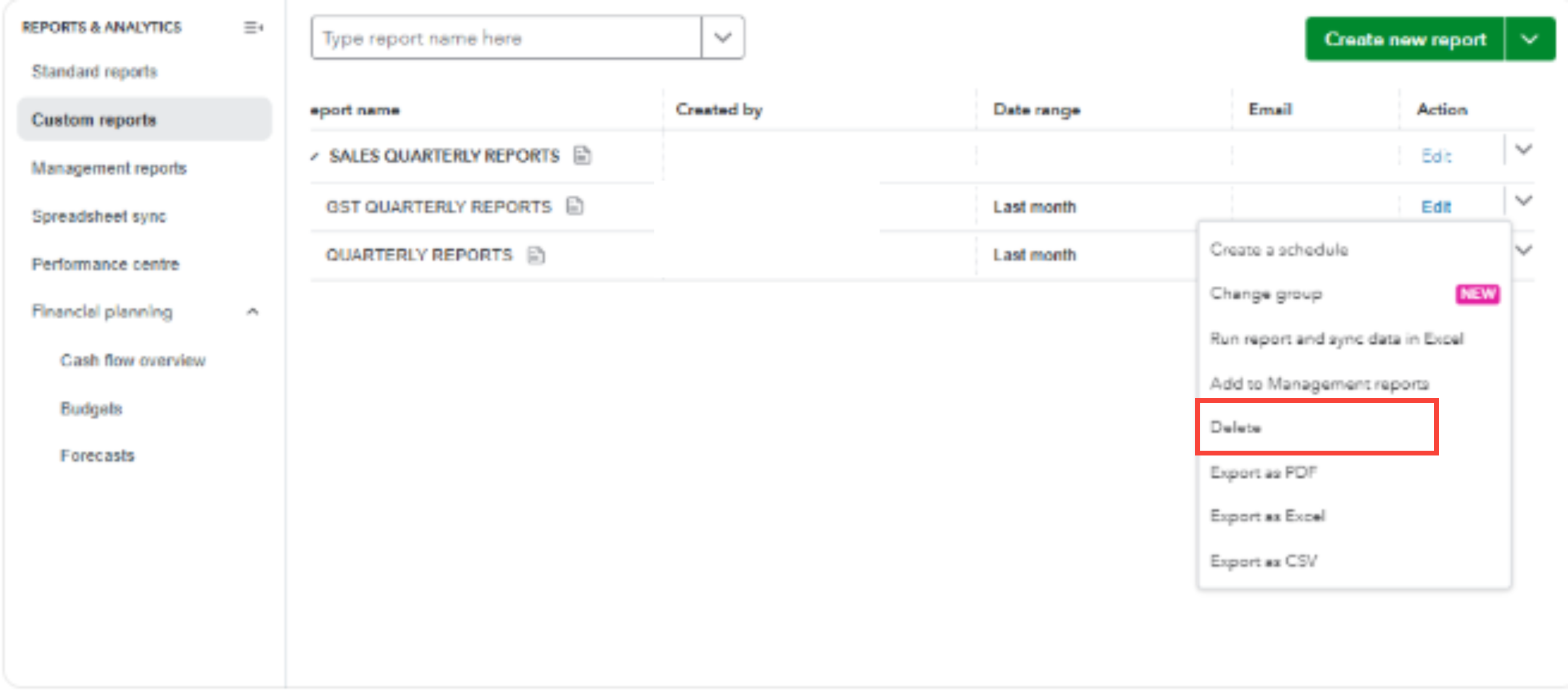
By removing the old scheduled report, it will stop the previous scheduled emails while keeping your report group intact and allowing you to rebuild it with your updated schedule.
If you have any further questions about reports, please feel free to reply to this thread. We're always here to help.
- Mark as New
- Bookmark
- Subscribe
- Permalink
- Report Inappropriate Content
Other Questions
Hello John,
Thank you for your input.
To make sure we're on the same page, it may help if I elaborate on the predicament: I have a report group containing 8 custom reports. I created a schedule for that report group (one schedule for the group as a whole) so they would be automatically emailed to me on a daily basis daily. This frequency was used as a test measure. After testing, I went to modify the schedule frequency but found no way to do so, so I created a new schedule for the report group assuming this would overwrite the previous schedule. Instead, I found both schedules remained active, and I cannot modify or delete either.
Your statement, "By removing the old scheduled report, it will stop the previous scheduled emails while keeping your report group intact and allowing you to rebuild it with your updated schedule," sounds like you're referring to deleting a single report, is that so? Since the schedule was created at the group level, all of its 8 reports are 'scheduled reports'. If I delete all of them, I wouldn't say my report group would be in intact, so perhaps I'm misunderstanding you.
When you say "There isn’t a separate option to turn off older group-level schedules independently", what do you mean by independently? Independently of what? Other group level schedules? I have multiple group-level schedules running for a given group and I can't find an option to turn *any* of them off... neither independently nor collectively.
To verify I'm understanding: Scheduled emails for grouped reports are directly tied to the specific reports within the group. But, the action dropdown menus next to the individual reports within the group do not give you the option to modify or delete the schedules 'tied' to them. So the only way to stop a running schedule for report group (containing 'modern view' reports) is it remove/delete all of the reports within the group. Is that correct? That seems a little bit absurd.
Thanks for your assistance.

- Mark as New
- Bookmark
- Subscribe
- Permalink
- Report Inappropriate Content
Other Questions
I appreciate all the details and clarification that you've shared, Skino. Yes, your understanding is correct.
Deleting all individual reports associated with the group report will stop the scheduled report from running.
Since QuickBooks Online (QBO) doesn't provide an option to turn off the scheduled report for group reports, I recommend sending feedback to our Product Development team. Your input can help improve workflows like these and lead to better solutions in the future.
Here's how:
- Sign in to your QBO account.
- Click the Gear icon and choose Feedback.
- Write your comments or suggestions, explaining why the feature matters and how it could help your business.
- Hit Next to send it in.
If you have any other questions or concerns about QBO, just let us know. We’re always here to help!
- Mark as New
- Bookmark
- Subscribe
- Permalink
- Report Inappropriate Content
Other Questions
Thanks for clarifying.
If anyone else reading this thread has additional/alternative ideas, I'd appreciate hearing them.
Cheers
