

- Mark as New
- Bookmark
- Subscribe
- Permalink
- Report Inappropriate Content
Account management
We can use the migration tool as the most straightforward way to move your data from QuickBooks Online to QuickBooks Desktop., Mvlee928.
To do this, you'll need to download a migration tool and have your QuickBooks Desktop company file open during the process.
Follow these steps below:
- Sign in to QuickBooks Online using a supported web browser.
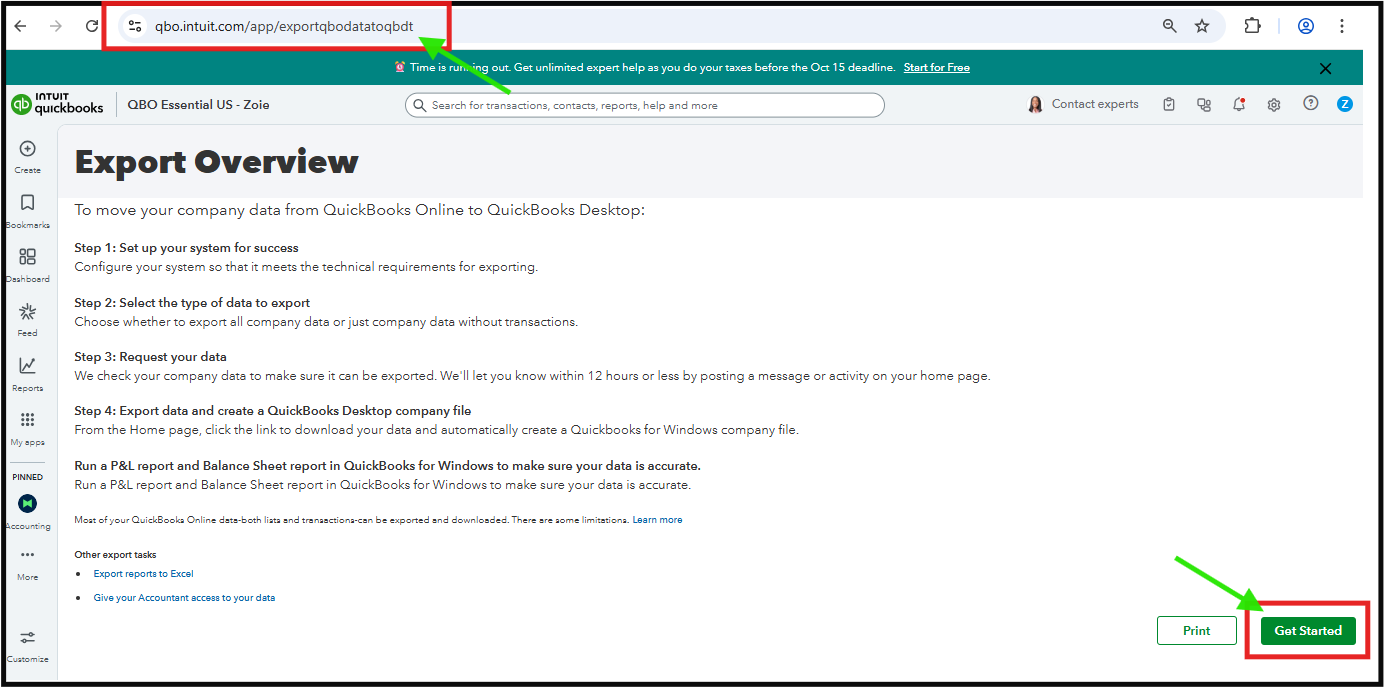
- In the URL bar, replace anything after /app/ with exportqbodatatoqbdt (it should look like this: https://app.qbo.intuit.com/app/exportqbodatatoqbdt).
- On the Export overview screen, click the Get Started button.
- Click the Download tool button to download the migration tool.
- After downloading, launch the installer and run it.
- Follow the prompts to complete the installation process.
Next, let's proceed to the second process:
- On the Prepare to export page, choose the financial data you want to export and click Continue.
- Next, on the "Request your data" page, enter your name and email address, then click Continue.
- You'll get an email once the file is ready to download. This might take a while, depending on how much data you have.
- Once you receive the confirmation, go back to the Export Overview page.
- Click Continue to Download, then select Download QBXML file to save it to your computer.
- Save the file to your desktop, then choose Continue.
After that, we can move to Step no. 3. To run the QuickBooks Desktop migration tool, please refer to this article as a guide: Move your QuickBooks Online data to QuickBooks Desktop.
Once you've exported your data, run a profit and loss report in both QuickBooks Online and QuickBooks Desktop to compare the results.
Please let us know if you need any further assistance with this matter.
