
- Mark as New
- Bookmark
- Subscribe
- Highlight
- Report Inappropriate Content
Tried to reconcile account, saying I have a discrepancy, a transaction which has been deleted but still can view it on account?
Solved! Go to Solution.


- Mark as New
- Bookmark
- Subscribe
- Highlight
- Report Inappropriate Content
Banking
You can view the details of the transaction, @LizaM1.
You’ll want to open your Audit log and view the details of the transaction that has been deleted. The Audit log tracks your company activity. There, you can see who made some modification and what they did to your account.
That being said, you can see the information of your deleted transaction and recreate it if needed. Let me show you how:
- Go to the Gear icon.
- Select Audit log.
- Click Filter.
- Use the fields on the Filter panel to choose the appropriate User, Date, or Events filter to narrow the results.
- Click the Show only these events and select Transactions.
- Select Deleted/Voided Transactions from the Show drop-down menu.
- Then click Apply.
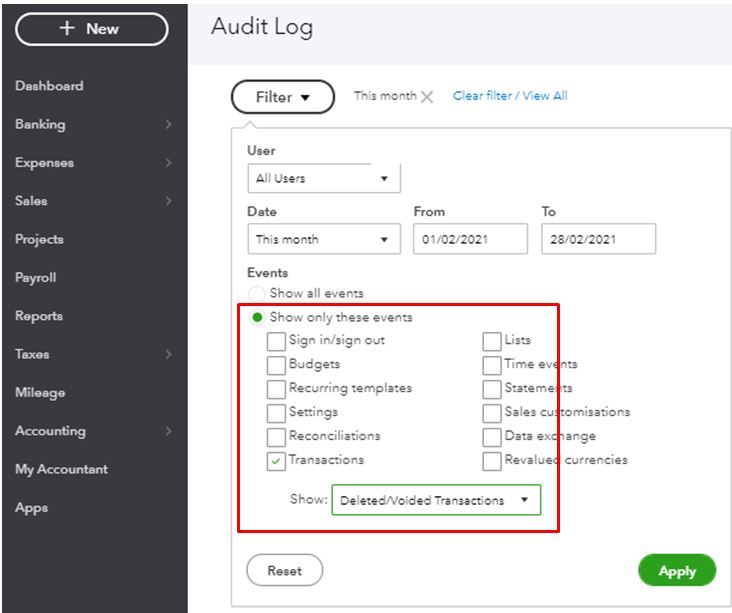
Locate the deleted transaction and copy the details in recreating it. You can also check this article for more details: Use the audit log in QuickBooks Online.
Once everything is all set, you can now confidently start reconciling your account. To be guided through the process seamlessly, you can refer to this article for reference: Learn the reconcile workflow in QuickBooks.
In case you have any other concerns or questions about reconciling your accounts or with your QuickBooks, you’re always free to tag me in your reply. It’s always my pleasure to help and back you up. Have a great day ahead and stay safe.


- Mark as New
- Bookmark
- Subscribe
- Highlight
- Report Inappropriate Content
Banking
It's our pleasure to help, @LizaM1.
I'm here to help you resolve the error you're encountering in reconciling your accounts.
The transaction must have removed the reconciliation status. You can go to the Register to manually mark it as Reconciled (R) to resolve it.
Here's how:
Let me show you how:
- Click the Gear icon at the top and choose Chart of Accounts.
- Locate the appropriate account for the transaction, and click View Register.
- Identify the transaction to edit.
- In the reconcile status column (indicated by a check mark), repeatedly select the top line of the transaction to change the status of the transaction.
- Codes indicate the status of the transaction (refer to the screenshot below) and select Save.
- C - Cleared
- R - Reconciled
- Blank - Not cleared or reconciled
Once done, please check your register if there is still a reconciled transaction.
I'd like to make sure that you're able to resolve your reconciliation, so please let me know if you have any other concern. Take care and have a great rest of the day!
