
- Mark as New
- Bookmark
- Subscribe
- Permalink
- Report Inappropriate Content
Transactions posted to wrong bank account
Using QBO Accountants.
Is there a way to change in bulk transactions posted to the wrong bank account? It does not seem to be possible through Reclassify Transactions. I can't download from bank as the account is closed. Besides, I'd have to delete each transaction already posted. It's taking me forever to open each item and change it. I would just make journal entries, but there's other stuff posted to the bank that does not belong there. Just hoping there is an easier way I don't know about.


- Mark as New
- Bookmark
- Subscribe
- Permalink
- Report Inappropriate Content
Banking
Hi there, truleigh.
I appreciate you for sharing your concern and providing enough details about it.
Yes, you got it right that we're unable to use the reclassify transactions based on your situation. We can only change the class of transactions with items on them, but we can't move or change them to the right account.
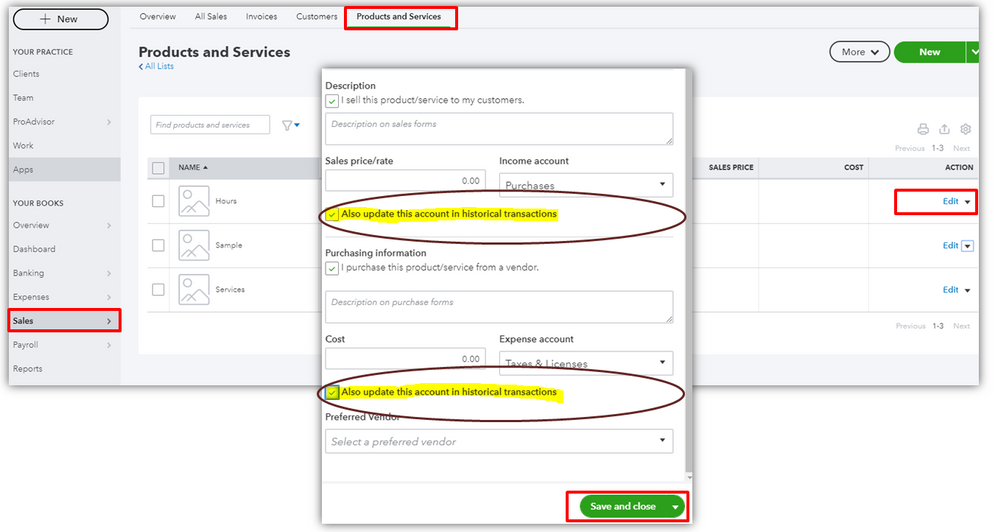
The only thing that we can do is by opening each item and update the account to the right one. I see that the process is quite heavy on your part, but It can help us get these things done.
Let me share with you the steps on how to do it:
- Go to Sales on the left panel.
- Select the Product and Services tab.
- Find the item and click Edit under the Action column.
- Change the correct account for this item.
- Put a check in the Also update this account in historical transactions box.
- Then, Save and Close.
If you'd like to enter journal entries soon, you can use this article as your reference for further details about the process: Learn more about adjusting journal entries.
Just tap me on my shoulder if you have more something to ask. I'll be here to assist and provide you more details of your query. Keep safe!
- Mark as New
- Bookmark
- Subscribe
- Permalink
- Report Inappropriate Content
Banking
These are sales items that I need to change. They are primarily expenses. They were all posted to the wrong bank account. There are deposits too, but I'm just making journal entries to correct. Isn't there a way to bulk change the bank account expenses are posted to?
- Mark as New
- Bookmark
- Subscribe
- Permalink
- Report Inappropriate Content
Banking
Thanks for getting back, @truleigh.
Currently, there isn’t a way to change the bank account expenses in batch. You'll have to manually change them as an alternative. Only the Reclassify transaction tool can move multiple transactions to a different account at once.
To keep track of your finances, I added this article as a reference. It has report features available to use moving forward: Run reports in QuickBooks Online.
I’ll be around if you have follow up questions. Keep safe.
- Mark as New
- Bookmark
- Subscribe
- Permalink
- Report Inappropriate Content
Banking
Maybe you could suggest to the development department to create a way to change batch change transactions between bank accounts and credit card accounts.

- Mark as New
- Bookmark
- Subscribe
- Permalink
- Report Inappropriate Content
Banking
I just want to reinforce this as an improvement needed in QBO. We have a new bookkeeper who paid bills from the wrong QB Bank account and now I have to change them all individually.
- Mark as New
- Bookmark
- Subscribe
- Permalink
- Report Inappropriate Content
Banking
I'm here to help share details about changing any transaction detail, @lkajfdlkjfa.
As of the moment, there isn't an integrated way to change the bank account used to pay bills in batch. You're on the right track, it's best to manually change the bank detail, one at a time.
While the option is not yet available, I recommend letting our product developers know about this improvement by sending feedback. You can do so by following the steps below:
- Go to the Gear icon.
- Under PROFILE, select Feedback.
- Enter a few describing how changing transactions details in batch can help your business tracking and reporting needs.
- Select Next.
- Click Skip and send message.
I'm adding this reference so you're able to track the status of your request as well as the latest updates from our developer team: Customer Feedback for QuickBooks Online.
It'll always be my pleasure to help if you've got other questions besides this changing details of any transaction. Use the Reply button and leave your comment below so that I can assist you further.

- Mark as New
- Bookmark
- Subscribe
- Permalink
- Report Inappropriate Content
Banking
Same problem - money came out of the right account, but it is posted out of the wrong account. How can I manually change the account; is there a way to edit without having to re-enter each one? I click "edit" but do not see an option to change bank account.

- Mark as New
- Bookmark
- Subscribe
- Permalink
- Report Inappropriate Content
Banking
Thanks for joining this thread, SLC100001.
You can change the account for bill payments while editing them.
Here's how:
- In your left navigation bar, go to Accounting, then Chart of accounts.
- Find the account your transaction's in and hit its View register option.
- Locate the transaction and click it.
- Choose Edit.
- From your Bank/Credit account drop-down list, pick the appropriate account.
- Select Save and close, then Yes.

You'll also be able to find many detailed resources about using QuickBooks in our help article archives.
Please feel welcome to send a reply if there's any questions. Have an awesome day!
- Mark as New
- Bookmark
- Subscribe
- Permalink
- Report Inappropriate Content
Banking
Thanks, but I am referring to payments that have already been made but were posted to the wrong bank account. Payroll tax payments to be exact. Looking for a way to edit each transaction.
- Mark as New
- Bookmark
- Subscribe
- Permalink
- Report Inappropriate Content
Banking
Let’s get these payroll tax payments settled, @SLC100001.
Before we move these payments to the correct account, make sure the bank account where those entries should go into is set up accordingly in your Payroll settings. This way, QuickBooks Online will allocate and automatically use it every time you make tax payments.
Here’s how:
- Go to the Gear icon and select Payroll Settings.
- Click the Pencil account in the Bank accounts section.
- Make sure the correct bank account is selected.
Then, create a journal entry to post the transactions to the right account. I’m glad to show you the steps:
- Click the + New button, then choose Journal entry.
- Enter the date the transaction took place.
- Select the affected accounts.
- Enter the amount in the Debit or Credit column.
- Press Save.
Once done, you can now reconcile your account to ensure everything is accurate and balanced.
You might want to check this reference to get answers to your payroll tax payment: Common tax payment and form filing questions. From there, you can learn some tips for managing your payroll.
Don't hesitate to drop a reply below if you have an additional account or payroll concerns. The Community is always here to help. Take care!

- Mark as New
- Bookmark
- Subscribe
- Permalink
- Report Inappropriate Content
Banking
Thank you for this ZackE.
Is there a way to do a bulk edit?
We have 1 year (600+ transactions) that will require editing this way.

- Mark as New
- Bookmark
- Subscribe
- Permalink
- Report Inappropriate Content
Banking
Hi there, BgStev.
You can bulk edit if you're using QuickBooks Online Accountant and QuickBooks Online Advanced. Simply use the reclassify tool to save time and make the same change to multiple transactions at once.
Please browse this article for complete details and steps: Reclassify or move multiple transactions at once.
If you using other versions of QuickBooks Online, you need to open each transactions. Then, manually change the bank account from there.
To prevent this from happening again, make sure to check your payroll settings. This is to ensure your payroll transactions are posted to the correct account. I'm adding this article as your guide: Change your accounting preferences in QuickBooks Online Payroll.
Get back to me if there's anything else you need by commenting below. Just leave a comment below and I'll get back to you.
