

- Mark as New
- Bookmark
- Subscribe
- Permalink
- Report Inappropriate Content
Reports and accounting
I can guide you to the List menu to delete inactive inventory sites, ensuring only active ones remain, Gosha. Let me walk you through the process.
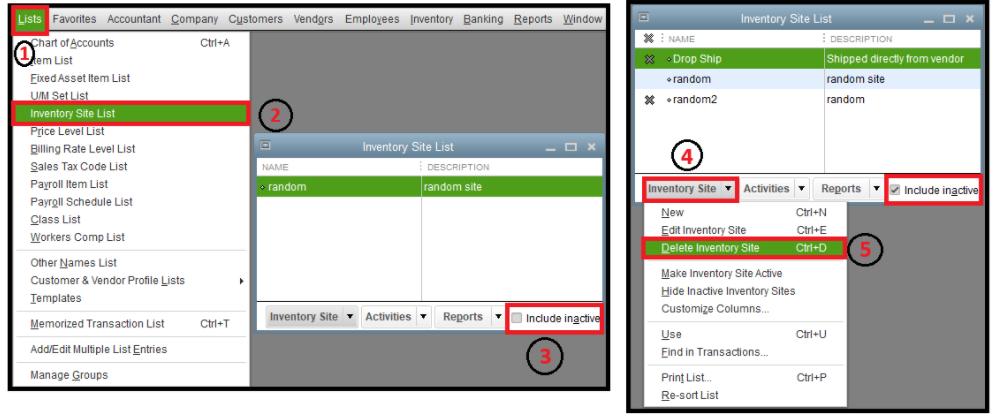
When deleting your inventory sites in QuickBooks Desktop (QBDT), let's begin by including the inactive inventory sites. This will allow you to see and delete them immediately. After ticking the Include inactive checkbox, you'll see an X mark indicating that this is already marked as inactive.
Please follow the steps below:
- Go to the List menu, then select the Inventory Site List.
- Tick the Include inactive checkbox located beside the Reports dropdown.
- Click the Inventory Site dropdown, and choose Delete Inventory Site.
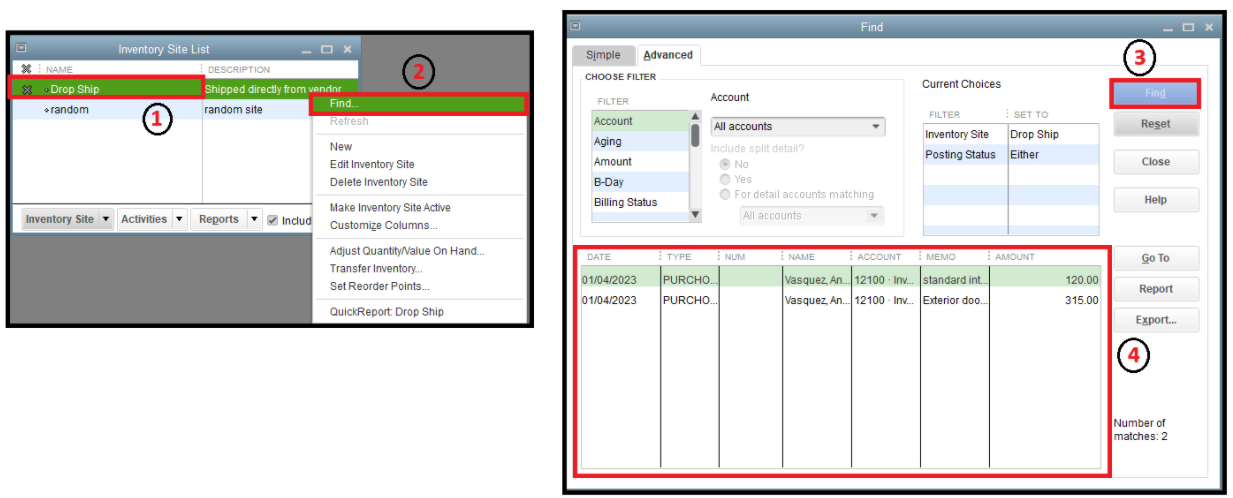
Note that you cannot delete an inactive site if there are any active transactions linked to it. To find these transactions, right-click the inventory site, select Find, and double-click the transactions displayed in the Find window.
You can view the screenshot below for more visual reference:
Additionally, you can view this article to learn more about inventory sites: Multiple Inventory Sites.
If you no longer need a particular feature of Advanced Inventory, you can turn it off and still use other Advanced Inventory features.
You're always welcome to ask us again if you need further assistance as you delete your inventory site, Gosha. I'll be glad to lend a helping hand.
