 QuickBooksHelpIntuit
Using tapes, memos, and review marks in Pro Tax
by Intuit•2• Updated 5 days ago
Tapes and memos are features in the Pro Tax T2 module that let you add extra information to a return. Use them to keep track of specific details or to support calculations from within the return. You can also use review marks to flag information that needs further action.
Attaching tapes in Pro Tax
A tape attaches a calculation to a field and records how you arrived at the value. Tapes are managed in the feature menu on the far right of a return, using the calculator icon.
- Right-click a field in the return that contains a value, then select Tape.
- Enter a description and a value for your tape.
- Add a note, if required.
- Save the tape as a draft, or post the tape.
Note: The total value of a tape doesn't appear in the selected field until you post the tape.
A calculator icon appears beside each value line that contains a tape. You can also see all actively posted tapes in the hamburger menu on the far right of the Pro Tax screen. If you need to, you can carry tape descriptions forward to future returns.
Clearing an attached tape
To remove an attached tape, use either of these methods:
- Select the calculator icon next to the line to open the tape, then select Delete.
- In the menu on the far right, select the three dots in the upper right of any listed tape, then select Delete tape.
Attaching memos in Pro Tax
Memos are short notes, descriptions, or reminders that you can add to any line in Pro Tax. A memo works like a sticky note on the return, and you can also use it to share information with other members of your firm. Memos are managed in the menu on the far right of a return, using the conversation icon.
- Right-click a field in the return, then select Memo.
- Enter the memo you want attached to the line.
- Select Save.
A conversation icon appears beside each line that contains a memo. You can also see all actively posted memos, including the date and time each one was posted, in the hamburger menu on the far right of the Pro Tax screen. If you need to, you can carry memos forward to future returns.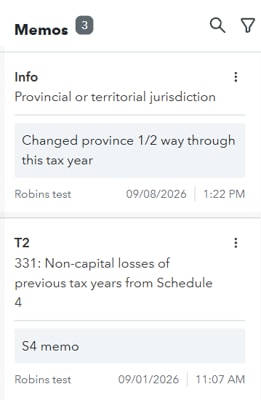
Clearing an attached memo
To remove an attached memo, use either of these methods:
- Select the bubble icon next to the line to open the memo, then select Delete.
- In the menu on the far right, select the three dots in the upper right of any listed memo, then select Delete memo.
Using review marks in Pro Tax
Review marks validate information that needs further action. You can use them with a tape, a memo, or on their own. Review marks are managed in the menu on the far right of a return, under the Review section.
- Right-click a field in the return, then select Preparer sign off, Partner sign off, Question, or Correction. You can apply more than one review mark to the same field, and you can combine review marks with a tape or a memo.
- When a line uses more than one review feature, Pro Tax shows a combined review icon on that line.
- Select the icon to see which review and annotation marks are attached. A check mark identifies each one that's applied.
- To clear a review mark, right-click the field, then select None or select the review mark you want to remove.
Review mark types
- Preparer sign off uses a single check mark icon. It signifies that the reviewer or preparer validated the data.
- Partner sign off uses a check mark inside a circle. It signifies that a partner or accountant with final decision-making authority reviewed the data in the field.
- Question uses a question mark icon. Use it when you have a question about the information in a data field, and pair it with a memo to add specifics.
- Correction uses an X icon. It indicates that the data in the field needs to be corrected, and you can pair it with a memo to add clarification.
Finding annotations and review marks
After you post your annotations or create review marks, you can find an overview on the far right side of the return. Select the hamburger menu icon to expand the menu and show a detailed list of all annotations and review marks you created.
More like this
- Create new returns in Pro Tax T2by QuickBooks
- Pro Tax release notesby QuickBooks
- T1 and T2 carry forward from TaxCycle to Pro Taxby QuickBooks
- Pro Tax frequently asked questionsby QuickBooks