
- Mark as New
- Bookmark
- Subscribe
- Permalink
- Report Inappropriate Content
I downloaded transactions into bank feed that were old. How do I delete the unmatched transactions?
They are old transactions that were downloaded prior to my QB start date...how do I delete them once they've been downloaded.
Solved! Go to Solution.
- Mark as New
- Bookmark
- Subscribe
- Permalink
- Report Inappropriate Content
Banking

- Mark as New
- Bookmark
- Subscribe
- Permalink
- Report Inappropriate Content
Banking


- Mark as New
- Bookmark
- Subscribe
- Permalink
- Report Inappropriate Content
Banking
Hey there betsy,
It would be a delight to assist you with your bank feeds concern today.
To remove or delete transactions from the Bank feeds, you have to ignore them.
Let me show you how:
- Click the Banking menu.
- Go to Bank Feeds, then choose Bank Feeds Center.
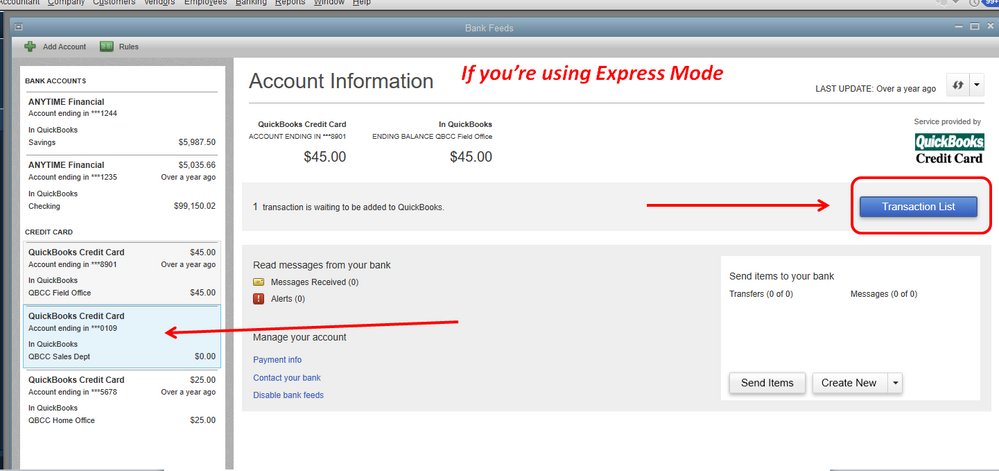
- Choose the bank account, then click Transaction List.
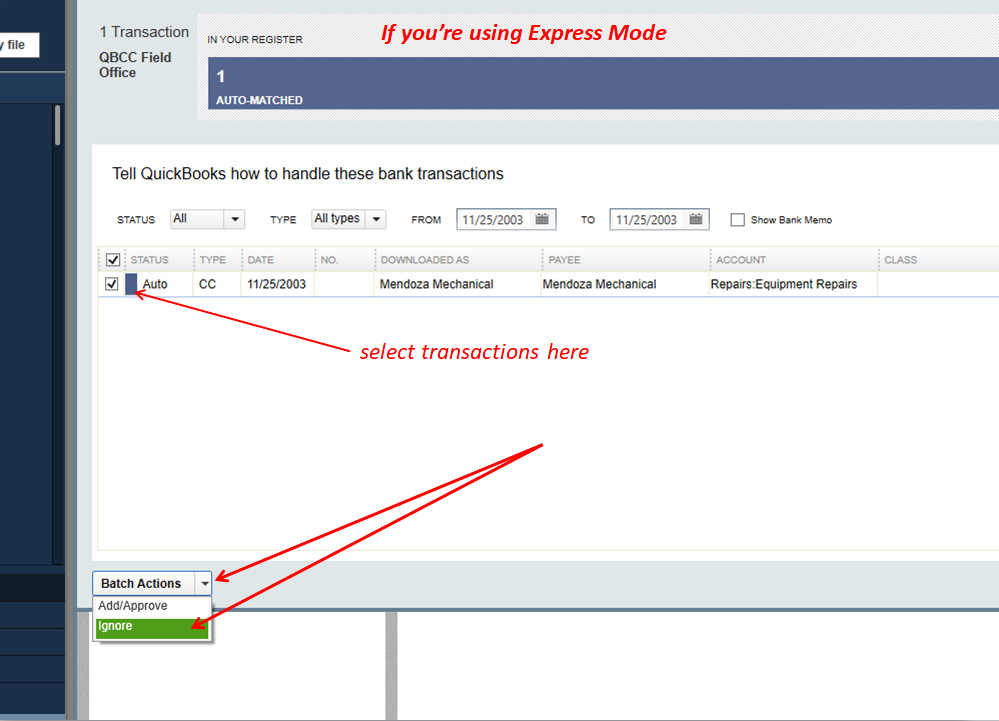
- On the Transaction List page, put a check mark on the box column to select the transactions you want to delete.
- Click Batch actions, the choose Ignore.
- You'll receive a message, "Are you sure you want to delete this transaction?", just click Yes.
That should do it! Visit us anytime if you have other concerns. Have a wonderful day!
- Mark as New
- Bookmark
- Subscribe
- Permalink
- Report Inappropriate Content
Banking
- Mark as New
- Bookmark
- Subscribe
- Permalink
- Report Inappropriate Content
Banking
Thanks for getting back to me.
The Transaction List button is located at the upper right corner of the Bank Feeds page. I have updated my answer at the top and added a screenshot so you'll know where I'm referring to.
Please let me know if you find the Transaction List button or if you need any help.
- Mark as New
- Bookmark
- Subscribe
- Permalink
- Report Inappropriate Content
Banking
- Mark as New
- Bookmark
- Subscribe
- Permalink
- Report Inappropriate Content
Banking
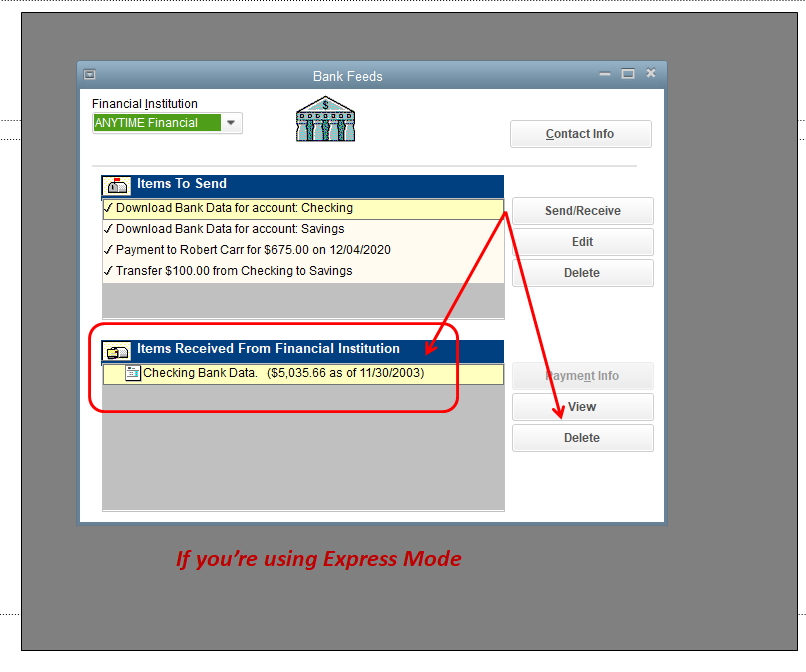
Thanks for the clarification. It seems you are using the Classic Mode Bank Feeds. The option to delete a single unmatched transaction if you are in the Classic Mode is currently unavailable.
Here's how to remove multiple downloaded transactions:
1. Click the Banking menu.
2. Go to Bank Feeds, then choose Bank Feeds Center.
3. Go to the Items Received From Financial Institution section.
4. Click the statement you want to delete.
5. Click the Delete button.
6. On the Delete Statement window that appears, Click Yes.
Please let me know how it goes. Thanks again.
- Mark as New
- Bookmark
- Subscribe
- Permalink
- Report Inappropriate Content
Banking
- Mark as New
- Bookmark
- Subscribe
- Permalink
- Report Inappropriate Content
Banking
I want to make sure this is taken care of.
To have this further checked, you can contact QuickBooks Technical Support. They have more tools, like screen sharing, that can help you.
Here's how you can contact us:
1. Open a browser, navigate to: <a rel="nofollow" target="_blank" href="https://help.quickbooks.intuit.com/contact">https://help.quickbooks.intuit.com/contact</a>.
2. Choose your QuickBooks Product.
3. Select your QuickBooks version.
4. On the Contact Us page, click on your issue/topic.
5. Click the Get Phone Number button to see the support number.
Don't hesitate to post anytime in the Community if you have other concerns. Take care!
- Mark as New
- Bookmark
- Subscribe
- Permalink
- Report Inappropriate Content
Banking
- Mark as New
- Bookmark
- Subscribe
- Permalink
- Report Inappropriate Content
Banking
In Classic Mode, this is even Easier. Just Delete the Entire file.
You can see this in my attachments.
- Mark as New
- Bookmark
- Subscribe
- Permalink
- Report Inappropriate Content
Banking

- Mark as New
- Bookmark
- Subscribe
- Permalink
- Report Inappropriate Content
Banking
Hi Kristine,
Thanks for posting this. I am not able to see the transaction list. I don't see a photo on your post. I appreciate your help in getting this resolved on my file.

- Mark as New
- Bookmark
- Subscribe
- Permalink
- Report Inappropriate Content
Banking
Let me join this thread and provide the screenshots, julie L.
You can also scroll down to the Do you need to delete unmatched transactions from your Bank Feeds section of this guide article: Add And Match Bank Feed Transactions.
Keep us posted by adding another reply below if you need more help. See you around.

- Mark as New
- Bookmark
- Subscribe
- Permalink
- Report Inappropriate Content
Banking
When I do as you say, the transaction disapper, but then on the next feed download they reappear. How do I permanently stop them? Thanks.


- Mark as New
- Bookmark
- Subscribe
- Permalink
- Report Inappropriate Content
Banking
QuickBooks is designed to prevent permanent data loss by allowing unmatched or previously ignored transactions to reappear in the Bank Feeds Center, Tom259. This ensures you don't accidentally lose important financial information if transactions were unintentionally dismissed.
Allow me to share steps to prevent ignored transactions from appearing the next time you download a statement. To do that, you can add or match the transactions temporarily. Then delete the entire statement.
First, let's temporarily switch the Bank Feeds mode to Classic. Here's how:
- Go to the Edit menu and click Preferences.
- Choose Checking, then proceed to the Company Preferences tab.
- Scroll down to the Bank Feeds section, then click Classic Mode.
- Click OK.

Next, follow these steps on how to delete the entire statement:
- Go back to the Bank Feeds Center.
- Find and select the statement from the Items Received From Financial Institution section. Then, click View.
- Choose Match or Add One to Register, then choose Done to match them.
- Select Yes in the Not Finished Matching screen. You'll return to the Online Banking Center.
- Find and select the same statement from the Items Received From Financial Institution section.
- Click Delete.

Let me share this article that provides more information about this process: Remove duplicate transactions in QuickBooks Desktop.
After that, make sure to switch back your banking mode to the original one. Here's an article as a guide: Switch between banking modes.
For further information on maximizing your use of the Bank Feeds feature, we recommend checking out these resources:
- Re-brand or reset accounts for Bank Feeds access
- Create rules to categorize transactions in QuickBooks Desktop
As always, you can reach out to us again if you need more help with your banking transactions and other financial data in QuickBooks. We'll make sure to provide assistance when needed.
