

- Mark as New
- Bookmark
- Subscribe
- Permalink
- Report Inappropriate Content
Banking
Hi wvhay.
Thank you for joining the conversation. I'm happy to provide the step-by-step process to upload your bank transactions using an Excel file in a CSV format.
Your excel file should have a Date, Description, and Amount column. These are the only things we need to import your transactions. Some banks provide one column for the amount while others provide two, as shown below.
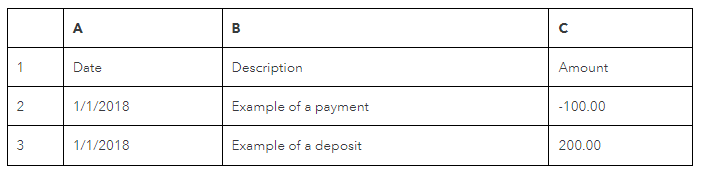
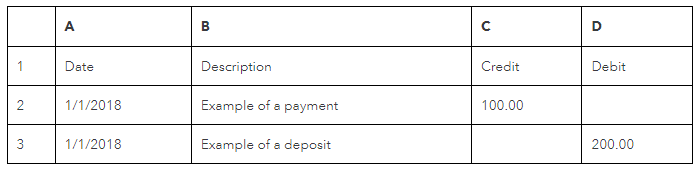
If you've downloaded a file in the XLSX format, which is the usual format for Excel files, you need to save it as CSV. It's the compatible file format for uploading transactions using Excel files.
- Open the Excel file, and make sure it has the three columns I mentioned above.
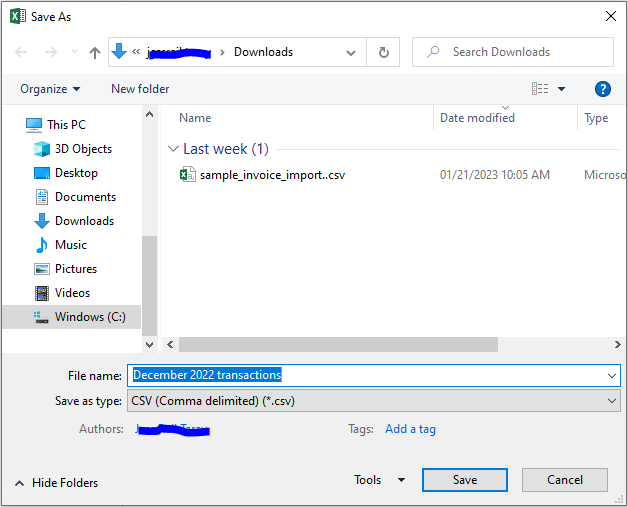
- Click File menu and select Save as.
- Select a destination folder where you want to save the file.
- In the File name field, enter the name of the file. Example: December 2022 transactions.
- In the Save as window, click the Save as type droplist.
- Select CSV (comma delimited) or CSV (comma-separated values), depending on what you see.
- Click Save.
After creating a CSV copy, upload your transactions using the steps in this article: Manually upload transactions into QuickBooks Online. Go to the Step 4 section and expand the option that is applicable to you. Then, you can follow Steps 5-6.
If you need more help with uploading your transactions, feel free to go back to this thread. We're just around to help.
