

- Mark as New
- Bookmark
- Subscribe
- Permalink
- Report Inappropriate Content
Other questions
Welcome to the Community, @DavidFriedl. I'm here to ensure you're able to record the partial refund of your security deposit and its remaining amount in QuickBooks Online (QBO).
You're on the right track in setting up a current asset account called Security Deposit Receivable for the $5000 security deposit. Since you've already received a $4700 partial refund, let's first enter a vendor credit. It helps ensure this will hit the expense account you've paid to the property owner. Then, make a bank deposit to record the refund. After that, use Pay Bills to link the bank deposit to the vendor credit. This way, it lowers the current asset balance on your Balance Sheet report. I'll guide you how.
To enter a vendor credit:
- Go to the + New button from the left menu.
- Select Vendor credit under Vendors.
- Choose the landlord from the Vendor drop-down.
- Enter the Category details or Item details depending on how you record purchases with the property owner.
- Click Save and close.
- Go to the + New button from the left menu.
- Click Bank deposit under Other.
- Select the account in the Account drop-down.
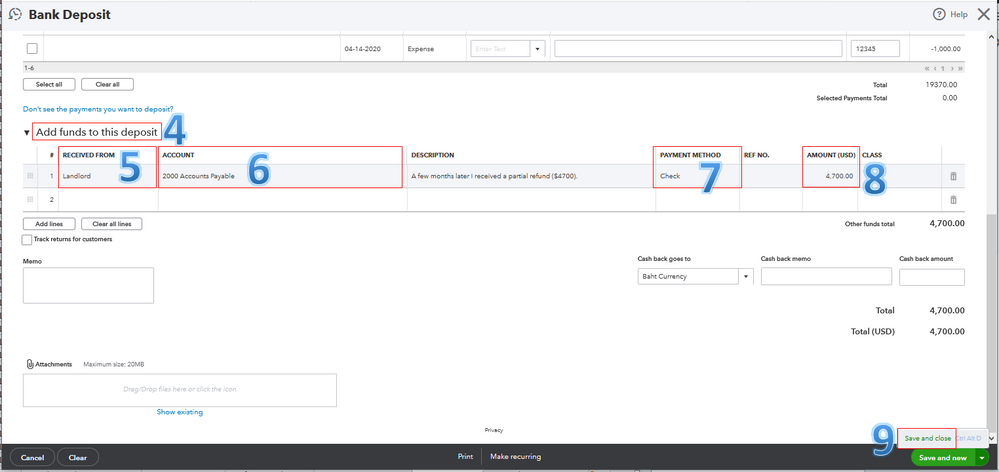
- Go to the Add funds to this deposit section.
- Choose the Vendor in the Received from column.
- Select Accounts Payable to tie the refund to the vendor credit.
- Choose the Payment method.
- Enter 4,700 as the refund amount.
- Click Save and close.
The screenshot below shows you the last six steps.
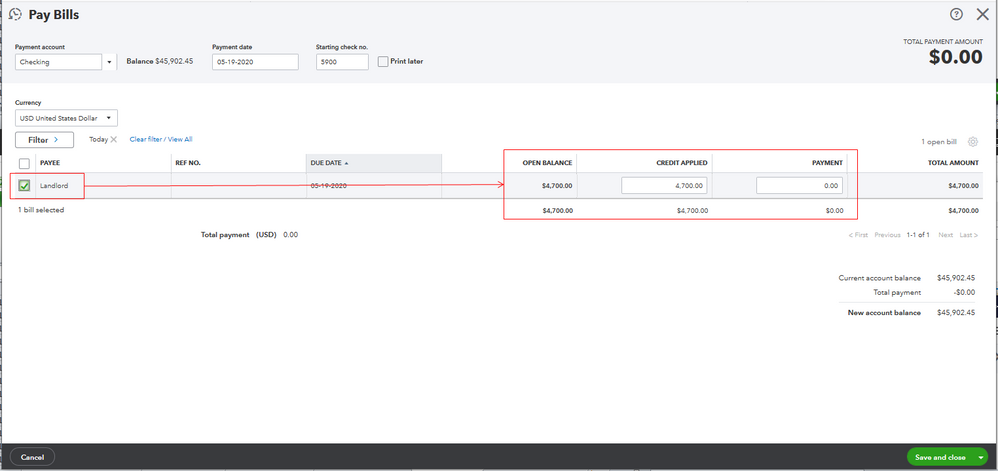
Once done, let's select Pay bills under Vendors from the + New menu. That way, you'll be able to link the bank deposit to the vendor credit. You’ll see the $4,700.00 amount in the Credit Applied field, and the Payment should be $0.00. It keeps your vendor expenses accurate in the software. The screenshot below serves as your visual guide. For the detailed instructions, see Step 3 through this article: Enter A Vendor Refund.
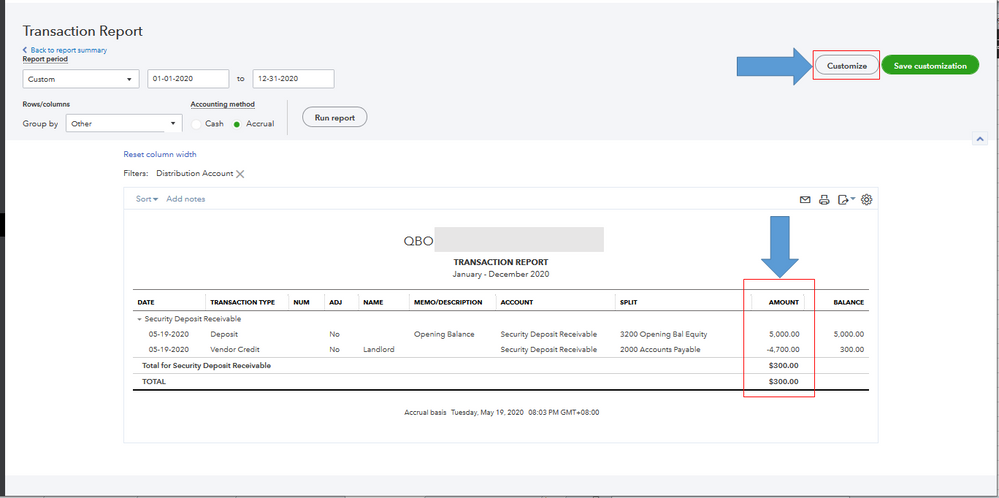
After that, let's run the Balance Sheet report. When you click the amount for the Security Deposit Receivable account, its transaction report opens. You'll be able to see the decrease from its original balance from $5,000 to $300. You can also click Customize to get the specific information you need for your business. View the screenshot below for your visual reference.
For your second concern, you can enter a note for the remaining $300 amount from the vendor's profile in the meantime. It reminds yourself whether it'll be refunded or not in the future.
If you'll receive the refund from the property owner, create a vendor credit and a bank deposit so you can link them. Just repeat the process above. If not, I'd suggest creating a journal entry for the $300 difference. With this, you'll need to consult your accountant to determine the appropriate accounts in the Debit and Credit columns. That way, we can ensure your books will remain accurate.
You can always go to the Transaction List of the property owner. From there, you can view, edit, copy, print, void, or delete their transactions. Doing so will help you efficiently manage your vendor transactions in QBO. For more details, visit this article: How To View All Transactions For A Vendor.
I'll be right here to help if you need anything else. Wishing you and your business continued success while using QBO, @DavidFriedl.
