 QuickBooksHelpIntuit
Use Tap to Pay in QuickBooks GoPayment or QuickBooks mobile app for iOS
by Intuit• Updated 1 week ago
With Apple’s Tap to Pay feature, you can accept payments on the go using the QuickBooks GoPayment or QuickBooks mobile app without setting up card readers.
Requirements
- iPhone XS or later.
- The latest iOS version installed.
- QuickBooks GoPayment or QuickBooks mobile app installed.
Note: Currently, QuickBooks Solopreneur does not support Tap to Pay.
Turn on Tap to Pay on iPhone
Before accepting payments, you must turn on the feature in your app settings.
- Open QuickBooks GoPayment or the QuickBooks mobile app.
- Select the Menu
 icon.
icon. - Go to Settings
 .
. - Select Tap to Pay on iPhone.
QuickBooks mobile app 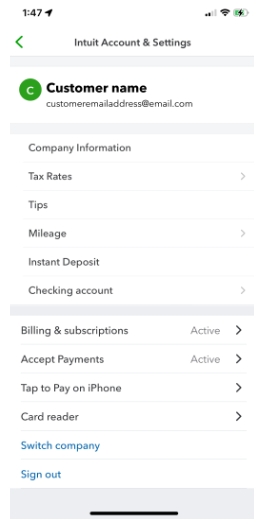
GoPayment 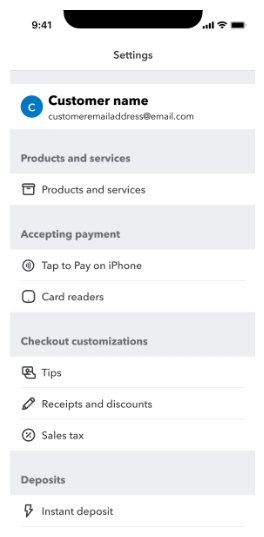
- Select Enable Tap to Pay on iPhone.

- Select how to set up your Tap to Pay option:
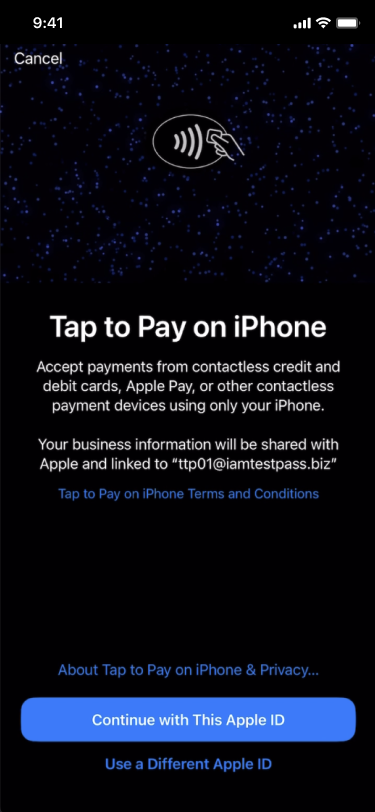
- Continue with this Apple ID (recommended): Sets up Tap to Pay using your iPhone's current Apple ID.
- Use a different Apple ID: Sets up Tap to Pay with an alternative Apple ID. Your device will configure after you select the desired Apple ID. This step may take several minutes to complete.
- Wait for the message “Tap to Pay on iPhone is here" to appear, then you can receive payments on invoices. Optionally, select Try it now with $1.00 to test the feature. The money goes into the bank account you linked to QuickBooks, and fees apply.
After setting up the Tap to Pay on your iPhone, you can now accept contactless payments on your iPhone from physical debit or credit cards and mobile digital wallets, including Android.
Accept Tap to Pay for invoices
Once enabled, you can accept contactless payments from physical debit or credit cards and mobile digital wallets (including Android devices). Here is how to accept payments for open invoices.
- Select the Menu icon.
- Select Sales & Get Paid, then Invoice payments.
- Select Receive payment.
- Find and select the open invoice. Or, find the customer with an open balance, and check the box next to the invoice you want paid.
- Select Charge.
- Select Tap to Pay.
- (Optional) If you’ve turned on tips, your customer can select a tip amount, custom tip, or no tip. Then, select Continue.
- Ask your customer to tap their payment method to your iPhone to pay. Wait for the “Done” message to appear.

- Your customer may select to receive an email or text receipt, or no receipt.
Accept Tap to Pay for new sales
Follow these steps to accept Tap to Pay for new sales:
- Select Sales
 , then the + button.
 - Select New sale.
- Use the keypad to enter the dollar amount for the transaction, or select from your products and service items to charge your customer.
- Select Review, then Charge.
- Select Tap to Pay.
- (Optional) If you’ve turned on tips, your customer can select a tip amount, custom tip, or no tip. Then, select Continue.
- Ask your customer to tap their payment method to your iPhone to pay. Wait for the “Done” message to appear.
- Your customer may select to receive an email or text receipt, or no receipt.
Related links
More like this
- Process payments in the QuickBooks mobile and QuickBooks GoPayment appsby QuickBooks
- Process payments with the QuickBooks Card Readerby QuickBooks
- Accept a cash paymentby QuickBooks
- Card reader features and compatibilityby QuickBooks