 QuickBooksHelpIntuit
Change sub-customers into projects
by Intuit•5• Updated 3 weeks ago
If you currently use sub-customers to track jobs, converting them into projects will help you keep everything in one place. Here's how to convert sub-customers or move specific transactions into projects. Projects is only available in QuickBooks Online Plus and QuickBooks Online Advanced.
In this article, you'll learn how to:
- Convert a sub-customer into a project
- Move specific transactions to a project
- Convert sub-customers from QuickBooks Desktop
Convert a sub-customer into a project
Step 1: Turn on Projects
If you haven't already, turn on the Projects feature. By default, projects are already turned on in QuickBooks Online Plus and QuickBooks Online Advanced. To turn it on, refer to Set up and create projects in QuickBooks Online.
Step 2: Review your sub-customer settings
Before you can convert a sub-customer, adjust these settings:
- Go to All apps
 , select Projects, then select Projects (Take me there).
 - Find and select the project of the sub-customer. If the status is Not started, select In progress from the Status dropdown▼.
- Select the sub-customer's profile link, then select Edit.
- Make sure you select the Is a sub-customer checkbox.
- Review and select the parent customer. This is the account that's connected to the project.
- Select Bill parent customer checkbox, then select Save.
Step 3: Check the parent customer for the sub-customer
Make sure the sub-customer is connected to only one parent customer. It can't be a sub-customer of a sub-customer.
- Go to All apps , select Projects, then select Projects (Take me there).
- Find and select the project of the sub-customer.
- Select the sub-customer's profile link, then select Edit.
- From the Parent customer dropdown, select the parent customer. Then select Save.
Also, make sure your sub-customer doesn't have any sub-customers:
- Go to All apps , select Projects, then select Projects (Take me there).
- Check for any project of the sub-customer you want to convert.
- Select the sub-customer's profile link, then select Edit.
- Select and uncheck the Is a sub-customer checkbox. If there are more sub-customers, remove them as well.
- Select Save.
Step 4: Convert a sub-customer to a project
You can either create a new project from a sub-customer or merge the sub-customer with an existing project.
Create a new project from a sub-customer
This wipes the slate clean. Your sub-customer's existing transactions won't transfer over.
- Go to All apps , select Projects, then select Projects (Take me there).
- Select the New project ▼ dropdown and then select Convert from sub-customer.
- Select the sub-customer you want to convert.
- Select Convert, then select Continue to confirm. Remember, your existing transactions won't transfer over.
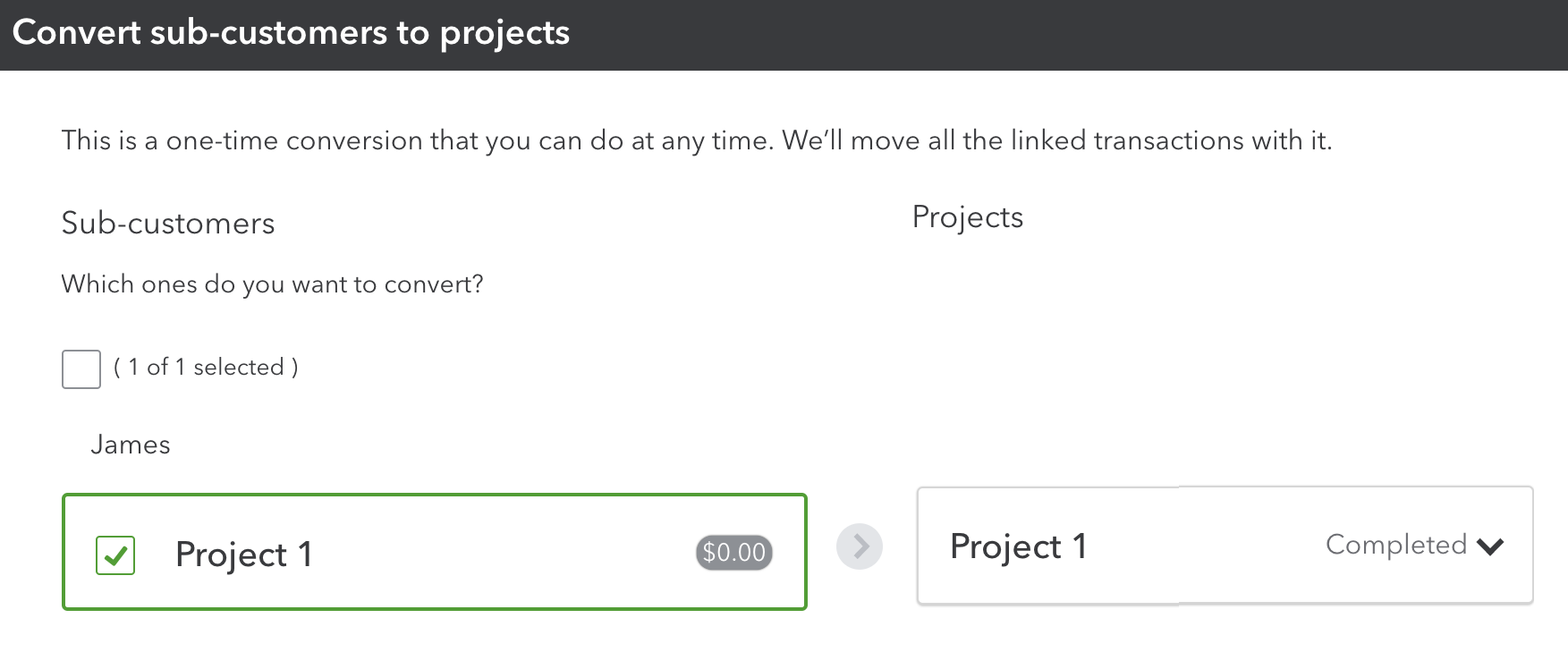
This creates a brand new project. Now you can go to the Projects menu to start working on it.
Merge a sub-customer with an existing project
This transfers your existing sub-customer transactions to an existing project.
- Go to All apps , select Projects, then select Projects (Take me there).
- Find the project you want to merge your sub-customer with.
- Copy the name of the project.
- Go to All apps , select Customer Hub, then select Customers & leads (Take me there).
- Find and select the sub-customer.
- Select the sub-customer's profile, then select Edit.
- Change the Customer display name to match the project name exactly.
- Select Save.
Note: Your sub-customer info such as addresses, tax code, and payment and billing info won't transfer over to the project.
Move specific transactions to a project
Follow "Step 4: Add existing expenses to a project" and "Step 5: Add existing timesheets to a project" in the main project article. Use these steps to add any transaction to a project.
Convert sub-customers from QuickBooks Desktop
If you migrate to QuickBooks Online from QuickBooks Desktop, you'll see jobs as sub-customers. To start using projects, follow the previous sections. You can either change your sub-customers into Projects or move specific transactions.
Projects are very similar to the Jobs in QuickBooks Desktop. In QuickBooks Online, project tracking only works with transactions of a project.
More like this
- Downgrade from QuickBooks Time Elite to QuickBooks Time Premiumby QuickBooks
- Merge duplicate customers in QuickBooks Onlineby QuickBooks
- Change the customer assigned to a project in QuickBooks Onlineby QuickBooks
- Set up and use projects in QuickBooksby QuickBooks