- Mark as New
- Bookmark
- Subscribe
- Permalink
- Report Inappropriate Content
making customer inactive
From my dashboard, I am trying to make a client "inactive." The system tells me I can't do that because there are projects that I need to delete first. I do not use projects, so there are no projects to delete.
So I tried making the client inactive from the "Your Practice" screen. It tells me I cannot make the client inactive because it has "subclients," which I do not use.
Can someone tell me how to make a client inactive??? This shouldn't be so difficult.
Thanks.


- Mark as New
- Bookmark
- Subscribe
- Permalink
- Report Inappropriate Content
Account management
Making your customer's inactive is my priority, @dvmason.
One of the possible reasons why it won't let you inactive one of your clients is that your browsers' stores frequently-accessed data, thus causing websites to act weirdly.
Let's try logging in to your QBO account using a private or a different browser. This way, we can check if it's a browser data issue.
Here's how:
- Press Ctrl + Shift + N on your keyboard for Google Chrome and Mozilla Firefox.
- Press Command + Shift + N for Safari.
Once logged in, go back and try to make a client inactive again to double-check. For more guidance, feel free to check out this article: Make a customer inactive and then active.
If this works, it means that you need to clear the browser's cache so the system can start fresh.
If you get the same result, I suggest contacting our Phone Support Team. This way, they can further investigate this matter further and create an investigation ticket if other users are experiencing the same.
Please keep in touch if there's anything else I can do to help you succeed with QuickBooks. I've got your back. Have a great day!
- Mark as New
- Bookmark
- Subscribe
- Permalink
- Report Inappropriate Content
Account management
I'm here to ensure everything is working, @dvmason.
Were you able to make your customer inactive after the troubleshooting steps I shared? I can provide further assistance if you still encounter any issues with this.
I'll be around if you need more help with your concern. Wishing you all the best.
- Mark as New
- Bookmark
- Subscribe
- Permalink
- Report Inappropriate Content
Account management
Hello, Mark.
Thanks for reaching out. Unfortunately, the solutions you suggested didn't work, so I contacted a QBO agent online. Thru chat, he was able to help me work my way around the program to discover what steps I needed to take. Client is now inactive, problem solved.
Thanks again.
Debbie Mason

- Mark as New
- Bookmark
- Subscribe
- Permalink
- Report Inappropriate Content
Account management
could you share what steps you took to make the client inactive?


- Mark as New
- Bookmark
- Subscribe
- Permalink
- Report Inappropriate Content
Account management
You came to the right place, @skelacorp.Let me take care of your concern so you can make your customer inactive successfully.
Here's how:
- In QuickBooks Online Accountant, go to the Clients menu.
- Find the client.
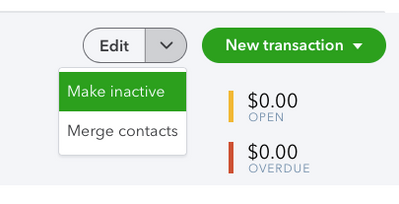
- Select the Edit client ▼ dropdown and then Make inactive.
To see your inactive clients:
- In QuickBooks Online Accountant, go to the Clients menu.
- Select the Settings ⚙ icon at the top of the list.
- Select the Include inactive clients checkbox.
You can browse this article to know more about managing clients in QuickBooks Online.
Let me know if you have other concerns or questions. I'll be around to help you anytime. Take care!

- Mark as New
- Bookmark
- Subscribe
- Permalink
- Report Inappropriate Content
Account management
Do you happen to have steps handy to making customers/ sub customers inactive (with the option to reactivate EASILY)? That is one function I am missing terribly from my desktop version!
- Mark as New
- Bookmark
- Subscribe
- Permalink
- Report Inappropriate Content
Account management
Is there some way of making the job/ sub customer disappear in QBO like in QB DT? I was able to do that in DT and then it would not allow you to add time or materials without raising a red flag (so to speak)? On this QBO I can make it inactive and then still accidentally use the job number in time activity. I liked setting it up to raise red flags in DT.
- Mark as New
- Bookmark
- Subscribe
- Permalink
- Report Inappropriate Content
Account management
@Holly J What you see is what you get. You can make the customer inactive, but that's it. There is no way to delete completely. You can "Hide" them, by not having "include inactive" checked.

- Mark as New
- Bookmark
- Subscribe
- Permalink
- Report Inappropriate Content
Account management
Welcome back, Holly.
Yes, We do have the steps to inactive and reactivate customers/sub-customer. To do this, please follow the easy steps below:
Here's how to inactive customers:
- Go to the Sales menu, then the Customers tab.
- Select the customer's name to open their profile.
- Click the dropdown ▼ next to Edit.
- Choose Make inactive. Then confirm by selecting Yes, make inactive.

By default, inactive customers are hidden. To display all active and inactive customers, you simply need to make sure that Include inactive is selected.
Here's how to make customer active again:
- Go to the Sales menu, and select the Customers tab.
- Near the header of the ACTION column, select the Settings ⚙ icon.
- Select the Include inactive checkbox.

- Find the inactive customer on the list.
- In the ACTION column, select Make Active.
Check out this article for more details: Add and manage customers in QuickBooks Online
Thanks for allowing me to help. Please leave a comment below if you have any additional queries. Enjoy your day!

- Mark as New
- Bookmark
- Subscribe
- Permalink
- Report Inappropriate Content
Account management
For anyone with a similar issue I was able to fix this by going to the customer under the sales section (not the client under "your practice") and click the little arrow next to "edit" and then choose "make inactive" It will give you the same warning about having sub clients (in my case it was a project tied to the client) but if you click ok it will let you make them inactive.