

- Mark as New
- Bookmark
- Subscribe
- Permalink
- Report Inappropriate Content
Banking
Hello there, @ji.
You can click the Funnel icon in the bank register to filter the dates to This year. Let me guide you how:
- From the Accounting menu, choose the Chart of Accounts tab.
- Locate your bank account and click on the View register link under Action.
- On the Bank Register page, click on the drop-down arrow beside All.
- Click the drop-down arrow for Date, and select This year.
- Hit the Apply button.
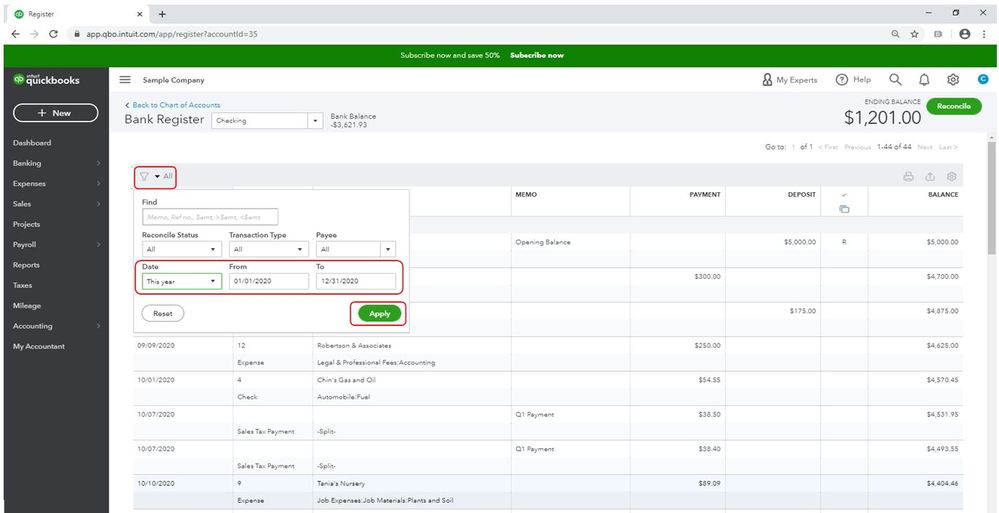
This will show your transactions from the beginning until the end of the year.
However, if you can't still see the fields to filter the dates, we can perform some troubleshooting steps.
Let's open your browser in incognito/private mode. This mode doesn't use the existing cache data files to load a web page.
Here are the keyboard shortcuts to open a private browser:
- Google Chrome: press Ctrl+Shift+N
- Mozilla Firefox: press Ctrl+Shift+P
- Safari: press Command+Shift+N
If it works in incognito, I recommend clearing the cache of your regular browser. This removes the history or log of sites so you can start with a clean slate. You can check this article to see the steps: Clear cache and cookies to fix issues when using QuickBooks Online. If the steps above didn't work, use another supported browser as an alternative.
Also, I'm adding these articles for your reference. This will provide you steps on how to remove columns on your bank register as well as on what other transactions you can quickly add:
- What are account registers in QuickBooks?
- Add transactions to account registers in QuickBooks Online
- Find, review, and edit transactions in account registers
If you have any other questions, mention me in the comment section below. I'm always here to help. Keep safe!
