
- Mark as New
- Bookmark
- Subscribe
- Permalink
- Report Inappropriate Content
enter balance hours on newly created PTO code in Time
We want to reward our employees who have good attendance by giving them 8 extra paid time off hours each quarter. I am calling these hours Eureka hours and I have created a PTO call in TIME call Eureka. I didnt created this code in QB online payroll.
I want them to be able to request this PTO from their workforce APP whenever they want to use ir for time off.. Just like vacation.
I created the code but I don't know how to enter a balance for this code in TIME. Not all employees qualified so I will need to pick and choose employees.
Thanks
- Mark as New
- Bookmark
- Subscribe
- Permalink
- Report Inappropriate Content
Employees and payroll
I think i may have found the place where I add balances, but when I try to save the balance it says:
"you need to configure Accrual Settings for this person before you can adjust their ledger"
Thanks
laura


- Mark as New
- Bookmark
- Subscribe
- Permalink
- Report Inappropriate Content
Employees and payroll
We can easily streamline this process by enabling the Track Accruals option, LDO.
Here's how you can do it:
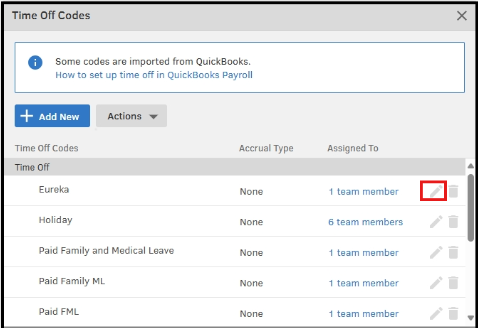
- Head over to the Time Off Codes window.
- Find the Eureka hours code and click the pencil icon to edit it.
- Check the box labeled Track Accruals.
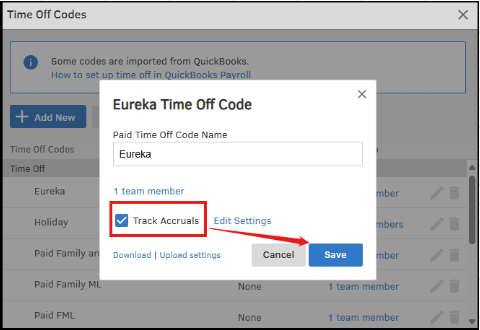
- Once done, click Save.
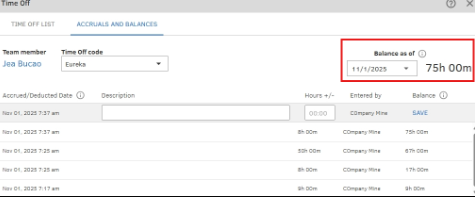
If you have additional questions, feel free to leave them in the comments, and we will assist you promptly.
- Mark as New
- Bookmark
- Subscribe
- Permalink
- Report Inappropriate Content
Employees and payroll
- Mark as New
- Bookmark
- Subscribe
- Permalink
- Report Inappropriate Content
Employees and payroll
Not yet! Are the PTO codes you show in your example supposed to show up on an employees stub?
I want the employees to see how many Eureka hours they have taken.
Thanks
LDO


- Mark as New
- Bookmark
- Subscribe
- Permalink
- Report Inappropriate Content
Employees and payroll
Good evening, @LDO.
Thanks for checking back with us. I hope your day has been great so far.
Since you have your Eureka hours set up in QuickBooks Time, you'll need to set up the Eureka policy in QuickBooks Online (QBO) Payroll and link the time tracking in QuickBooks Time.
In QuickBooks Online Payroll:
- Navigate to Payroll and select Employees.
- Click on the employee's name.
- In the Pay types section, tap on Start or Edit.
- Scroll to the Time off policies section. From the relevant dropdown (e.g., Paid time off, Vacation pay, or Sick pay), select Add new [time off pay] policy.
- Complete the on-screen fields, including how hours are accrued (per hour worked, per paycheck, annually, etc.) and any maximum allowed hours.
- Enter the employee's current balance if needed.
- Hit Save when finished.
Once a time off policy is correctly set up and used during payroll in QBO, the used hours, accrued hours, and available balance should automatically appear on the pay stub.
For more information about this process check out these help guides:
- Set up and manage time off in QuickBooks Time
- Set up QuickBooks Time in QuickBooks Online or QuickBooks Online Payroll
- Map QuickBooks Payroll items in QuickBooks Time
That should do the trick. Please let me know if there is anything else I can assist you with. Have a good one!
- Mark as New
- Bookmark
- Subscribe
- Permalink
- Report Inappropriate Content
Employees and payroll
Will the fact that I originally set the Eureka PTO code up first in Time before I entered it in Payroll have any adverse effects?
Thanks
LDO

- Mark as New
- Bookmark
- Subscribe
- Permalink
- Report Inappropriate Content
Employees and payroll
Hey there, LDO. Hope you're doing well!
To answer your question, no, having the Eureka time set up in QB Time first won't matter. As long as it is also entered in QBO Payroll you'll be able to link them.
You know where to come if you have any other questions. Take care!
- Mark as New
- Bookmark
- Subscribe
- Permalink
- Report Inappropriate Content
Employees and payroll
When I run payroll the eureka hours do not show up. I would have loved to have seen a new line in the run payroll hours called EurekA, if i go to edit the hours before i approve the check i still dont see eureka hours and even worse the eureka hours are added to the regulars hour and at the very least they should be paid time off hours,
The employees can "choose" eureka reward hours to be paid from their workforce app. But they cant see where we paid them the eureka hours. For some reason QB puts the paid eureka hours into the regular cvategory. At the very least the paid eureka hours should show up in the paid time off hours,
please help
thanks

- Mark as New
- Bookmark
- Subscribe
- Permalink
- Report Inappropriate Content
Employees and payroll
Hi, @LDO. Currently, QuickBooks Online (QBO) does not automatically create a separate line item for time-off codes, such as EurekA, on paychecks.
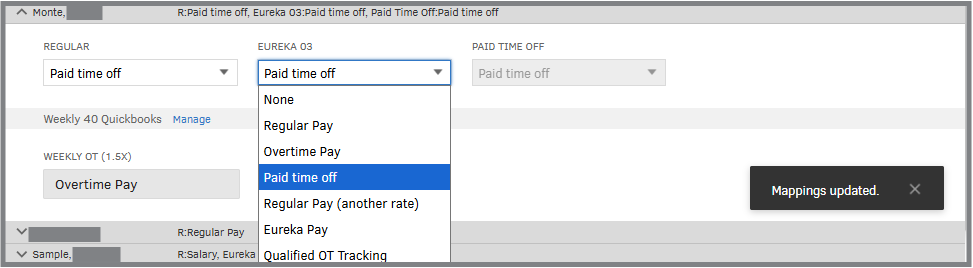
The reason EurekA hours are categorized under regular hours is likely because the code is mapped to the Regular category in the system. To resolve this, let’s review the mapping of your EurekA code in the Payroll Item Mapping Tool tab.
- In your QBO account, navigate to the Time window.
- Click Go to Classic QuickBooks Time.
- From there, select the QuickBooks Payroll icon, then Preferences.
- Hit the Payroll Item Mapping Tool button.
- In the Map Employees tab, select your employee's name.
- Make any necessary updates.

In the meantime, consider adding a memo note to indicate that the paycheck includes EurekA reward hours.
I can see the importance of having clearer visibility for custom hours as a separate line in payroll. We encourage you to provide feedback to help improve QuickBooks Payroll functionality.
- Go to the Gear icon, then Feedback.
- Enter a brief description of your product suggestion.
- Click Next to submit it.
Please let me know if there's anything else I can help you with. I'll respond to you promptly.
- Mark as New
- Bookmark
- Subscribe
- Permalink
- Report Inappropriate Content
Employees and payroll
I do not see Eureka as option in the pulldown. Nor do I see paid time off as option.
I think this would work if i could choose one of these options
- Mark as New
- Bookmark
- Subscribe
- Permalink
- Report Inappropriate Content
Employees and payroll
edit: I see Paid time off for some employees. But I do not see Eureka as an option in the pull down for any employees.
How do i get Eureka as option in the pulldown?
I probalby have to add PTO in the payroll section, but what about eureka?
Thanks
LDO

- Mark as New
- Bookmark
- Subscribe
- Permalink
- Report Inappropriate Content
Employees and payroll
Hello, LDO. The reason might be that you need to create a pay type in QuickBooks, as it's essential for payroll setup. Once created, assign it to employees in the payroll section and make any necessary edits.
Here’s how to do it:
- Navigate to All Apps and select Payroll.
- Click on Employees, then choose Edit payroll items.
- Select Pay types, and locate the Eureka option.
- Click Assign employees, and search for the employee(s) you want to assign it to.
- Check the appropriate box for the selected employee, and you can also add a recurring amount if desired.
- Click Save.


Once you’ve edited and assigned the pay type to your chosen employees, you'll need to sync it with QuickBooks Time. To do this:
- Go to the QuickBooks Payroll icon tab in QuickBooks Time.
- Click the Import option and wait for the system to sync.
- After the synchronization completes, navigate back to the Preferences tab, then click the Payroll Item Mapping Tool and select the relevant employee, and verify if the Eureka option is now visible in the dropdown menu.
If you have any additional concerns or questions about QuickBooks, don’t hesitate to reach out to us again. We’re always here to assist you.
- Mark as New
- Bookmark
- Subscribe
- Permalink
- Report Inappropriate Content
Employees and payroll
Eureka doesnt show up as a pay type under "edit payrolli items"
If i look at an individual employee's page I see Eureka under Time Off. I do not see Eureka as an additional pay type. Could this be the problem?
Thanks
- Mark as New
- Bookmark
- Subscribe
- Permalink
- Report Inappropriate Content
Employees and payroll
..Also Is Eureka supposed to show up like this or should it be under the greyed out Paid Time Off?


- Mark as New
- Bookmark
- Subscribe
- Permalink
- Report Inappropriate Content
Employees and payroll
Hi LDO, the PAID TIME OFF code is greyed out because it's pre-defined in the employee's profile. You can modify it directly in the Time Off section of their profile.
While you can edit this, please note that Eureka won't appear there, as that section only displays standard Time off policies labels (Vacation pay, Paid time off, Sick pay, and Unpaid off).
To make this selectable under the codes you have created, you have to set it up as a Pay Type:
Here's how:
- Navigate to Payroll and select Employees.
- Click New Payroll Item.
- Choose Pay Type.
- Select the appropriate Pay Type category.
- Enter the Pay Type Name (e.g., Eureka) if needed.
- Click Create and Done.
Once this setup is complete, you can follow the steps provided by my previous colleague to assign the new payroll item to your employee.
Please let us know if you have more questions.
