
- Mark as New
- Bookmark
- Subscribe
- Permalink
- Report Inappropriate Content
How to move an employee from inactive to active. I am using QB Online 4.2.1
Solved! Go to Solution.


- Mark as New
- Bookmark
- Subscribe
- Permalink
- Report Inappropriate Content
Employees and payroll
Thanks for joining our forum and letting us know about your concern, @Addis,
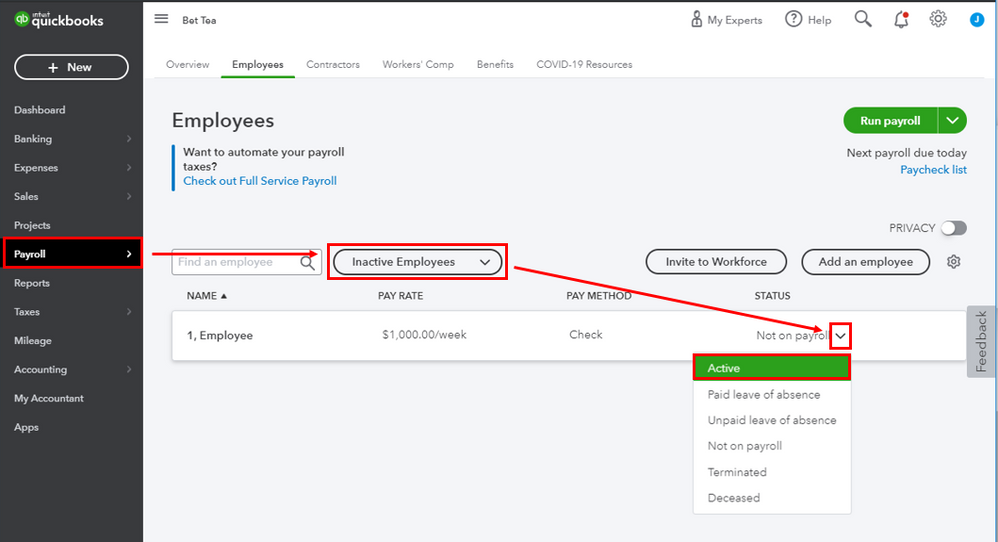
Making an inactive employee active in QUickBooks Online is made easier for you. Follow the steps below:
- Go to the Payroll menu and go to the Employees tab.
- Beside the name search box, choose Inactive Employees.
- When you see the employee name there, go to the Status column.
- From the list, choose Active.
To learn more about the processes on how to manage employees and other guides to help you with QuickBooks, see the following links below:
Feel free to contact me again if you need anything else. I'll be right here to help you anytime. Have a lovely week!

- Mark as New
- Bookmark
- Subscribe
- Permalink
- Report Inappropriate Content
Employees and payroll
I see the status line in my list of inactive employees but it is not allowing me to change the status, there is no drop down box. How do I activate a drop box?


- Mark as New
- Bookmark
- Subscribe
- Permalink
- Report Inappropriate Content
Employees and payroll
Hello, @Melanie68.
I can walk you through in updating the employment status of your employee.
- Go to the Payroll or Workers menu.
- Choose the Employees tab.
- Click the drop-down list showing Active employees, select All employees.
- Locate and double-click the inactive employee's name.
- From the Employment section, select the Pencil icon.

- In the Status drop-down, click Active.

- Click Done.
You can browse these articles to help you manage your employee's information:
Keep me posted if you have other questions about updating your employee's information. I'm always here to help.

- Mark as New
- Bookmark
- Subscribe
- Permalink
- Report Inappropriate Content
Employees and payroll
I keep getting a Error code when I try to switch from inactive to active. Its says
Business Validation Error: This name is being used by another customer. Please use a different name. You can merge names only when their type (customer, supplier or employee) matches.
How do I solve this?

- Mark as New
- Bookmark
- Subscribe
- Permalink
- Report Inappropriate Content
Employees and payroll
Hi, @steph321. It's great to have you here in the Community.
This error message typically refers to a name that already exists in the file, such as a vendor or customer. To fix the error, you can add a middle initial at the end of the employee's name to make it different from the existing one.
Let me show you how:
- Go to Payroll and select Employees.
- From the dropdown, select Inactive Employees.
- Click the employee you want to make active.
- In the Personal info, click on Edit
- From there, add a middle initial or a number at the end. Click Save, once done.

You can refer to this article for more information: Fix the name supplied already exists error message.
I'm also adding this article in case you want to merge duplicate accounts, customers, or vendors: Merge duplicate accounts, customers, and vendors in QuickBooks Online.
Keep me posted for additional questions about duplicate employees. I'd be more than happy to help. Keep safe and have a good one!
