


- Mark as New
- Bookmark
- Subscribe
- Permalink
- Report Inappropriate Content
Other questions
Hi there, @WHills. I'm here to help you print your 1099-NEC forms.
Yes, QuickBooks Desktop supports 3-up 1099-NEC printing. Make sure to update your QuickBooks Desktop file to the latest release for your 1099s to print correctly. Be sure to select the Reset Update checkbox.
- Click Help and select Update QuickBooks Desktop.
- Go to the Update Now tab.
- Select all needed updates and then click Reset Update.
- Click Get Updates.
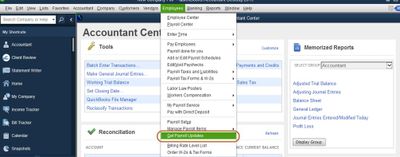
Then, get the latest payroll tax table update.
- Go to the Employees menu and select Get Payroll Updates.
- Check the Download Entire Update checkbox.
- Select Download Latest Update.
Once done, follow these steps to print your 1099s:
- Go to Vendors, then select 1099 Forms, then Print/E-file 1099 Forms. Create your 1099s.
- In the Choose a filing method window, select Print 1099-NEC or Print 1099-MISC.
- Specify the date range for the forms, then choose OK.
- Select all vendors you wish to print 1099s for.
- Select Print 1099. Select Print 1096s instead, if printing Form 1096.
- Double-check your printer settings, then select Print.
I've included a useful resource about working with 1099s that may come in handy moving forward: Create and File 1099-NEC Forms.
Finally, you can open any payroll reports that suit your needs. To give you a list of those reports and an overview of what data they display, check out this page: Excel-Based Payroll Reports.
Drop a comment below if you have any other concerns about printing your 1099 form. I'm just a few clicks away to help. Take care always.
- Mark as New
- Bookmark
- Subscribe
- Permalink
- Report Inappropriate Content
Other questions
Thanks for the reply. We do not use QB for payroll, so I can skip those steps, correct?


- Mark as New
- Bookmark
- Subscribe
- Permalink
- Report Inappropriate Content
Other questions
Hi, WHills.
Thanks for getting back to us here in the Community. Allow me to hop in and provide information about printing 1099s in QuickBooks Desktop (QBDT).
Yes, that's correct. Just don't forget to update your QBDT to its latest release version, as mentioned by my colleague above. Once done, you can now proceed with printing your 1099s. You can refer to the detailed steps shared by my colleague above.
To know more about managing 1099s in QBDT, consider checking out this article: Create and file 1099s with QuickBooks Desktop.
For more tips and other resources you can use in the future, I recommend visiting our website. Here's the link: Self-help articles.
Please know that I'm only a post away if you have more questions about this or anything else QuickBooks. I'll be more than willing to help. Stay safe always.
- Mark as New
- Bookmark
- Subscribe
- Permalink
- Report Inappropriate Content
Other questions
Thanks, FritzF. I appreciate the response.

- Mark as New
- Bookmark
- Subscribe
- Permalink
- Report Inappropriate Content
Other questions
Not solved - how to I get to the screen to find help

- Mark as New
- Bookmark
- Subscribe
- Permalink
- Report Inappropriate Content
Other questions
Welcome to the Community, Robert.
I’m here to guide you on how to find the Help button in your QuickBooks Desktop (QBDT) account.
To be able to contact our support team and get your concern addressed properly, kindly follow the steps below.
If you’re using QBDT Windows:
- Open your QuickBooks.
- Go to Help, then choose QuickBooks Desktop Help/Contact Us.
- Click on Contact Us.

- Select Continue after giving a brief description of your concern.
- Log into your account press Continue, and then Continue with my account.
- Intuit will email you a single-use code. Type in the code and click Continue.
- Right after, choose whether to Chat with us or Have us call you.
- Chat with us – start a chat conversation with support.
- Have us call you – we’ll save you a spot and call you back within minutes.
Furthermore, if you’re using QBDT Mac kindly check on this article to locate the Help button: Contact QuickBooks Desktop support. You can also read here about the supported hours by our technical team that varies on your QuickBooks subscription.
If you can’t still find the Help button, leave a comment below so we can address the matter. Providing an error message, if there’s one, also helps along with a screenshot.
Know that the Community is here to assist you at any time. Have a good one!
