


- Mark as New
- Bookmark
- Subscribe
- Permalink
- Report Inappropriate Content
Other questions
You've come to the right place, @twhitley.
While individual transactions can't be exported to Excel format, you can retrieve the data in table fashion using the Audit History. Here's how:
Copying Audit History to Excel
- From QuickBooks Online, navigate to the Sales tab > Customers section. Click the customer's name whose Estimate you need to export.
- Find the transaction from the list below. Click to open it.
- At the bottom of the Estimate screen, click More > Audit History.
- This page displays a table for every iteration of this transaction's history, meaning that a new table is created after every edit.
After some testing, I can confirm these tables can be copied directly to a similar range of Excel cells. We also offer an awesome guide on audit histories that I'm sure you'll find helpful. I'm including a brief video demonstration of this below:

By doing this, you can see a detailed explanation of every change that's been made to a transaction, and copy that information to Excel with ease. Please feel free to reach out to me here should ever need a hand with QuickBooks, I want to ensure your success. Thanks for bringing us your question and take care.
- Mark as New
- Bookmark
- Subscribe
- Permalink
- Report Inappropriate Content
Other questions
How do you do this in QuickBooks Desktop?
I need the ability to export to excel everything listed on an estimate. Please advise.


- Mark as New
- Bookmark
- Subscribe
- Permalink
- Report Inappropriate Content
Other questions
Thanks for joining this conversation, @SmallStudio.
To do this in QuickBooks Desktop (QBDT) run the Audit Trail. Then, instead of copying and pasting all the information listed on the Estimate, you'll be able to export it to Excel.
Here's how:
1. Go to Reports menu at the top.
2. Pick Accountant & Taxes and Audit Trail.
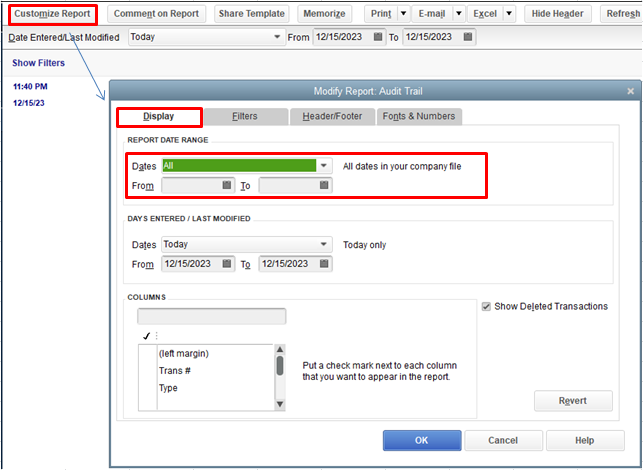
3. Click the Customize Report option.
4. On the Display tab, enter your preferred date on the Report Date Range section.
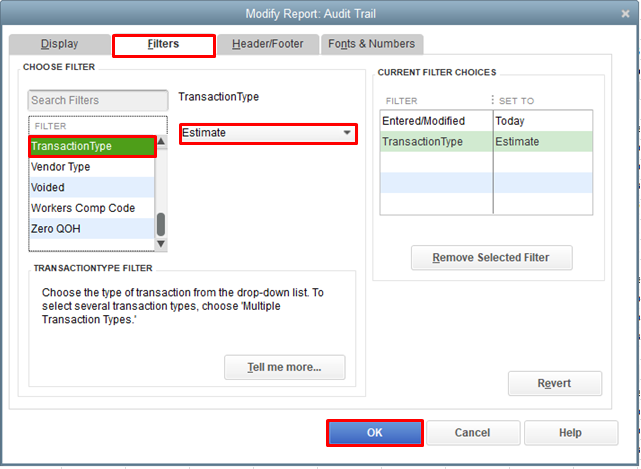
5. Now, go to the Filters tab.
6. On the Choose Filter section, select TransactionType, then Estimate.
7. Hit OK.
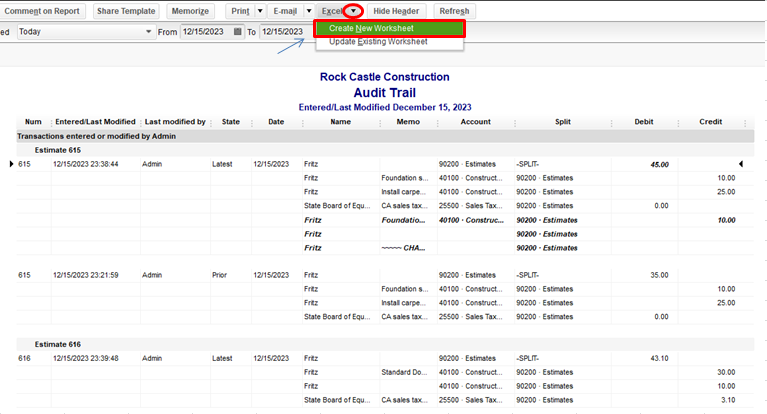
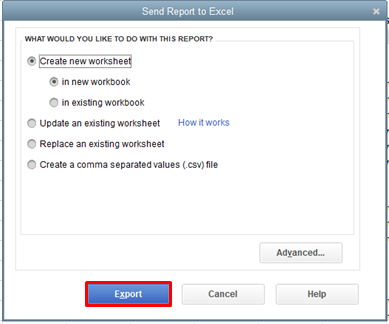
Once done, you can export it by clicking the Excel option, then Create New Worksheet and Export.
That should point you in the right direction. Keep me posted on how everything goes in the comment. I'm always here to help. Have a good one.

- Mark as New
- Bookmark
- Subscribe
- Permalink
- Report Inappropriate Content
Other questions
Is it possible to print the template of the Estimate to Excel?

- Mark as New
- Bookmark
- Subscribe
- Permalink
- Report Inappropriate Content
Other questions
Good day, @Lynn5.
Printing an estimate template in Excel format is currently unavailable in QuickBooks Online. Download it as a PDF file instead and use a converter app to get the outcome you want.
Here’s how:
- From the Gear icon, select Custom forms styles.
- Look for the template from the list and click the drop-down arrow under the Action column, then select Preview PDF.
- Choose the arrow down or download icon to save the template as a pdf file.
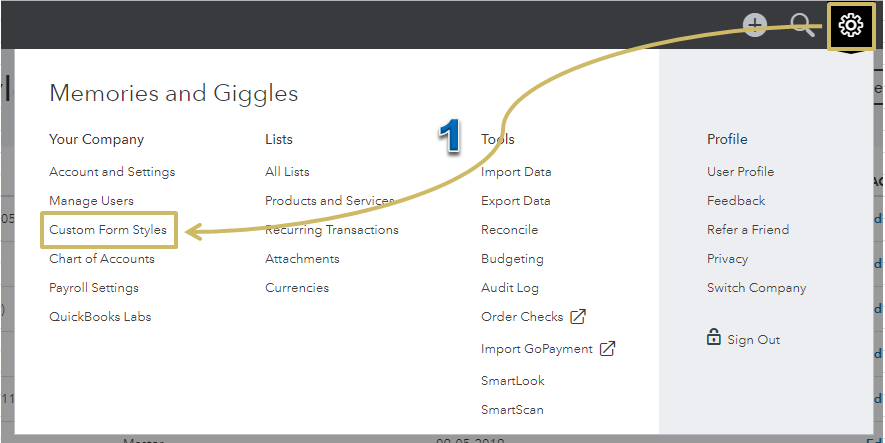
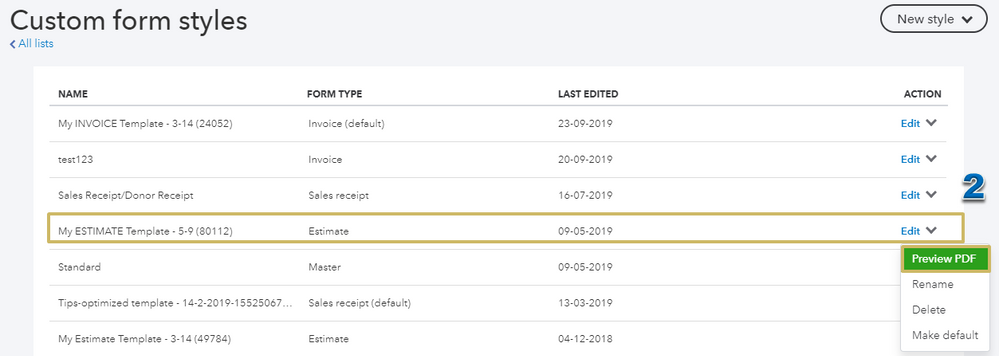
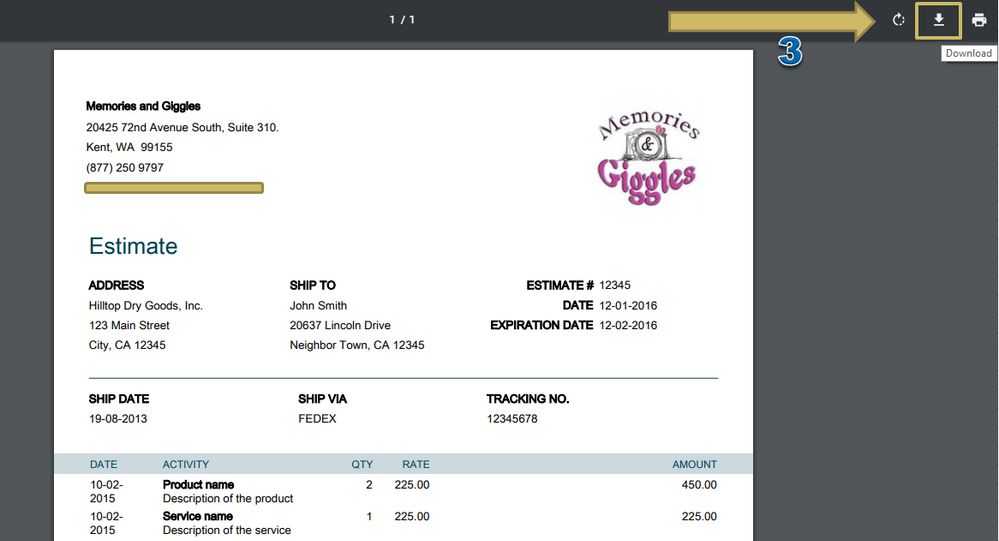
Read through Customize your invoices, estimates, and sales receipts in QuickBooks Online to learn more about the topic.
There are different programs available to change the file from PDF to Excel. I recommend visiting our App Center to find software that works best for you.
Here’s an article to know more about the website: App Support.
Please let me know how this goes or if you need any assistance. I’m always here to keep helping. Have a fantastic day!

- Mark as New
- Bookmark
- Subscribe
- Permalink
- Report Inappropriate Content
Other questions
I am trying to do this same thing from QuickBooks Desktop, but what I need is the Qty, Item #, Description, Our cost, Cost to customer (ea), Total cost for line. Basically everything that we enter onto the estimate. There has to be a way to export this information instead of having to enter it all by hand. Please help!

- Mark as New
- Bookmark
- Subscribe
- Permalink
- Report Inappropriate Content
Other questions
Thank you for joining the thread, @janineh.
In QuickBooks Desktop, you can import your estimate template by going to your Templates lists.
Here's how:
- Open your QuickBooks Desktop, then click on the Lists menu at the top menu bar.
- Choose Templates from the drop-down.
- Highlight the template you want to export.
- From the Templates drop-down, select Export. Verify the file name and choose the location of the file on your computer. Choose Save.


On the other hand, if you wish to export an estimate itself, open your estimate then click on the Print drop-down arrow and select Save as PDF.
For additional reference about using and customizing form templates, read this article.
Get back to me if you have any other questions. I'm a post away to help. Have a good day!
- Mark as New
- Bookmark
- Subscribe
- Permalink
- Report Inappropriate Content
Other questions
I appreciate the response. But what I'm trying to do is pull information from a specific estimate that already has information on it, but is 3 pages long! I don't want the template exported, but I want the information from the estimate exported to Excel, not as a PDF. There has to be a way to do it, but I just haven't been able to find it. thanks.

- Mark as New
- Bookmark
- Subscribe
- Permalink
- Report Inappropriate Content
Other questions
Allow me to chime in, @janineh.
Since the information you need is considered part of a transaction (estimate), you won't be able to export them to Excel the way you mention. I know you said you don't want to use a PDF file, so I recommend checking out our third-party app options to export the information you need off the three-page estimate. This way, you can find an option that doesn't involve you manually entering all your data into an excel sheet.
Feel free to comment below if you have any other questions. I'm always here to help.

- Mark as New
- Bookmark
- Subscribe
- Permalink
- Report Inappropriate Content
Other questions
Utilize one of these 3rd party exporter tools
https://transactionpro.grsm.io/qbd
https://partners.saasant.com/affiliate/idevaffiliate.php?id=5051_2
Hope it helps.

- Mark as New
- Bookmark
- Subscribe
- Permalink
- Report Inappropriate Content
Other questions
I had the same issue -- here's what I did.
Copied the estimate -- hit save -- audit history -- highlighted all data -- copy/paste special into Excel -- deleted new copied estimate in QB online
Then I adjusted the format to suit my needs.
Hope that helps!
- Mark as New
- Bookmark
- Subscribe
- Permalink
- Report Inappropriate Content
Other questions
wow , finally solution , wow
- Mark as New
- Bookmark
- Subscribe
- Permalink
- Report Inappropriate Content
Other questions
finally someone find the solution , you are good
