
Turn on suggestions
Auto-suggest helps you quickly narrow down your search results by suggesting possible matches as you type.
Showing results for
We appreciate you bringing this to the Community, Chinelle. To have your accounts automatically recognized without requiring manual mapping each time you import, the account names in your CSV file must match your Chart of Accounts in QuickBooks Online exactly.
Specifically, when formatting your CSV file, use the precise capitalization, punctuation, and spelling from your Chart of Accounts. For sub-accounts, enter them as Parent:Sub-account (e.g., Payroll:Wages), and avoid extra spaces or special characters.
Because of this requirement, the account mapping screen appears when account names in your CSV don’t exactly match your Chart of Accounts. Even small differences prevent QuickBooks Online from recognizing the account and help ensure accurate data import.
Additionally, a sample CSV file is available for download, which you can use as a template and reference for the correct format.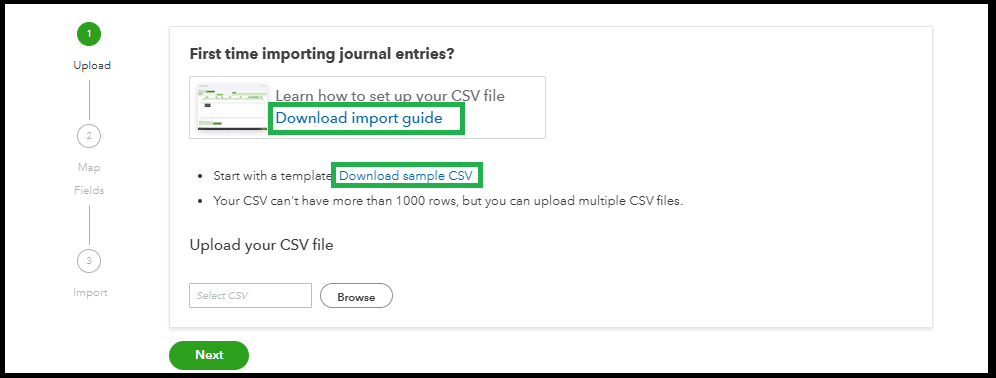
Once you've formatted your file and the account names match exactly, the program should auto-map them without prompting you each time.
For additional guidance on importing data and troubleshooting common import issues, you can refer to this helpful article: Common questions about importing data to QuickBooks Online.
If you run into any issues matching your accounts or have a specific example you'd like us to look at, share it here.
You have clicked a link to a site outside of the QuickBooks or ProFile Communities. By clicking "Continue", you will leave the community and be taken to that site instead.
For more information visit our Security Center or to report suspicious websites you can contact us here


