
Turn on suggestions
Auto-suggest helps you quickly narrow down your search results by suggesting possible matches as you type.
Showing results for
Hello there, @markacarey.
I have some information about the VAT period in QuickBooks. You'll want to edit the VAT settings in your account to change the period's effective date. Let me guide you how.
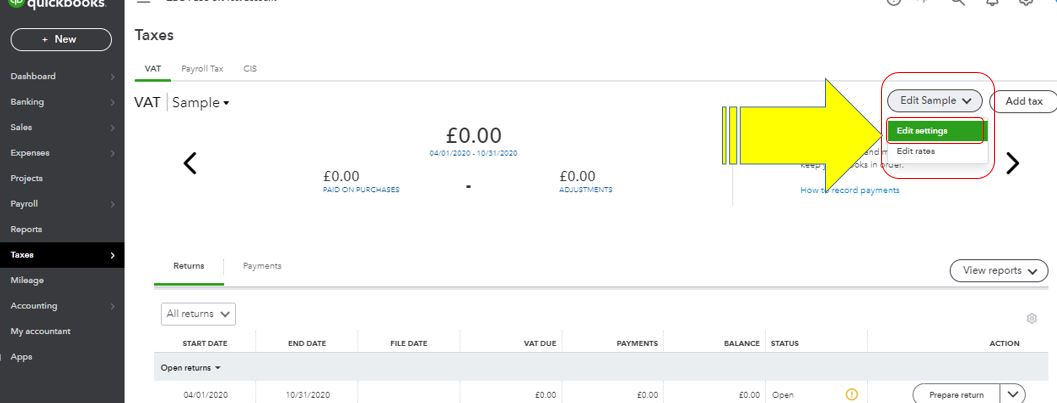
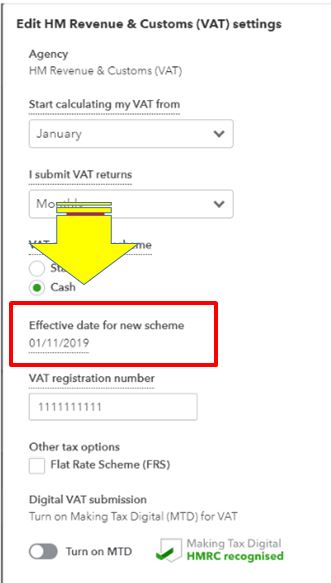
With the above steps, your tax returns will be aligned with the HMRC. On the other hand, when your file your VAT return, select "Prepare return on this period." This way, you can change the end date found at the top of the VAT return page.
Check out this short video on how to record your VAT payment in QBO.
Please know that you're always welcome to swing by if you have other questions or clarifications with VAT. I'm here to help. Take care and be safe @markacarey.
Hi Shiela,
Thank you for replying. But I tried this prior to publishing my question.
My company was setup 15 June 2021. Which was two weeks prior to end of second Quarter. For this quarter my VAT return was 0.0. But I still had to submit, I didn't know this until I was informed by accountant, he had done so. By this time I was into Q3 and started using QBO. The third quarter VAT was 610. Laster quarter was 15,281.
Hello, markacarey.
Once the VAT codes are selected in your QuickBooks, you will see them post to the following boxes on your VAT return and it will automatically calculate the transactions. You can review the summary report. Here's how:
Here are some good references that you can check out about handling VAT in QuickBooks:
Drop me a comment below if you have any other QuickBooks concern, I'll be around to help. Take care.
You have clicked a link to a site outside of the QuickBooks or ProFile Communities. By clicking "Continue", you will leave the community and be taken to that site instead.
For more information visit our Security Center or to report suspicious websites you can contact us here


