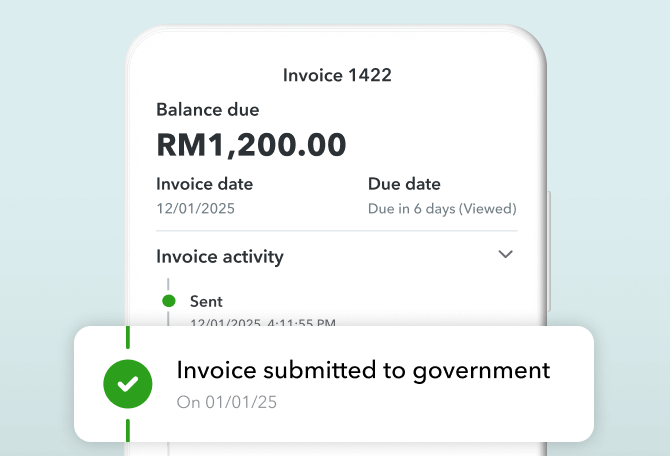
Stay compliant and simplify
your e-invoicing -
before 1 Jan deadline.
Stay compliant and simplify
your e-invoicing -
before 1 Jan deadline.
FINAL DAYS
70% off
for 3 months
FINAL DAYSStart fresh this new year with QuickBooks Online
DON'T MISS OUT
Buy now and get 70% off for 3 months Claim offer
DON'T MISS OUT
Claim offer
SALE
Buy now and
save up to 50% off today
See plans + pricing
Choose your... Country Language
Image Alt Text
Invoicing

The Essential Guide to e-Invoicing for SMBs in Malaysia

As Malaysia transitions to a fully digitised tax and invoicing system, it's vital for Small and Medium Businesses (SMBs) to get on board with e-Invoicing to comply with government regulations. 

This practical guide aims to equip Malaysian businesses with the essential information on new requirements, the benefits of adopting e-Invoicing, and actionable steps for an effortless implementation.

Key Takeaways:

  • Malaysia has introduced a mandatory e‑invoicing regime requiring digital, structured invoices (not paper or PDF) between suppliers and buyers.
  • e‑Invoicing is being rolled out in phases based on annual turnover.
  • For transactions above a set threshold (e.g., RM10,000) from early 2026 onwards, individual e‑invoices must be issued, and consolidated invoices are no longer permitted.
  • e‑Invoicing offers benefits to SMBs including reduced manual work, fewer errors, lower costs, faster invoice processing, and improved cash flow and tax reporting.

1. What is e-invoicing?

For context, e-invoicing refers to the digital exchange of invoices between suppliers and buyers, utilising a standardised format. Unlike traditional paper invoices or PDFs sent via email, e-invoices are structured digital documents that accounting systems can automatically process. This innovative approach minimises manual data entry and reduces the likelihood of errors.

In Malaysia, the Inland Revenue Board (IRBM) has made e-invoicing mandatory to enhance tax compliance, mitigate fraud, and improve the overall efficiency of business transactions.

2. Why is e-invoicing important in Malaysia?

The Malaysian government is championing e-invoicing as part of its national digital economy strategy to achieve several objectives:

  • Combat tax evasion: Ensure all business transactions are accurately reported to tax authorities.
  • Enhance efficiency: Decrease reliance on time-consuming manual invoicing methods.
  • Facilitate international trade: Align with globally recognised standards, such as Peppol (Social Security-European Public Procurement On-Line).
  • Minimise operational costs: Streamline invoicing and payment processes to reduce overheads.

Goals of the government:

The IRBM envisions e-invoicing to:

  • Increase tax compliance rates across the board.
  • Provide real-time reporting of business transactions.
  • Enable better oversight of GST (Goods and Services Tax) once it's reintroduced.
A computer screen showing QuickBooks e-Invoice.

e-Invoicing solution coming soon

A simple and LHDN compliant e-Invoicing solution that integrates seamlessly with QuickBooks in partnership with Sovos*, the world leading provider of compliance based cloud software.

*Sovos Saphety is a Peppol Access Point/ Service Providers (SP) accredited

3. Key dates and compliance timeline

The rollout of e-invoicing in Malaysia will occur in phases, categorised by the annual turnover of businesses:

Targeted Taxpayers Implementation Date
Taxpayers with an annual turnover or revenue of more than RM100 million 1 August 2024
Taxpayers with an annual turnover or revenue of more than RM25 million and up to RM100 million 1 January 2025
Taxpayers with an annual turnover or revenue of more than RM5 million and up to RM25 million 1 July 2025
Taxpayers with an annual turnover or revenue of more than RM1 million and up to RM5 million 1 January 2026
Taxpayers with an annual turnover or revenue of up to RM1 million 1 July 2026

Note: e-Invoice implementation timeline was updated on 5 June 2025

Current relaxation period for e-invoice implementation

The Inland Revenue Board of Malaysia (IRBM) has introduced a six-month relaxation period for businesses in each phase to ease the transition. During this time:

  • Businesses can issue consolidated e-invoices for all transactions, including B2B transactions.
  • More flexible product/service descriptions are permitted.
  • No penalties will be imposed under Section 120 of the Income Tax Act 1967 for non-compliance. 

However, from 1 January 2026 onwards: For any transaction exceeding RM10,000: Businesses must issue an individual e-invoice. Consolidated e-invoices are not permitted for such transactions.

NOTE: This phased approach aims to facilitate a smooth transition towards
e-invoicing, ensuring that businesses of all sizes can adapt effectively to these
new compliance requirements.

4. Businesses should get ready, but there’s time to adapt

While the Malaysian government has outlined a clear timeline for e-Invoicing implementation, businesses will have adequate time to adapt. This phased rollout allows companies to gradually transition and tackle any challenges that may arise along the way.

Start preparing now—review your current invoicing processes and select the right digital tools to ensure compliance with the new system. There’s no need to feel overwhelmed by the timeline.

The government has established support mechanisms, including the MyInvois portal and accredited Peppol-Ready Solution Providers, to assist businesses with the transition. Ongoing updates and guidelines from the IRBM will provide further clarity as the deadlines approach.

Key tips for businesses:

  • Start early: Begin evaluating your invoicing processes now to sidestep last-minute complications.
  • Stay informed: Regularly seek updates from IRBM and MDEC. Make sure your email on your QuickBooks plan is correct as we’ll also send email and platform updates on the latest IRBM updates.
  • Leverage support: Utilise the MyInvois portal and collaborate with solution providers for a smoother transition.

Remember, e-invoicing is a process rather than an overnight change. With the right preparation, businesses can confidently meet compliance deadlines.

5. Benefits of e-invoicing for SMBs

e-Invoicing brings numerous advantages to SMBs in Malaysia, including:

  • Operational efficiency: Automates data entry processes, significantly reducing manual workload and errors while speeding up invoice processing and payment cycles.
  • Cost savings: Cuts costs related to paper, printing, and postage while lowering administrative overhead.
  • Improved cash flow: Accelerates invoice approvals, leading to quicker payments and decreased disputes or delays.
  • Enhanced tax compliance: Ensures timely and accurate reporting to tax authorities, minimising the risk of penalties due to late or incorrect submissions.

6. Actionable steps for SMBs to prepare for e-invoicing

Step 1: Assess your business readiness

Take stock of your current invoicing processes and identify aspects that need digitisation.

Step 2: Choose an e-invoicing solution

When adopting e-invoicing for your business, consider integrating directly with MyInvois or employing a compliant financial management system (FMS) solution. With the right setup, you can ensure continuous compliance and efficient management of your digital invoices.

Choosing a solution like the one QuickBooks is developing, powered by Sovos—which is a Peppol-Ready Solution Provider—ensures that your e-invoicing needs will be seamlessly. This integration will allow you to handle your transactions smoothly without the added hassle of manual oversight.

Step 3: Register with the MyInvois Portal

The IRBM's MyInvois portal is available for businesses without their own accounting systems.

This free platform enables businesses to:

  • Issue e-invoices
  • Track and manage invoices
  • Ensure compliance with IRBM requirements

Step 4: Train your team

Educate your employees about the new e-invoicing requirements and ensure they are proficient in using the selected platform.

Step 5: Conduct pilot testing

Execute a pilot test prior to fully transitioning to e-invoicing. This will help identify and resolve any issues before going live.

Step 6: Go live when the time arrives

Start issuing e-invoices in accordance with the compliance timeline.

7. How to submit e-invoices via MyInvois portal

Let’s see now how to submit e-invoices on the MyInvois Portal, covering both single submissions and batch submissions.

Step 1: Access the MyInvois portal

1. Go to the MyInvois Portal:

2. Log in using your credentials (Trade Register Number and password).

3. Navigate to the e-Invoice Submission section.

Step 2a: Single submission.

For businesses submitting individual invoices, follow these steps:

1. Click on "Single Submission".

2. Fill in the following details:

Supplier Information (Name, TIN, Address)

Buyer Information (Name, TIN, Address)

Invoice Details (Invoice Number, Date, Total Amount)

Tax Details (GST/SST, if applicable)

3. Attach any supporting documents (if required).

4. Submit the e-invoice for validation by the IRBM system.

5. Once validated, download the Document Identification Number (DIN) and send a copy to the buyer.

Step 2b: Batch Submission (bulk upload).

For businesses submitting multiple invoices at once, use the batch upload feature:

1. Click on "Batch Submission".

2. Download the template provided on the portal. The template includes fields for supplier, buyer, invoice details, and tax information.

3. Fill in the template with the required data for each invoice.

4. Upload the completed template back to the portal.

5. The system will automatically validate each invoice.

6. After validation, download the DINs for each invoice and share them with the respective buyers.

Step 3: Correcting errors.

If any errors occur during validation:

1. The system will highlight the errors.

2. Correct the errors and resubmit the invoice(s).

Step 4: Tracking submission status.

To track the status of submitted invoices:

1. Go to "Invoice History" on the portal.

2. Check for statuses such as Pending, Validated, Rejected, or Cancelled.

Best practices for batch submission

  • Ensure that the data in the template matches the format requirements.
  • Double-check buyer and supplier TIN numbers to avoid validation errors.
  • Keep a record of all DINs for future reference.

8. Common challenges and solutions

Challenge 1: Lack of technical knowledge

Many SMBs may find understanding the technical requirements of e-invoicing daunting.

Solution: Utilise the resources provided by the IRBM and MDEC. Also engage with your solution provider, like QuickBooks, that keeps sharing resources and will keep offering comprehensive support and training throughout the implementation process.

Challenge 2: Data security concerns

With digital transactions, safeguarding sensitive data becomes crucial.

Solution: Ensure your e-invoicing solution adheres to stringent security standards and implement additional cybersecurity measures to protect confidential financial information.

Challenge 3: Integration with existing systems

Integrating e-invoicing with current accounting systems can present challenges.

Solution: Partner with a PRSP that guarantees seamless integration with popular accounting software and conduct rigorous testing prior to implementation.

Master e-Invoicing: Your Compliance Guide.

A practical guide to help small & medium businesses streamline their invoicing process while staying compliant.

A black and white photo of a person holding an umbrella.

9. Key government resources and updates

Here are some essential resources to keep your business informed:

Stay updated on the latest announcements and policy changes by visiting these websites regularly.

10. Why having a tool like QuickBooks is essential for e-invoicing

Implementing a robust accounting tool like QuickBooks can greatly simplify the e-invoicing process for SMBs.

These tools offer a suite of features that streamline the compliance journey:

  • Automated invoice generation: Quickly create and send e-invoices in the correct format, minimising manual effort.
  • Error reduction: Built-in validation checks help ensure that invoices meet government requirements and lower the chances of errors and rejections.
  • Time savings: Automate repetitive tasks, freeing up time for more strategic activities.
  • Real-time tracking: QuickBooks empowers businesses with the ability to track the status of invoices and payments, enhancing cash flow management.

Utilising QuickBooks ensures that your business will stay compliant while alleviating the administrative burden associated with invoicing. It also seamlessly integrates with the Peppol network, simplifying the process of sending invoices directly to customers through approved channels.

Conclusions

The shift to e-invoicing is inevitable for businesses in Malaysia. SMBs should proactively take steps to ensure compliance while embracing the benefits that digital invoicing has to offer. 

By following this guide, businesses can streamline their operations, enhance cash flow, and remain compliant with Malaysia's evolving tax regulations. Embrace this opportunity to elevate your business, and let’s navigate this digital transformation together!