Hello there, Peter.
Adding a custom field for the EORI number that auto-populates when creating a new regular invoice isn't available in QuickBooks Online.
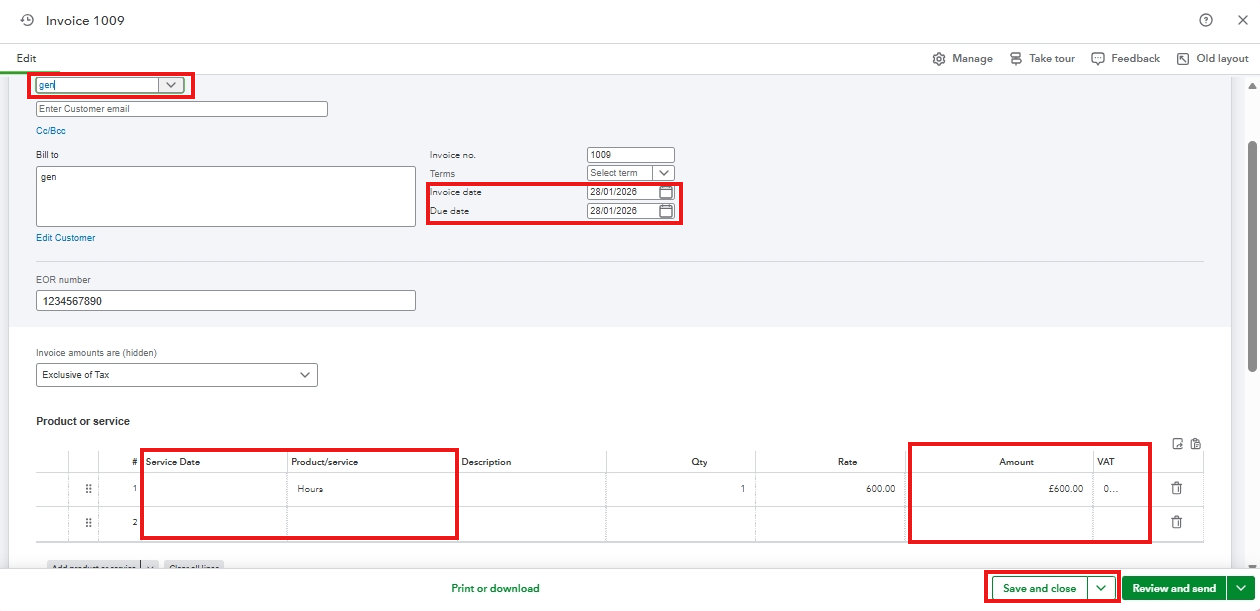
When creating a new regular invoice, you'll need to enter the EORI number into the custom field every single time. However, you can use a recurring transaction for an invoice if you don't want to enter the EORI number every time you create an invoice. You'll only need to change the other details, such as Customer, Products or services, Invoice date, Due date, and VAT.
Here's how create a recurring invoice transaction template to use :
-
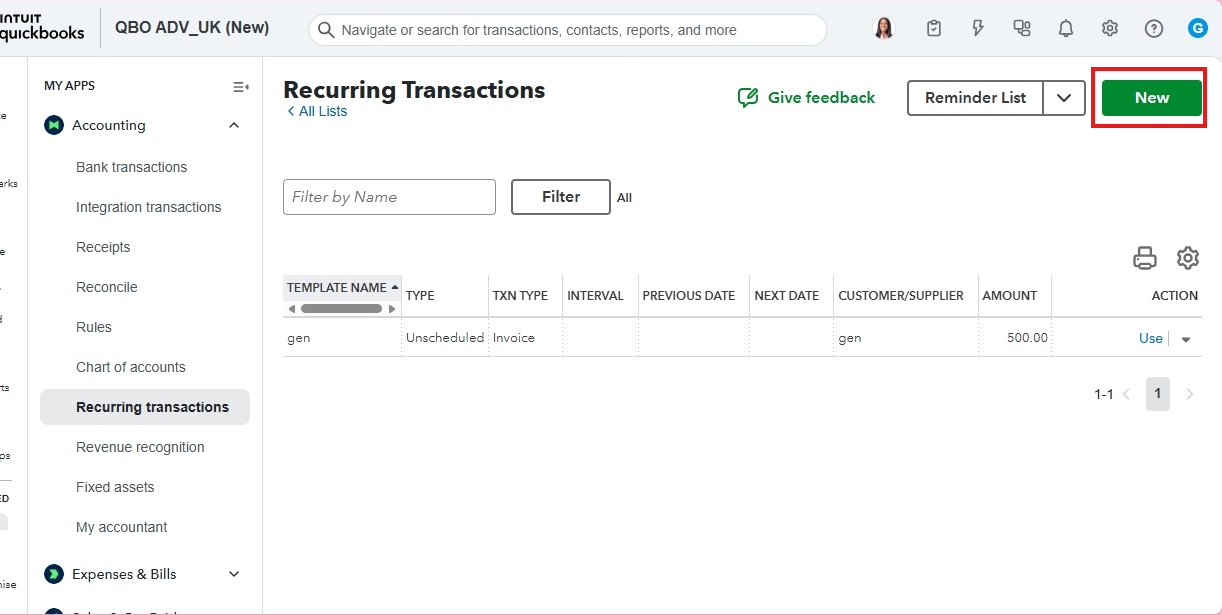
- Go to the Gear icon, then click Recurring transactions.
- Hit New, then Invoice.
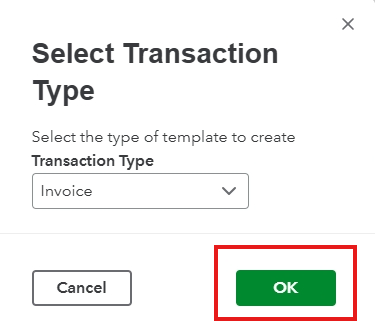
- Click OK.
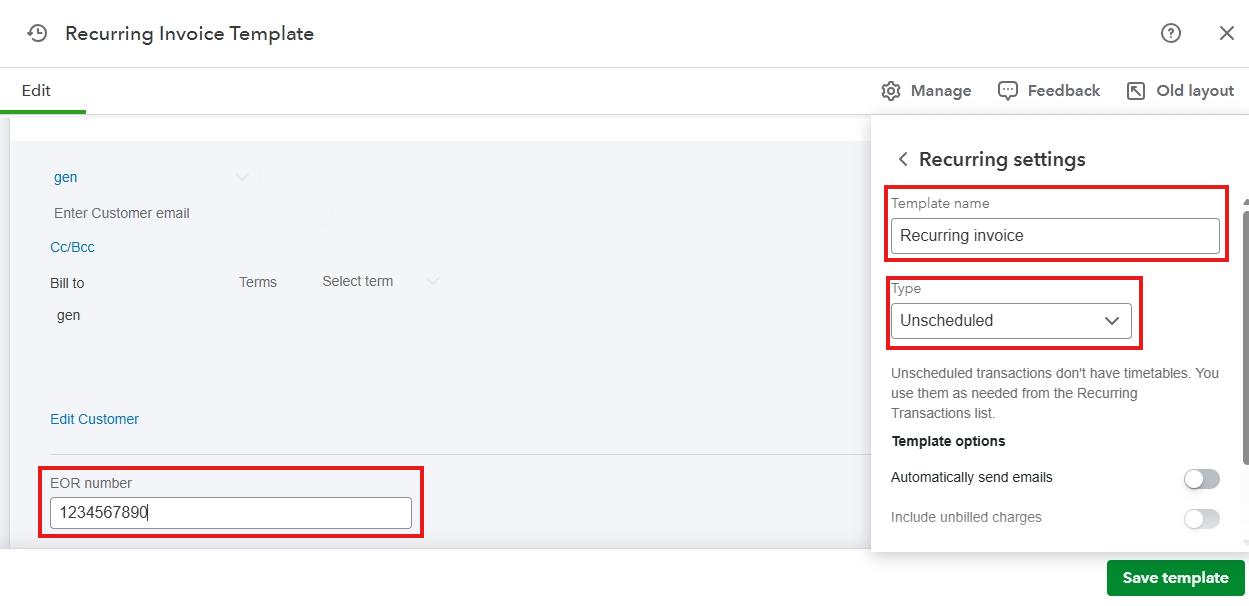
- Enter the EORI number, then enter other important details.
- Create a template name and make it Unscheduled.
- Once done, hit Save template..
To use the template, here's how:
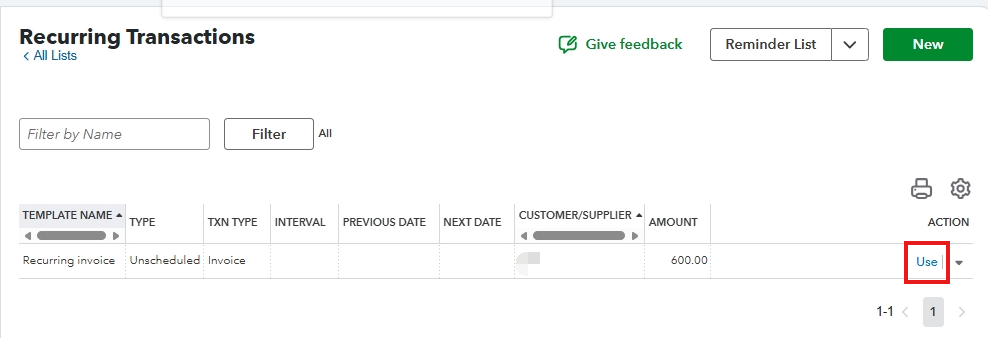
- Go to the Gear icon, then Recurring transactions.
- Click the dropdown arrow, then select Use under the Action for the recurring invoice template.
- As you can see, the EORI number autopopulates.
- Change details if needed.
- Once done, click Save and close.
You can also visit this article about adding custom fields: Create and edit custom fields.
Please don't hesitate to reach out if you require any further assistance.


