Hi, Alan. Thank you for posting on the Community page. Let me help you find your snap receipts.
Before we proceed, could you confirm whether you are having trouble locating the option to capture a receipt or if the captured receipt is not visible in your account? Also, could you let me know if you’re using the QuickBooks Online (QBO) mobile app or accessing it via a web browser?
Certain features, such as the snap receipt function, are exclusive to the QuickBooks Online (QBO) mobile app. For a more comprehensive experience, it’s recommended to use the browser version.
If you’re referring to the snap receipt feature, it can be accessed directly from the dashboard or through the menu. Below are the detailed steps for your reference.
From the dashboard:
- Go to the To-dos section.
- Click on Snap receipt or Finish snapping your first receipt.
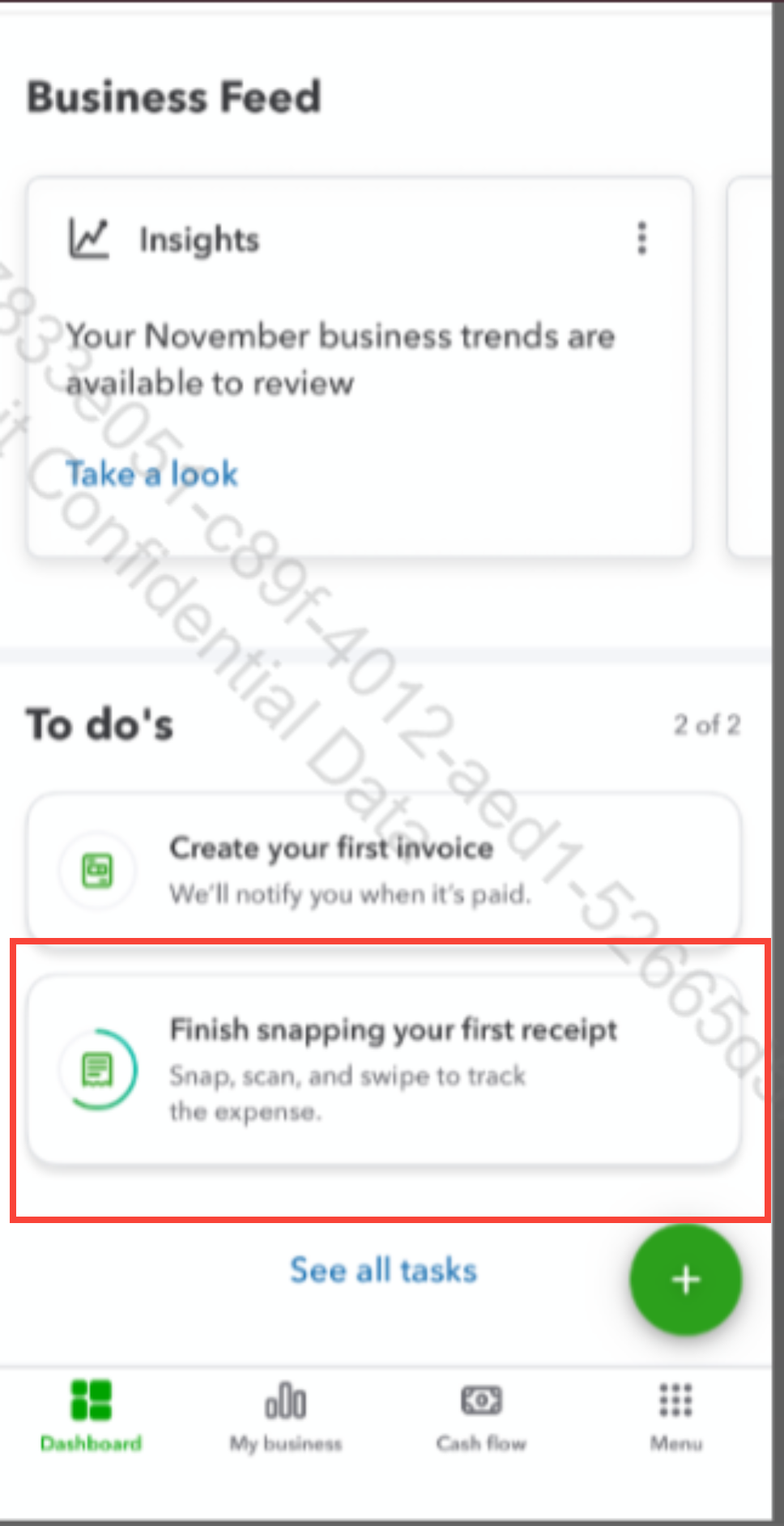
- Follow the onscreen steps to successfully upload it to your account.
From the Menu:
- Select the Menu option below.
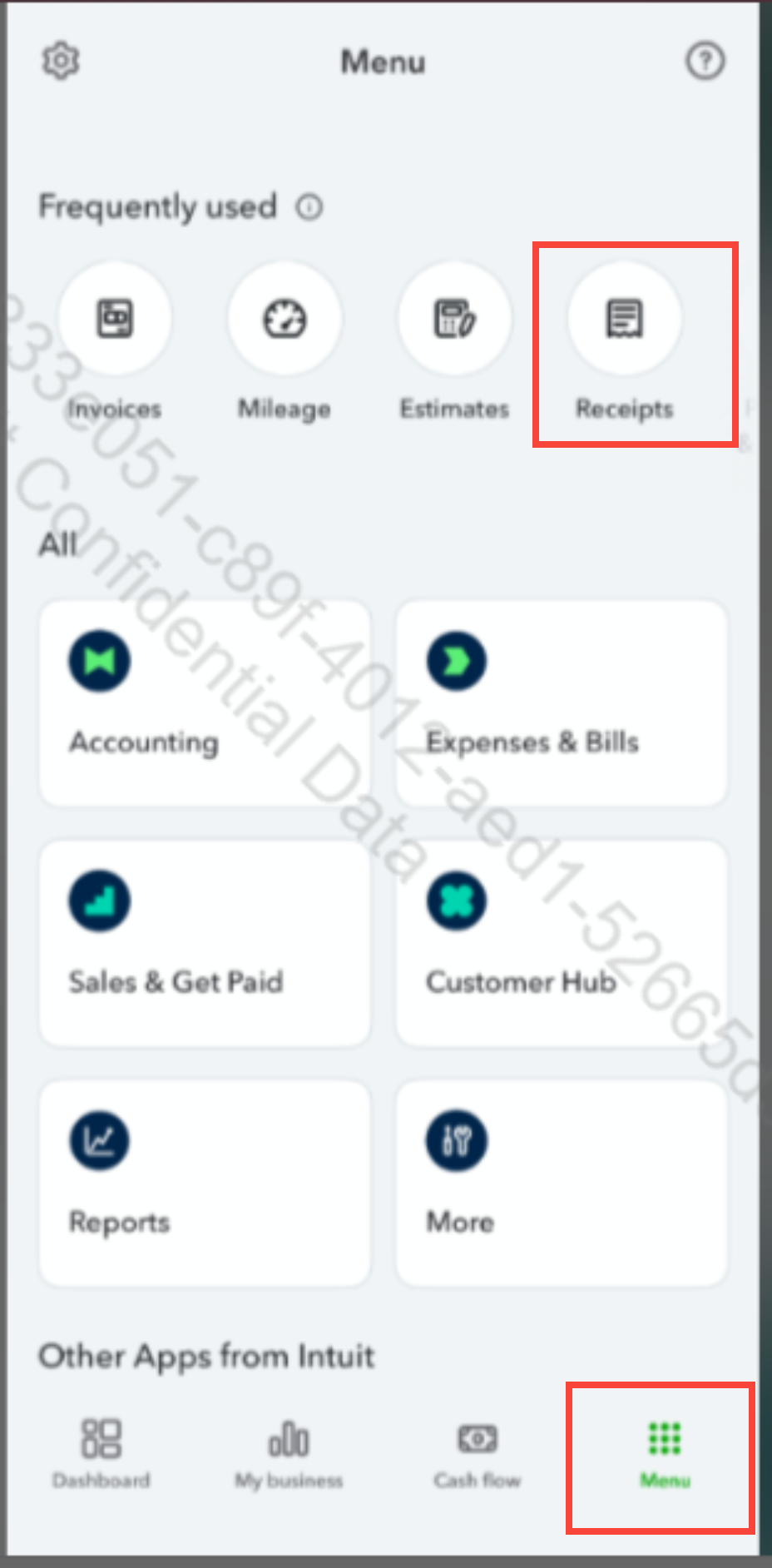
- From the Frequently used section, choose Receipts.
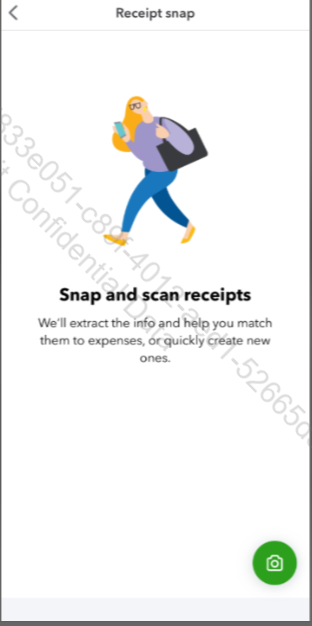
- Click the camera icon to take a photo of your receipt.
On the other hand, if you cannot find the snapped receipts, I recommend logging in to your mobile or computer browser. Please note that after uploading, those receipts will appear in the For Review tab and need to be reviewed and matched before they are included in your books. Also, it is best to filter the For Review tab to All Dates to ensure you see all your uploaded receipts.
For more details about the process, please refer to this article: Upload your receipts.
If the functionality or receipts are not visible in your QBO mobile app or browser, make sure your app is up to date and that your operating system is in the latest version. Outdated software can affect system performance and compatibility.
After verifying the updates, recapture the receipt, ensure the image is not blurry to allow the system to process it accurately, and maintain a smooth workflow.
If you have any additional questions or need further assistance about your receipts, reply to this thread. Community has your back.


