Turn on suggestions
Auto-suggest helps you quickly narrow down your search results by suggesting possible matches as you type.
Showing results for
We collect donations through a 3rd party payment processor. We import donations into QB. We needed to issue a refund to a client, so we initiated that process in the 3rd party payment processor. It subtracted the refund amount from my bank account and credited my clients credit card account. How do I subtract the donation from the client and give that money back to the 3rd party processor? If I credit/refund the client for the donation, the money will go to the client. I need the money to go back to the 3rd party payor. Thank you for your advice.
You’ll need to record the refund in QuickBooks Desktop (QBDT) to ensure your bank statement aligns with your QuickBooks (QB) records, mltch. This is necessary because the donation was already imported into QuickBooks, and the refund was processed separately through your third-party payment processor.
When the refund was processed by the third-party payment processor, the money was deducted from your bank account and credited directly to the donor’s account.
To properly record the refund, follow these steps:
If you need confirmation that the funds have been properly returned to the donor via the third-party payment processor, I recommend contacting the processor directly to verify their transaction handling. This extra step ensures consistency and accuracy in your financial tracking.
If you have any further questions, feel free to reach out in the comments section.
Let me explain the series of transactions a little better. I left off a vital piece of information in my first thread. A donor made a 203 donation through our merchant account. The merchant account deposited that money into our bank. We then needed to refund the money. I initiated the refund through the merchant account. The merchant account debited the funds from our bank to give back to the donor. However, in the same banking transaction the merchant account also deposited $20.20 from another donor into our bank account for a total withdrawal of 182.80 to the merchant account. How do I correctly account for these transactions in quick book desktop 2024 version.
Thank you for providing such detailed information about the flow of funds and these transactions in QuickBooks Desktop, @mltch. I completely understand how challenging it can be, especially when refunds and new donations occur simultaneously and get combined into a single bank transaction.
To account for these transactions accurately in QuickBooks Desktop, it’s best to record each transaction individually. Here’s how you can do that:
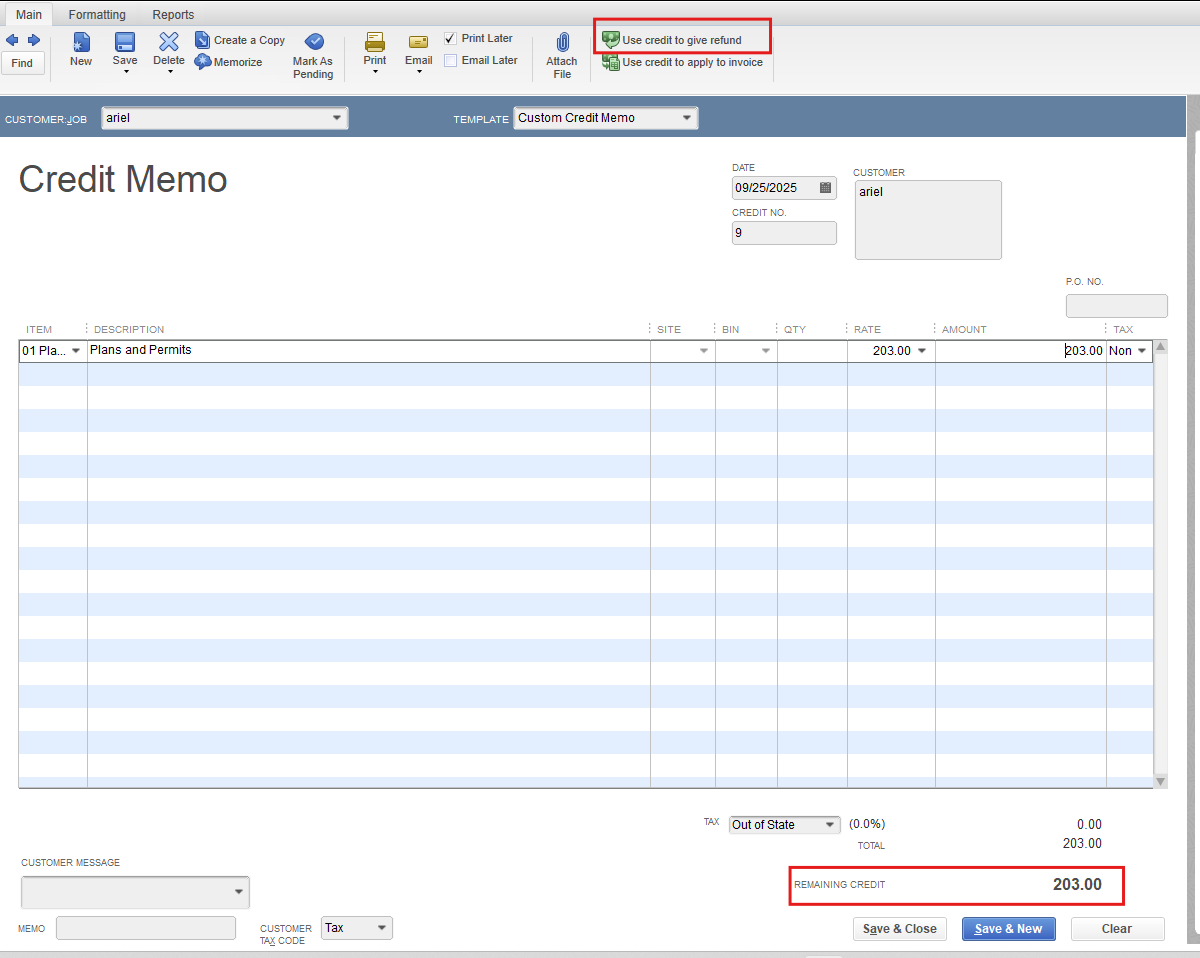
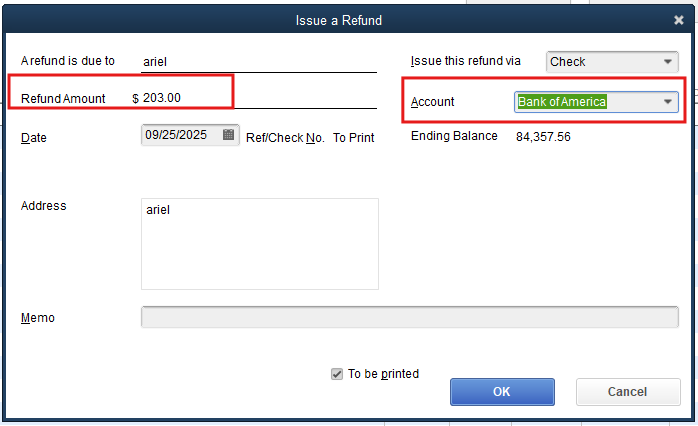
Please note that the $182.80 bank transaction cannot be directly matched to individual transactions in QuickBooks, as it represents two distinct types of activity (a deposit and a refund combined). I recommend consulting with your accountant for advice on how best to handle combining or reconciling these transactions within your accounting records.
If you have any further questions, whether you need a detailed walkthrough in QuickBooks, assistance setting up similar transactions, or help with any other concerns, please don’t hesitate to reach out. We’re always here to support you every step of the way. Take care!


You have clicked a link to a site outside of the QuickBooks or ProFile Communities. By clicking "Continue", you will leave the community and be taken to that site instead.


