You can take advantage of the Receive Payment feature to seamlessly match invoices with customer payments in QuickBooks Online (QBO), @SallyP000. I'm here to guide you through the process of linking your invoices effortlessly.
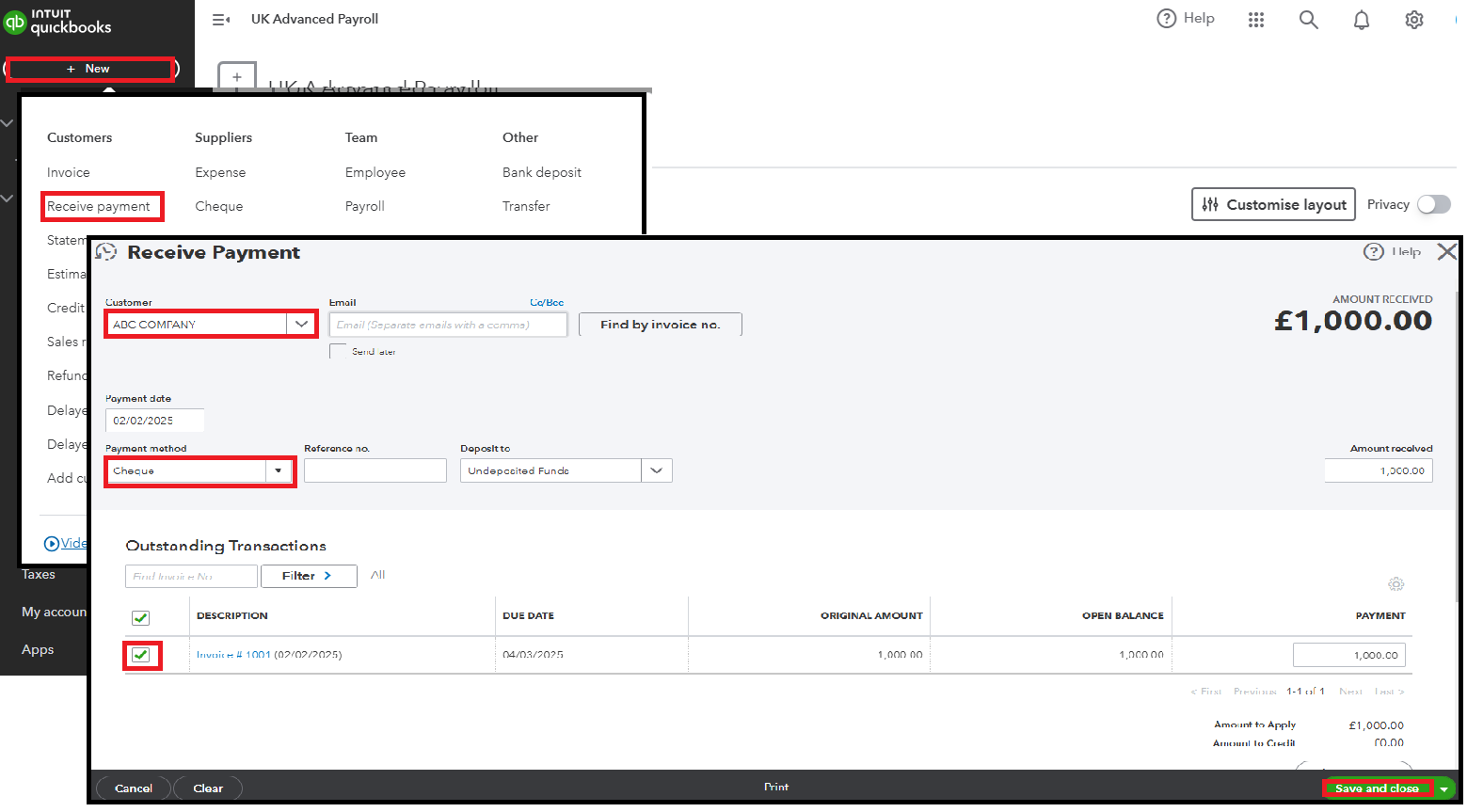
When you manually downloaded an invoice, note that the payment isn't automatically included. To mark the invoice as paid, you'll need to link the payment using the Receive Payment feature. Here's how:
- In your QuickBooks, click the +New button.
- From there, select Receive payment.
- Choose the Customer and enter the Payment method.
- Check the box corresponding to the manually added invoice in the Outstanding Transactions.
- Once done, hit Save and close.
You can also personalize your invoices, making them truly unique to your brand. For guidance on how to customize, check this resource: Customise Invoices, Estimates, and Sales Receipts in QuickBooks.
Furthermore, if you ever need to void an invoice or issue a refund to your customer, know that you can achieve it easily here in QBO.
Accurate recording and data management are vital, and capturing invoice payments is one of the key parts of that process. If you have any questions or need further assistance, I'm here to help. Just hit the Reply button below, and I'll support you every step of your QBO journey.


