Turn on suggestions
Auto-suggest helps you quickly narrow down your search results by suggesting possible matches as you type.
Showing results for
Apparently we now have 'improved' estimates and invoices, but I've just spent several hours trying to create an 'improved' invoice that I wouldn't be embarrassed to send to a customer.
On my invoices I have rows that are not a 'Product/Service' or an 'Item/Service'. They are just rows with information in the 'Description' column. This might be a general description of the invoice, or a contract period or a list of serial numbers. This was all fine and dandy under QB Desktop (a far superior product) but under the new 'improved' QBO the system now assigns a VAT rate to these rows, as well as the rows that actually need it. How can I create rows that don't have an associated VAT rate?
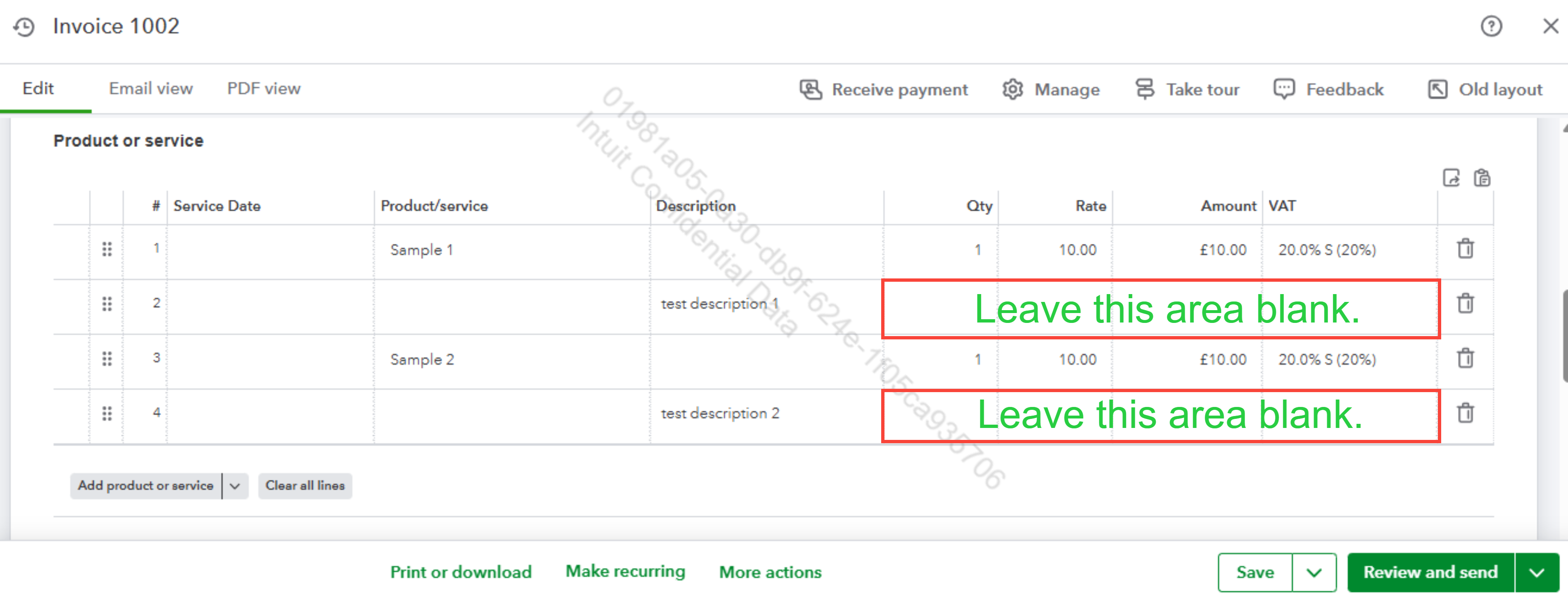
I hear you Egbert. You can input text directly into the Description field without selecting a tax rate in the VAT column. This leaves the VAT entry blank for that specific row, ensuring no tax is calculated for informational text while keeping the layout consistent.
This is how it would look like:
If you have any further questions, feel free to comment below.
Thank you for the quick response. This was the case until today, when the 'improved' estimates and invoices were introduced. I nearly always produce invoices from estimates. Even 'description only' lines are now allocated VAT (usually at 20%) on my invoices, unless I remove the VAT column. Something has changed within the system. The upgrade also now introduces a 'Due' column in invoices, for which I can see no purpose.
Hello there, Egbert. I totally understand your frustration when an improvement feels like it’s adding more work to your day, especially when you’re used to the streamlined control of QuickBooks Desktop. In the new layout, if you haven’t manually set a default VAT rate for individual items, the system automatically uses the VAT rate specified in the customer’s profile. When you select a customer with a default VAT rate, QuickBooks applies that rate to every line on the invoice or estimate, even description-only lines.
To get your invoices back to looking the way you want, you can adjust the customer's default settings by navigating to All apps > Customer Hub > Customers & leads, select a customer, and click Edit. Under Additional info, uncheck Assign default tax code and click Save.
On the other hand, if you’d prefer not to display the Due column on your invoice, you can easily hide it. Go to All apps > Invoice > Action gear icon, then uncheck the box for Due date to remove that column from your invoice view.
If you have more questions or need additional information, don’t hesitate to reply to this post.
Thank you again for the response. For the first fix, I have unchecked the 'Assign Default Tax Code' when I have found it checked. I will need to create and save an invoice to see if this works.. I tried to amend an existing invoice by inserting 'description only' rows, but QB will not save the invoice without me assigning a tax code to these lines.
For the second fix, I already had 'Due Date' unchecked. However, if I create a new invoice from an existing quotation then I have a 'Due' column to the right of 'Description'. This has nothing to do with 'due date' but appears, for example, as '0 of 650.00' and can be converted between £ or %. If I create a new invoice from scratch, then this 'Due' column does not appear.
RE: Apparently we now have 'improved' estimates and invoices, but I've just spent several hours trying to create an 'improved' invoice that I wouldn't be embarrassed to send to a customer.
Good luck! It seems a lot of new and 'improved' QB Online features were designed by people with a child-like understanding of business. They seem to think think cute and pretty is preferable to functional and following business standards.
RE: I totally understand your frustration when an improvement feels like it’s adding more work to your day, especially when you’re used to the streamlined control of QuickBooks Desktop.
Is a change really an improvement if it adds more work to your day? I don't think so.
Yes, when someone is used to the streamlined control of QuickBooks Desktop and they start using QuickBooks Online, they are generally disappointed. Still. I'm not sure why you pointed that out as that is quite clearly not @Egbert Nosh's complaint.


You have clicked a link to a site outside of the QuickBooks or ProFile Communities. By clicking "Continue", you will leave the community and be taken to that site instead.


