cancel
Showing results for 
Search instead for 
Did you mean: 
Announcements
Everything you need to know about connecting your bank and credit cards in QuickBooks Online
DaveGeering
Level 1

Supplier Credit Note - matching bank transaction

My supplier sends me invoices, I automatically upload them into QB as bills. I also have credit notes from the same supplier. How do I input the credit notes and then match them to the downloaded bank transaction along with the bills?

Solved
Best answer 4 weeks ago

Accepted Solutions
EduardA
QuickBooks Team

Supplier Credit Note - matching bank transaction

Welcome to the Community, Dave.


To apply your supplier's credit note to the bills you uploaded in QuickBooks and match them to downloaded bank transactions, first create a supplier credit: go to + New and select Supplier credit.


Please note that a supplier credit cannot be matched directly from the bank feed until it is applied to a bill.


Next, follow these steps to apply the supplier credit to a bill:


  1. In the Unpaid section, locate the bill to which you want to apply the supplier credit, then select Mark as paid.
  2. Select the correct Payee and Bank/Credit account.
  3. Link the bill to the supplier credit by checking both items.
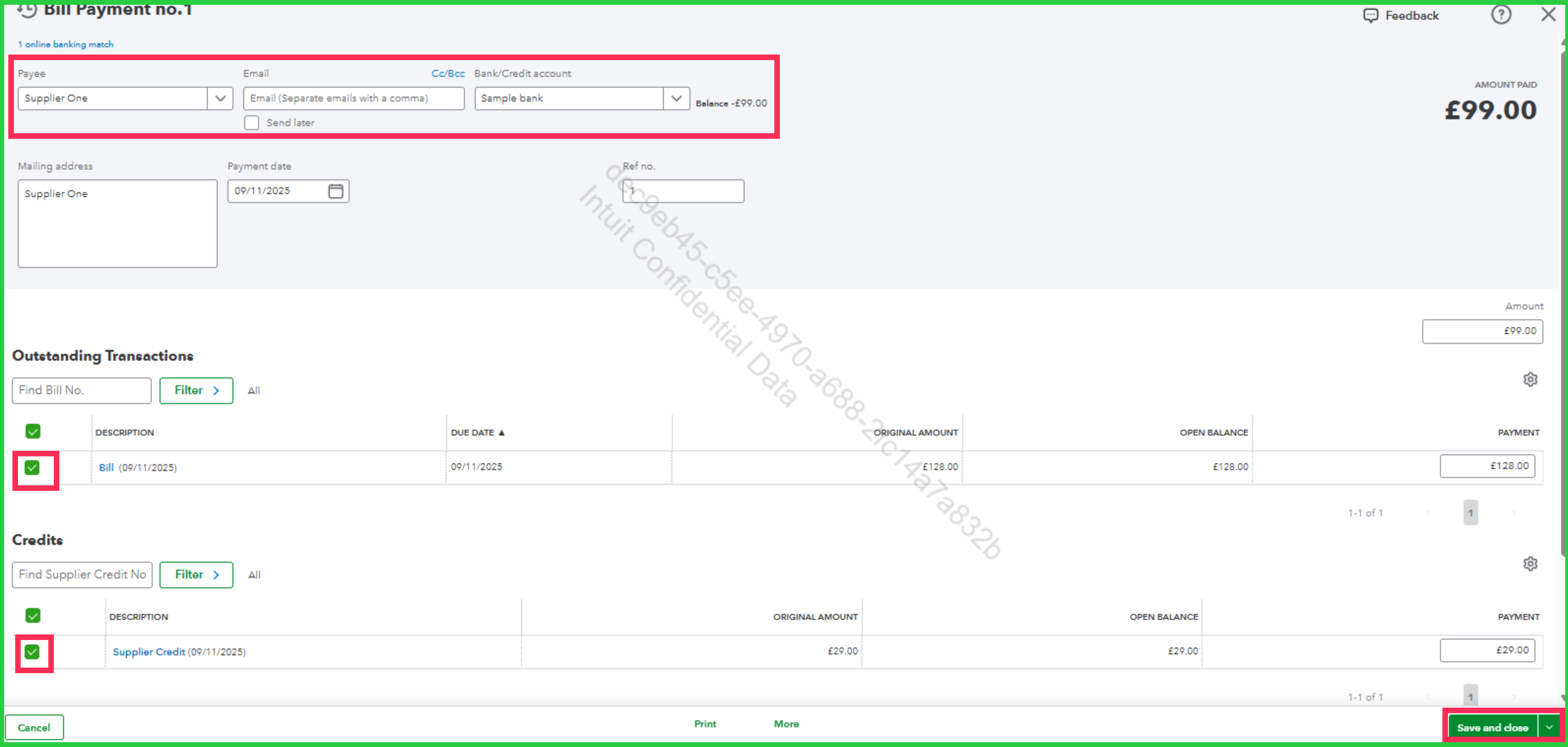
  4. Click Save and close.


Now, go to Bank transactions to match the downloaded transaction with the bill payment:


  1. Choose the correct bank or credit card account for the transaction you want to match with the bill payment.
  2. QuickBooks will automatically find the match.
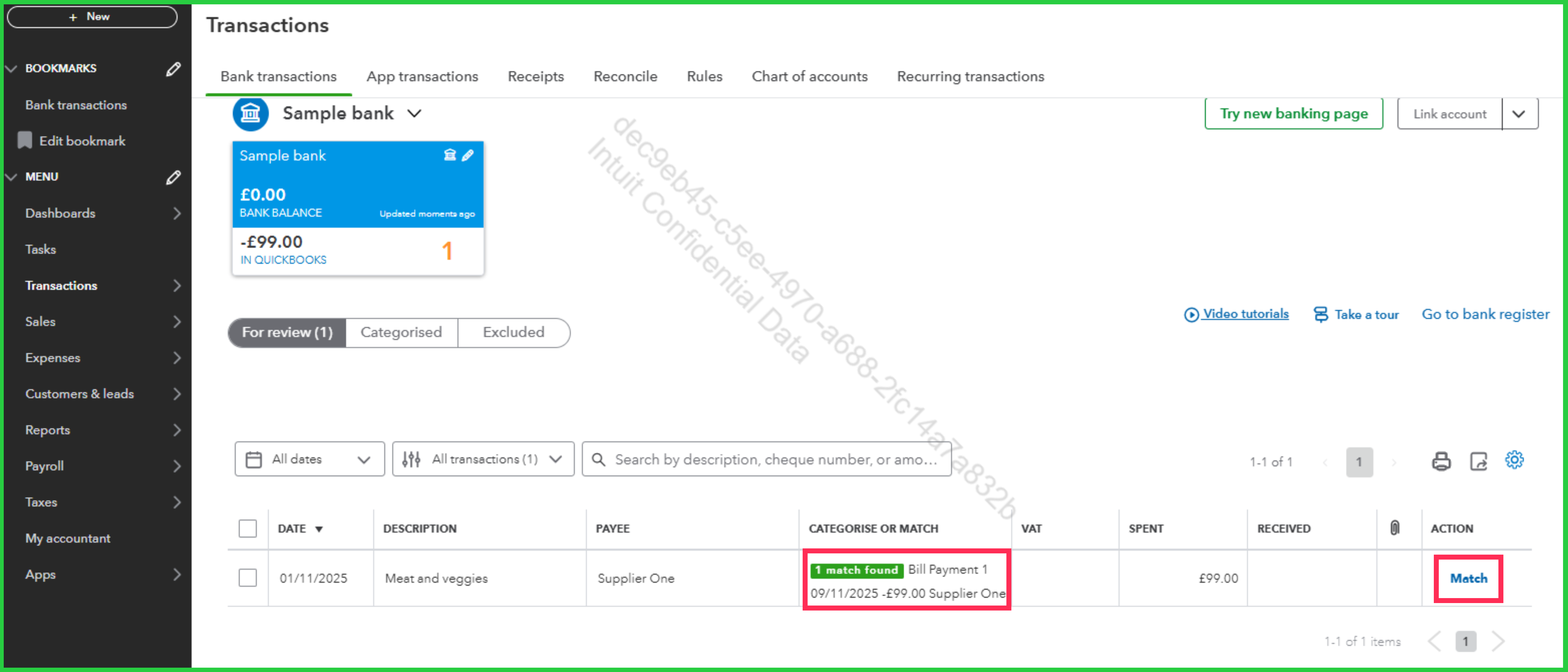
  3. Select Match.


If you have any other questions, feel free to leave a message.

View solution in original post

1 REPLY 1
EduardA
QuickBooks Team

Supplier Credit Note - matching bank transaction

Welcome to the Community, Dave.


To apply your supplier's credit note to the bills you uploaded in QuickBooks and match them to downloaded bank transactions, first create a supplier credit: go to + New and select Supplier credit.


Please note that a supplier credit cannot be matched directly from the bank feed until it is applied to a bill.


Next, follow these steps to apply the supplier credit to a bill:


  1. In the Unpaid section, locate the bill to which you want to apply the supplier credit, then select Mark as paid.
  2. Select the correct Payee and Bank/Credit account.
  3. Link the bill to the supplier credit by checking both items.
  4. Click Save and close.


Now, go to Bank transactions to match the downloaded transaction with the bill payment:


  1. Choose the correct bank or credit card account for the transaction you want to match with the bill payment.
  2. QuickBooks will automatically find the match.
  3. Select Match.


If you have any other questions, feel free to leave a message.

Need to get in touch?

Contact us
