





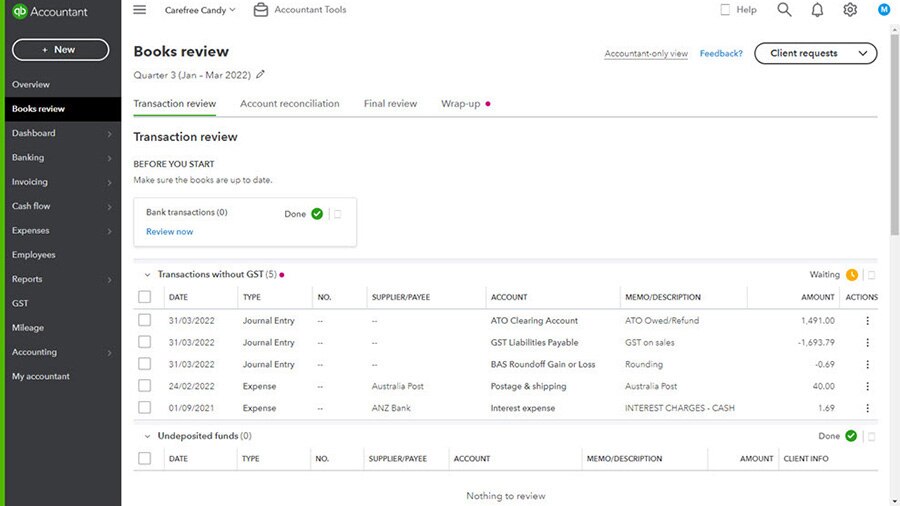



Connecting a bank account in QuickBooks using Open Banking is a straightforward process that can be done in QuickBooks and allows for real-time and secure bank transaction feeds. Follow this step-by-step guide to connect an Open Banking bank feed to your QuickBooks account.
- Start your business
- Run your business
- Grow your business
- Accountants and BookkeepersAccountants and Bookkeepers
- Updates
Need help?
We're here for you.
We're here for you.
Schedule call

product update
Connecting an Open Banking Bank Feed to QuickBooks
Prerequisites
To get started, you’ll need:
- Your Australian Business Number (ABN): This is to validate you’re a registered Australian business and you’ll need to key it in during the set up process. Intuit only offers Open Banking to customers carrying on a business.
- To nominate a representative for Open Banking purposes for any non-individual bank accounts: For entities like partnership, company or trust bank accounts, if you haven’t already, you’ll need to nominate a representative to share the account data. This is different to an authorisation to operate the bank account. The easiest way to check if you need to nominate a representative for any of your accounts is to head to the CDR Ready website and follow the prompts. Once all accounts have a nominated representative, you’re good to go.
Please note that if you are not appointed as a nominated representative for Open Banking purposes, the bank accounts will not appear during the Open Banking setup process. To correct this, ensure you are set up as a nominated representative with your bank.
Step 1: Allow Pop Ups
The Open Banking connection process requires pop up notifications to be enabled so you will need to check if they are currently enabled or disabled. Depending on the browser you use e.g. Chrome, Firefox etc, your Pop Up selection is normally found in the Settings area. If you’re unsure how to check your Pop Up selection, we recommend you search for the latest instructions for the browser you’re using.

Step 2: Navigate to the banking section
- Log in to your QuickBooks account.
- From the left-hand navigation menu, navigate to Bank Transactions. In the Classic interface this is Transactions > Bank Transactions, and in the new interface it is Accounting > Bank Transactions.

Step 3: Update an existing bank connection
- Select the bank account you would like to connect to an Open Banking bank feed
- Click on the Posted tab and note the date of the last transaction listed. You will bring in data from this date.
- Please note: any transactions in the Pending screen will be deleted when you disconnect your existing bank feed but these can be re-imported when you connect your Open Banking feed.
- Click on the pencil icon
- Select Edit Account Details
- Tick the box to Disconnect this account on Save
- Select Save. The bank account card should no longer display.
- Click the Link Account button. This will bring you to the page for connecting your bank accounts.

Step 3a: Create a new bank connection
- To set up a new bank feed connection, on the bank transactions page, click the Link Account button. This will bring you to the page for connecting your bank accounts.

Step 4: Search and select your bank
- In the search bar, type the name of your bank such as “ANZ”.
- From the search results, select the appropriate bank account type, such as "Australia and New Zealand Banking Group - ANZ (AU)".

Step 5: Confirm business account and enter details
- A prompt will appear asking, "Are you linking this account for your business?" Select Yes, this is for business purposes.
- Click Continue.
- You will be prompted to enter your Australian Business Number (ABN) or Australian Company Number (ACN). Enter the required number.
- Click Continue.

Step 6: Authorise and log in to your bank
- A new screen will appear requesting access to your information. This is part of the Open Banking protocol.
- Click Agree to authorise Intuit (the maker of QuickBooks) to access your bank data.
- You will be redirected to your bank's secure website. Click Continue to proceed to the bank's sign-in page.
- Log in using your usual online banking credentials, such as your Customer ID and a One Time Password (OTP) will be sent to your mobile device.

Step 7: Select accounts and confirm data sharing
- Once securely logged into your bank’s online banking system, you’ll be presented with a list of your bank accounts.
- You can select which accounts you want to connect to QuickBooks or hit "Select All" to include all available accounts.
- Click I Confirm to finalise your account selection and data-sharing preferences.

Step 8: Finalise the connection in QuickBooks
- Once you have selected the accounts you want to connect to QuickBooks, you’ll be redirected back to QuickBooks.
- Next, you determine which account in QuickBooks each bank account needs to connect or feed data into. For example, Westpac Business Account might feed into the account called “Westpac Main Account” in QuickBooks.
- If you’re unsure which bank account to connect with in QuickBooks, chat with your bookkeeper or accountant for guidance.
- Next, you can choose the date from which you want to import transactions. If you already have an existing feed, it will likely be today’s date. If you’re setting up a new QuickBooks account, you may want to bring in historical data so you have comparative figures from last year. Please note you can import transactions from up to 24 months ago.
- Click Connect. QuickBooks will begin bringing in your transactions.

Step 9: Manage your transactions
- Once the connection is complete, a confirmation screen will appear. You can close this pop-up.
- Your bank transactions will now appear in the "Pending" tab in QuickBooks
- You can review the imported transactions then proceed to categorise and post them.

You have now successfully connected your Open Banking bank feed, and your transactions will be automatically imported into QuickBooks.
Should you require any assistance to set up your Open Banking bank feed, connect with the QuickBooks Customer Success team for guidance.
Related Articles


Looking for something else?
TAKE A NO-COMMITMENT TEST DRIVE
Your free 30-day trial awaits
Our customers save an average of 9 hours per week with QuickBooks invoicing*
By entering your email, you are agree to our Terms and acknowledge our Privacy Statement.



Intuit helps put more money in consumers’ and small businesses’ pockets, saving them time by eliminating work, and ensuring they have confidence in every financial decision they make.
Award Winning Accounting Software


