We're glad to have you here, @tracey2972. If you've previously set the status filter to display only overdue invoices before switching to another task or closing your QuickBooks session, the system will remember this preference. Let's dive into more details about this
QuickBooks Online (QBO) saves your previous filter settings; thus, you'll find the same setting applied when you log back in or return to your task. This design aims to help users quickly access recently viewed information, especially for those who frequently focus on specific transaction types.
With that, it's best to reset the filter back to All before logging out or switching tasks in QBO. This way, you'll see the complete list of invoices each time you select a customer in your account.
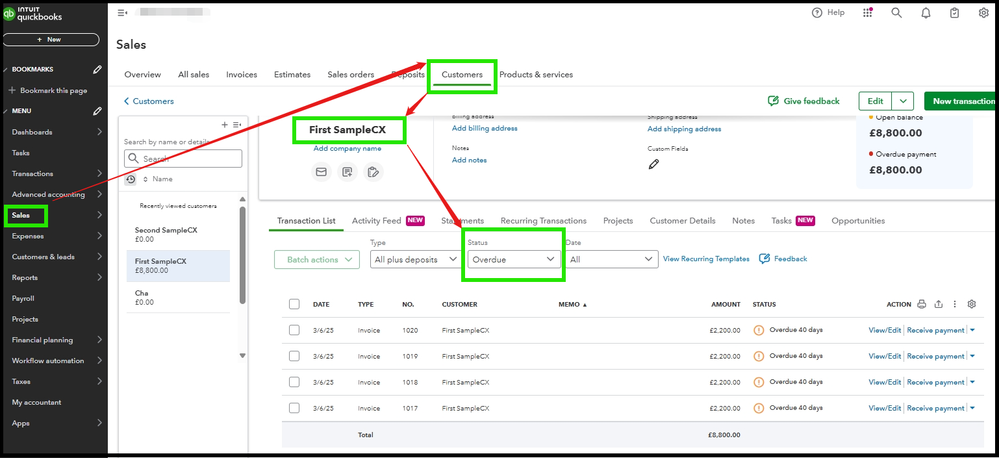
Here's how to show all transactions for the selected customer:
- Navigate to the Sales menu, then select Customers.
- Choose a specific customer from the list
- Navigate to the Status dropdown arrow.
- Change the filter status to All.
For more details on viewing your sales transactions and invoice status, you can navigate through this resource: View sales transactions in QuickBooks.
I hope this information helps you in addressing your concern about the invoice display, @tracey2972. Your attention to detail in noticing this issue speaks volumes about your commitment to maintaining organized financial records. Please don't hesitate to reach out if you encounter any other issues or have questions about using QuickBooks.


