To make sure we get you on the exact right path, could you let me know whether your current pay run is still a draft or has already been finalised? Also, were the employee's initial contributions actually deducted in month 12 of the previous tax year?
One reason this can happen is due to a mix of timing and the tax year ending. Because the re-enrolment happened in late March and the opt-out happened in April, the dates cross over the UK tax year boundary, which ends on 5 April, which can prevent QBOP from automatically reach back into a closed tax year to change deductions, as doing so could alter the figures you have already reported to HMRC. This can also occur if a draft pay run was already open before the opt-out was fully recorded or if you already had a draft pay run open for April before PensionSync updated the system with the 2 April opt-out, QuickBooks will not automatically refresh that draft. It assumes the employee still owes a contribution based on when the draft was first created.
If your pay run is still a draft:
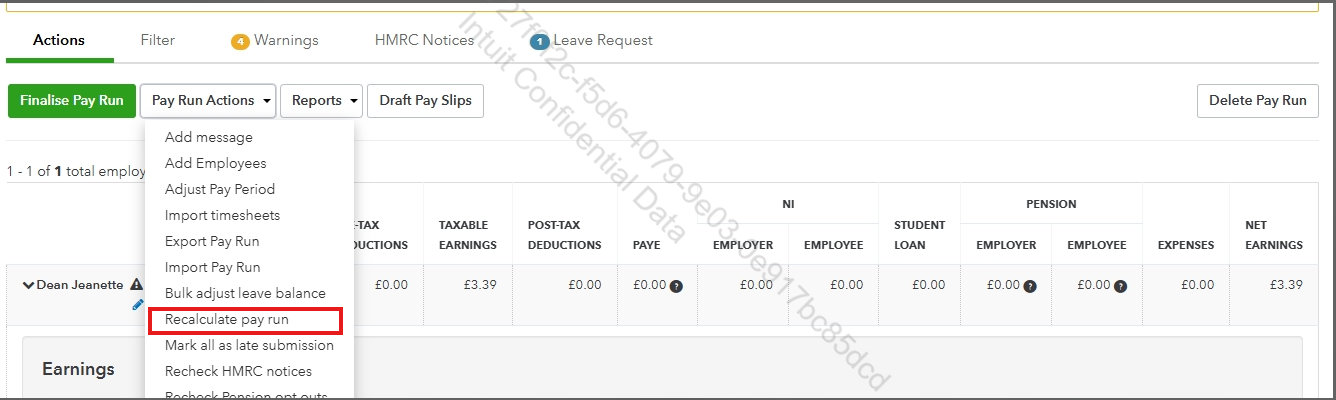
Try having QBOP pull in the new opt-out data by going to All apps > Payroll > Employees > Open the active pay run > Pay Run Actions > Recalculate pay run. This forces QuickBooks to take a fresh look at the employee's profile, which should pull in the new opt-out data and trigger the refund.
If your pay run is already finalised: If the pay run is closed and the pension data has been sent through PensionSync, that period cannot be changed. You will need to manually add the refund to the employee's next pay run.
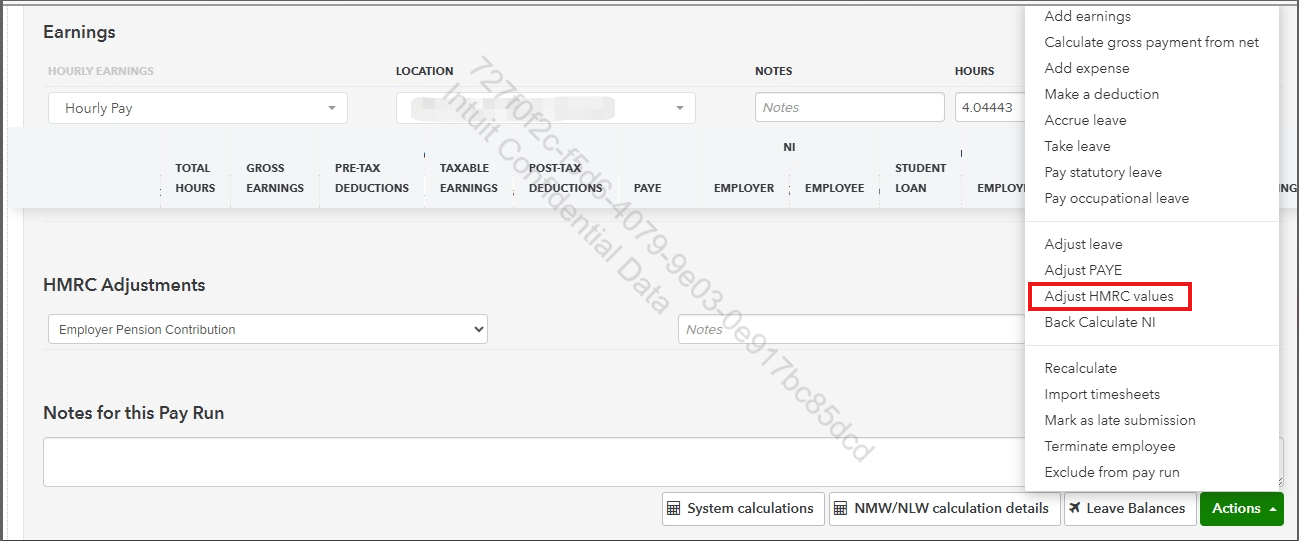
To do this, click on All apps > Payroll > Employees > Open the active pay run > expand the employee name > scroll down and click Actions next to Leave Balances > choose Adjust HMRC values > choose the pension contribution > enter the refund amount as a negative number.
I've added this article for your reference: Create and finalise a pay run in QuickBooks Advanced and Bureau Payroll.
Feel free to click on Reply if you have additional information, and we'll be here to help. We will get this sorted out together.