Good day, accounts-southba.
Let me guide you through how to create split transactions in QuickBooks Online (QBO).
There are two options on how to split transactions in QBO. If you have the transactions on your bank feeds, we can go to them and split this. Here's how:
- Go to the Banking menu and select the Banking tab.
- From there, look for the transaction intended for the returned item. Ensure to toggle to Categorize section to see the Split button.
- Verify the transaction and tap it twice to maximize and click the Split button.

- From the Split transaction window, add the details necessary to divide the amounts accordingly, and select the name of the Customer under its designated column.
- Lastly, select Apply and Accept.

If you didn't enter the transaction yet, it's best to open the transactions and associate to multiple accounts.
Here's how:
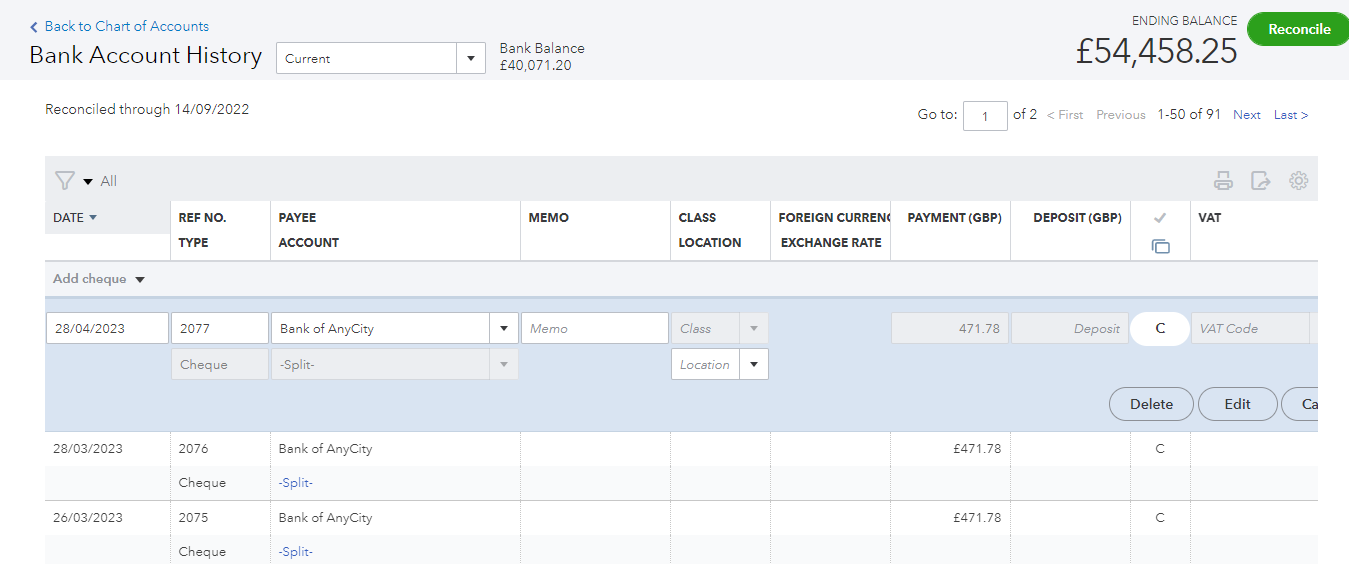
- Go to Bookkeeping and select Chart of Accounts.
- Find the account for the transaction.
- Select Account History under the Action column.
- Click the transaction, then select Edit. The entry screen for that particular transaction opens.
- Enter the other accounts to add to the amount.
- Select Save. The transaction now displays Split in the account column.
Need a reference for categorising your transactions? This article might prove useful to you: Categorise and match online bank transactions in QuickBooks Online.
If you need to start your regular reconciliation process, this article can help you out: Reconcile an account in QuickBooks Online.
Mention me in the comment section if you have additional questions or concerns about your split transactions. I'll be here to help. Take care always.


