We can remove the random letters in the address by modifying the specific invoice template in QuickBooks Online, zoe20.
Here's a more detailed process:
- Click on the Gear icon in the top right corner of your QuickBooks account.
- Select Custom form styles.
- Locate the invoice template you wish to modify and click Edit.
- Go to the Content tab and click on the Header section of the template.
- Click the +Address button to review the address details.
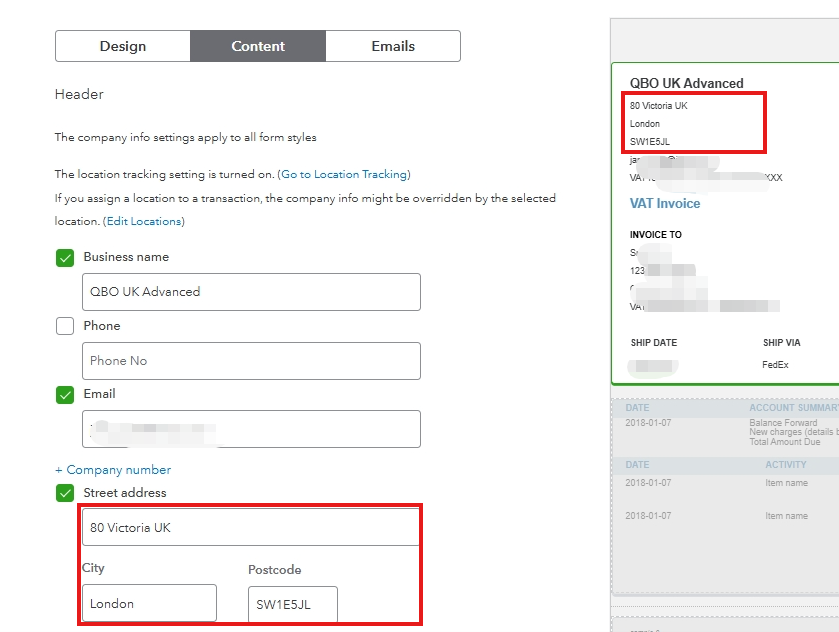
- Delete any unnecessary letters you find in the address field.
- Click Done to save the changes to your template.
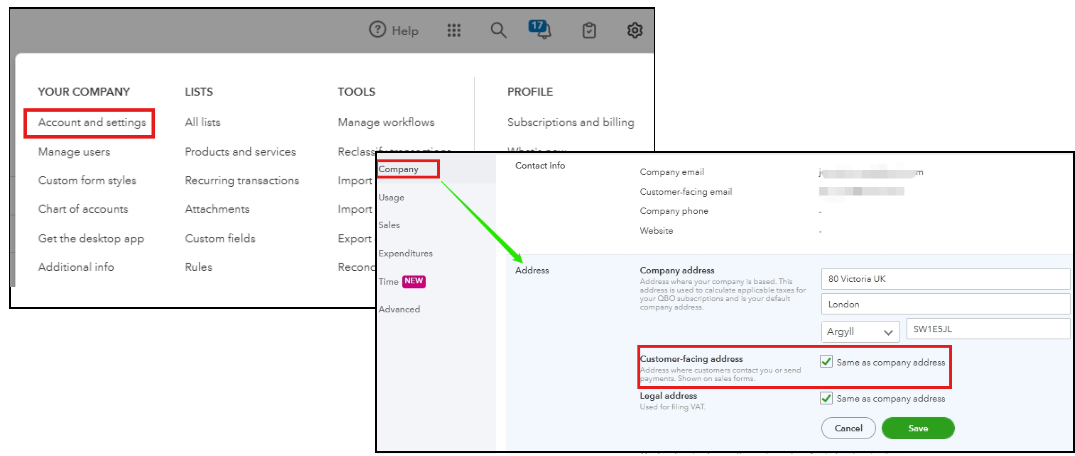
It's also a good idea to check the customer-facing address in your QuickBooks settings to ensure that all information is accurate. Doing so will help prevent any future discrepancies.
See the image below for your visual reference.
If you have any more questions about QuickBooks or need assistance, please feel free to ask by leaving a reply below. We'd be glad to help.


