
SUMMER SAVINGS 90% OFF QuickBooks for 3 months* Ends 8/27

Buy now
Switch to QuickBooks and 70% off for 3 Months
November 28, 2020
Solved

How to record a refund

  • November 28, 2020
  • 37 replies
  • 99 views
I paid Itunes £7.99 for an app it was rubbish so they refunded me £7.99 but its come through as a sale and its a refund how do i categorise this can you give me step by step instruction please

Best answer by LieraMarie_A

I've got just the steps you'll need in recording the refund, @hotlocks.


When you receive a refund from a vendor, you must first record a supplier credit for the expense that the refunded payment was applied. Then, you'll have to deposit the money received. After that, apply or link the deposit to the credit memo with a "zero GBP" payment. I'll show you how to do it.


Let's start recording the refund by entering the vendor credit.
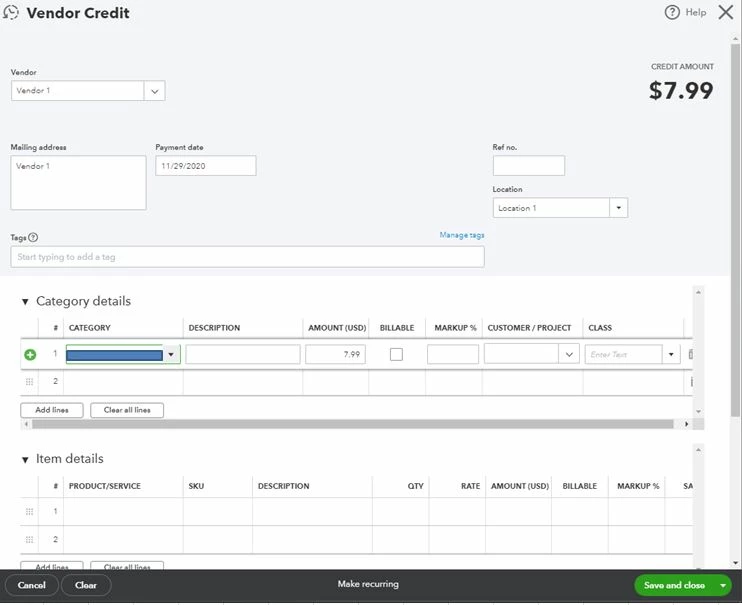
  1. Click on the +New button.
  2. Select Supplier/Vendor Credit.
  3. Select the vendor's name from the Vendor drop-down list.
  4. Depending on how you record purchases with this vendor, enter the Category details or Item details. Usually, this is the category, product, or service you’re getting credit for.
  5. Enter the amount.
  6. Select Save and close.


Then, let's deposit the money received.
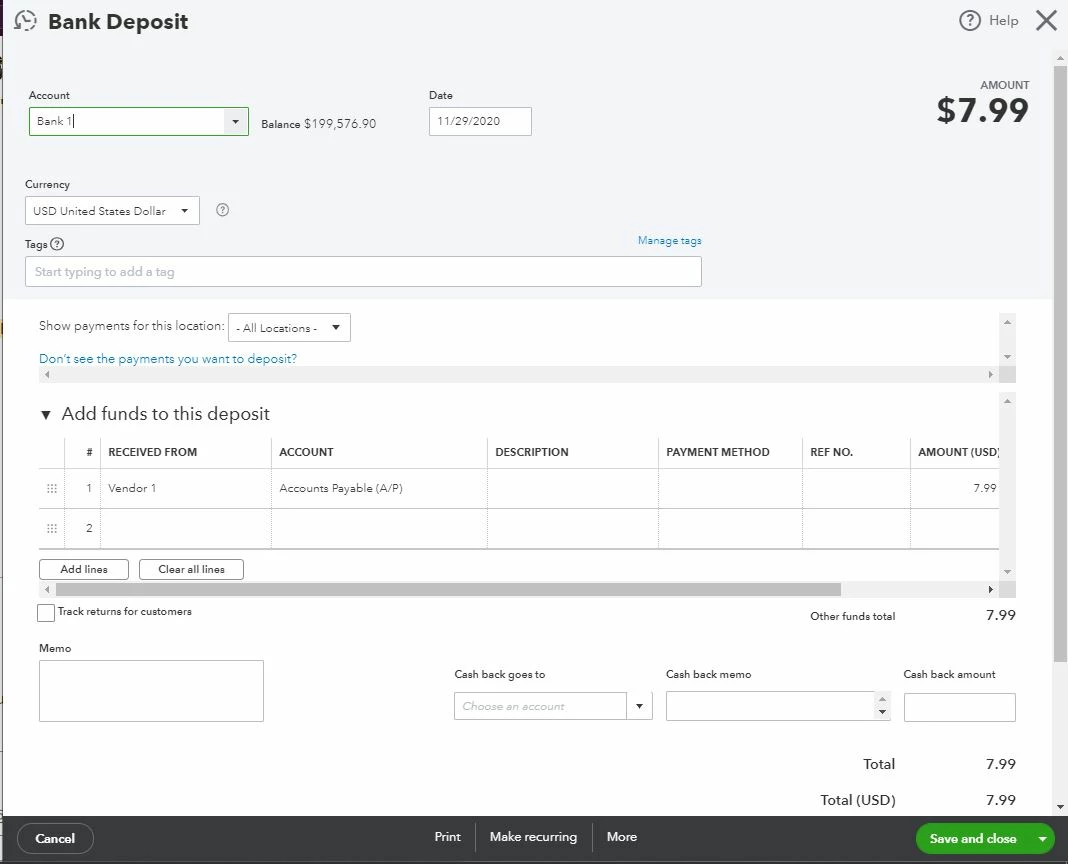
  1. Click +New.
  2. Select Bank deposit.
  3. Choose the bank account.
  4. In the Add funds to this deposit section, fill in the following fields:
  5. Received from: Select or enter the vendor name
  6. Account: Select the Accounts Payable account.
  7. Amount: Enter the cheque amount.
  8. Select Save and close.


Lastly, let's link the deposit to the vendor's credit memo with a "zero dollar" payment.
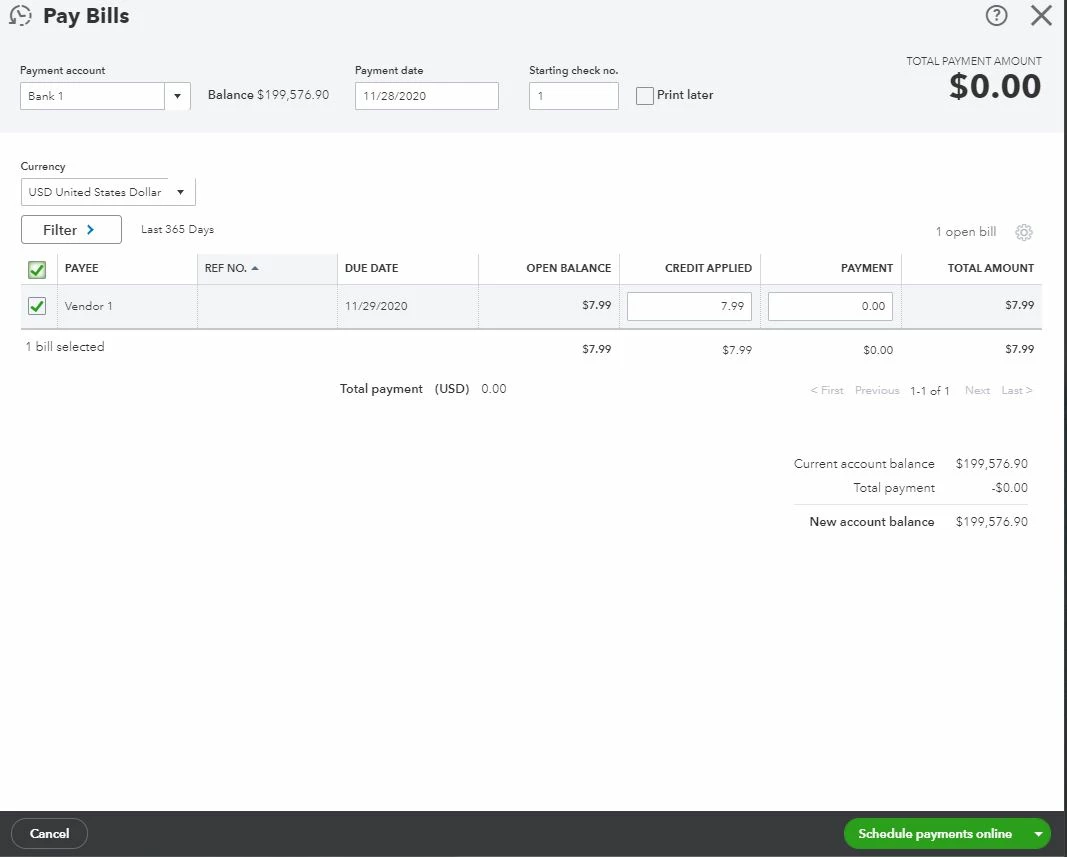
  1. Click +New.
  2. Select Pay Bills.
  3. Select the deposit.
  4. Select Save and close.

These instructions are available from our guide on entering a refund from a supplier


Once done, you can reconcile your account to make sure they match your bank statement. 


Just to add this is available in our Essentials and Plus packages. If you are using the Simple Start package  you can record the refund by creating a bank deposit (+ New > Bank deposit) - select the date and bank account the money was returned to and then scroll to 'add funds to this deposit'. On the first line, enter the same expense account used in the original expense and then enter the total amount and VAT code. 


Please touch base with us here if there's anything else you need, I'm determined to ensure your success. Have a wonderful day.

37 replies

LieraMarie_A
Level 8
November 28, 2020

I've got just the steps you'll need in recording the refund, @hotlocks.


When you receive a refund from a vendor, you must first record a supplier credit for the expense that the refunded payment was applied. Then, you'll have to deposit the money received. After that, apply or link the deposit to the credit memo with a "zero GBP" payment. I'll show you how to do it.


Let's start recording the refund by entering the vendor credit.

  1. Click on the +New button.
  2. Select Supplier/Vendor Credit.
  3. Select the vendor's name from the Vendor drop-down list.
  4. Depending on how you record purchases with this vendor, enter the Category details or Item details. Usually, this is the category, product, or service you’re getting credit for.
  5. Enter the amount.
  6. Select Save and close.


Then, let's deposit the money received.

  1. Click +New.
  2. Select Bank deposit.
  3. Choose the bank account.
  4. In the Add funds to this deposit section, fill in the following fields:
  5. Received from: Select or enter the vendor name
  6. Account: Select the Accounts Payable account.
  7. Amount: Enter the cheque amount.
  8. Select Save and close.


Lastly, let's link the deposit to the vendor's credit memo with a "zero dollar" payment.

  1. Click +New.
  2. Select Pay Bills.
  3. Select the deposit.
  4. Select Save and close.

These instructions are available from our guide on entering a refund from a supplier


Once done, you can reconcile your account to make sure they match your bank statement. 


Just to add this is available in our Essentials and Plus packages. If you are using the Simple Start package  you can record the refund by creating a bank deposit (+ New > Bank deposit) - select the date and bank account the money was returned to and then scroll to 'add funds to this deposit'. On the first line, enter the same expense account used in the original expense and then enter the total amount and VAT code. 


Please touch base with us here if there's anything else you need, I'm determined to ensure your success. Have a wonderful day.

February 3, 2022

I am using QuickBooks Desktop Pro 2019. When I go to "Pay Bills" the deposit does not appear. Is there a way to finish this step short of creating a bill for the amount of the refund?

March 16, 2022

Thanks for joining this thread, @Danielle20. Allow me to provide some info about the error message and how to fix it.


The system will only allow you to track taxes on the expense, checking, and income accounts. Currently, utilizing the Accounts Payable or Accounts Receivable type of accounts is unavailable.


To get your work done and get past the error message, you'll need to create an invoice or a bill so you can allocate a VAT code to the transaction. This way, it will be added to the appropriate bank account and will help show the tax amount you've paid. 


Once done, you can continue recording a bank deposit. For your reference, feel free to review this article: Make bank deposits in QuickBooks Online.


Additionally, I'm also attaching these links you can utilize to help manage VAT codes in QuickBooks:  


Don't hesitate to comment below by clicking the Reply button if you have further questions about recording bank deposits. I'm always right here to assist you. Take care!


Hi


Yes I am not sure which account to set the refund to as it is a form of income but not 'uncategorised' or 'non-profit'.


Thanks

Danielle

October 5, 2022

Hello there, 


I followed these steps and first two steps were simple but when i click on pay bills i don not see the Transaction there 

Level 13
October 5, 2022

Hi jasgagan, did you select the accounts payable (or 'creditors') account in the account field of the bank deposit? I'd also recommend navigating to the suppliers page (expenses > suppliers > select supplier from list > new transaction > cheque) to match the supplier credit and bank deposit. 

October 5, 2022

Hello there,


Thanks for reply, 

I have selected the bank account 

Rose-A
Level 10
October 5, 2022

I appreciate you getting back to us, jasgagan.


To ensure your transactions are showing when paying bills, you might want to ensure you've selected the Accounts Payable (Creditors). See the sample screenshot below.


Once done, we can go back to the Pay Bills section and select the Bank Deposit from there.


To know more about this process, we can refer to this article: Record a customer refund or supplier refund in QuickBooks Online. In the same link, we can find other ways how to handle supplier refunds based on scenarios.


Should you have follow-up questions about recording refunds in QuickBooks Online, please let me know. I'm all hands on deck to keep helping. Have a good one, jasgagan.

November 4, 2022

i can't believe i have to google to find out how to do such a basic operation. Big mistake moving from Xero to this broken QBO, and too much hassle moving back, in this regard QBO did a good job. QB, please make it possible the feature where you click with a right button on any link and choose to open a new window, this is so handy for poor bookkeepers that don't do just reports, but basic tenious and time consuming bookkeeping.  

Rubielyn_J
Level 8
November 4, 2022

We want you to have the best experience using the program, @Oleg M.


I can see that the option to have the right button on any link and choose to open a new window is a crucial feature for any business. Discovering new ways to adapt to our customer's needs is how QuickBooks gets even better. Your feedback helps our Product Development team determine which feature will be implemented in the next future update. The change is also based on how popular a specific feature request is. 


That being said, I suggest submitting a product suggestion directly to our software engineers. We're taking notes of your ideas and insights. Let me show you:


  1. Go to the Gear icon at the top. 
  2. Click Feedback.
  3. Enter your comments or product suggestions.
  4. Then choose Next to submit feedback.


Your relevant feedback goes to our Product Development team to help heighten your experience in QuickBooks Online (QBO). You can track feature requests through the QuickBooks Online Feature Requests website. 


Additionally, I'm sharing this link to guide you in giving refund to a customer or supplier: Record a customer refund or supplier refund in QuickBooks Online.


Thank you for your patience while we work on this. Feel at ease to get back to this thread if you have other concerns. I'll be more than happy to help. Please take care.