Live chat available 24/7


See how QuickBooks compares
Explore side-by-side comparisons of the accounting tools Australian businesses use today.
Xero
Switch to QuickBooks for easy mileage tracking and customer support you can call.
Sage
Instead of a steep learning curve, QuickBooks offers intuitive dashboards and guided setup.
MYOB
QuickBooks offers clear pricing tiers, to avoid per-employee payroll surprises.
Reckon
Choose QuickBooks for simpler cloud accounting and hassle-free migration.
Move to QuickBooks for free
Make the switch with expert help, at no extra cost to your business.
- End-to-end migration handled by Dataswitcher or MMC Convert, with updates at each step.
- Secure transfer of your books so you can start working in QuickBooks with confidence.
- Intuit covers the conversion fee, saving you money upfront.
"Very efficient accounting process"
"I switched from MYOB to Quickbooks due to the relentless price rises from MYOB with little functional benefit.
The change has been a good one - not only in cost savings but also because my accounting processes are much more efficient and less time consuming than in MYOB."
Edmund B. | Sydney, NSW | ProductReviews | 18 Sept 23
How to move to QuickBooks Online
Switching is easy. Just pick a migration partner, upload your file, and get started with QuickBooks.
For the most accurate information on moving your data, please select which product you'll be bringing data from.
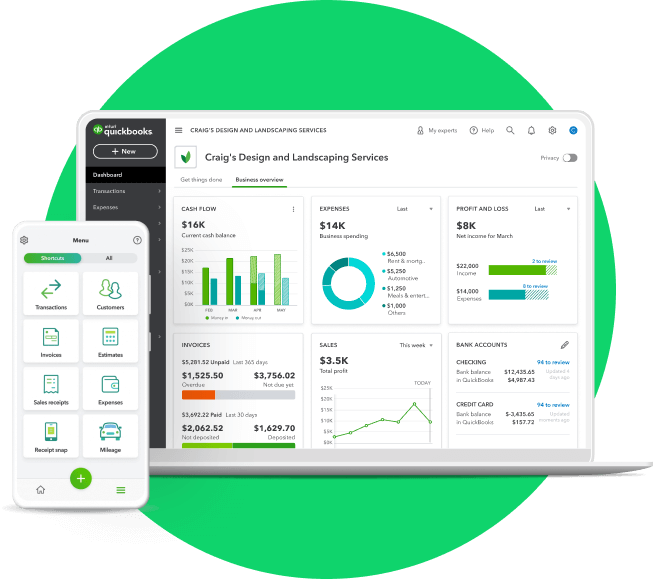
Before you move your data you’ll need to choose the right QuickBooks plan for your business.
Moving from your old accounting software is free when you sign up on a QuickBooks Essentials or Plus plan.

Before we begin your move with MMC Convert, you’ll need to give your current books a quick tidy.
Take a look at our Moving to QuickBooks checklist to make sure your books are ready to move.
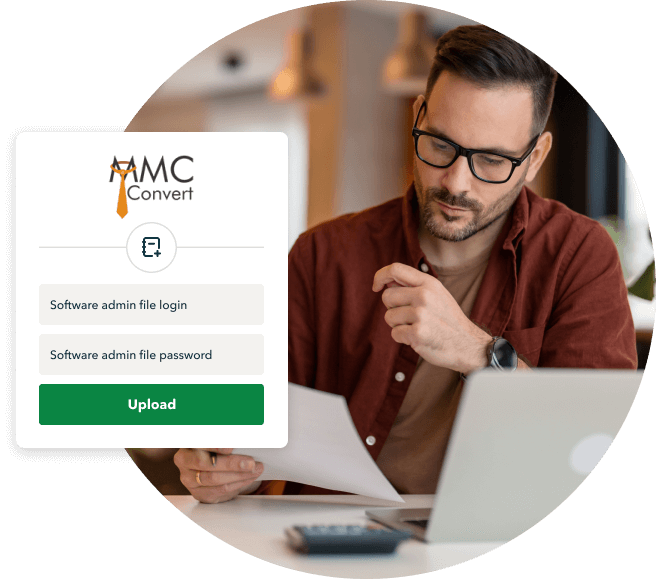
When you’ve completed the preparation checklist and your file is ready to go, upload it to MMC Convert so they can get started.
Remember, while we bring your data over you won’t be able to use your existing software or new QuickBooks Online file.
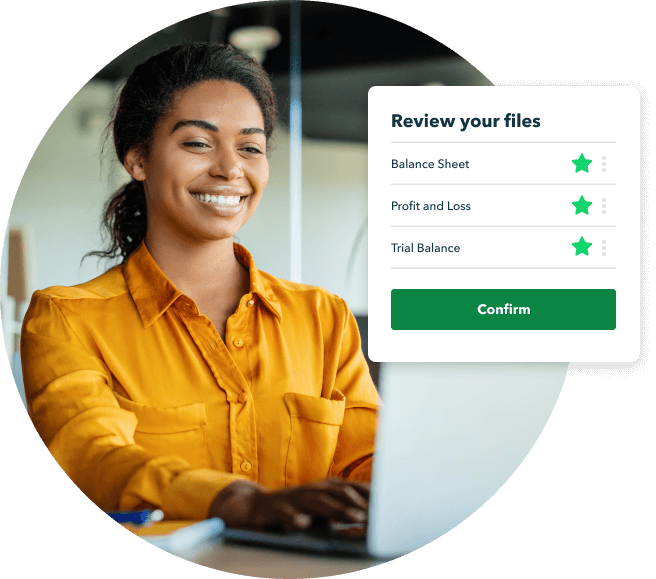
You’ll receive a notification when your move has been completed by MMC Convert. This is the time to review your data.
Feel confident that all the data in your new QuickBooks account is good to go by using our post-move checklist.
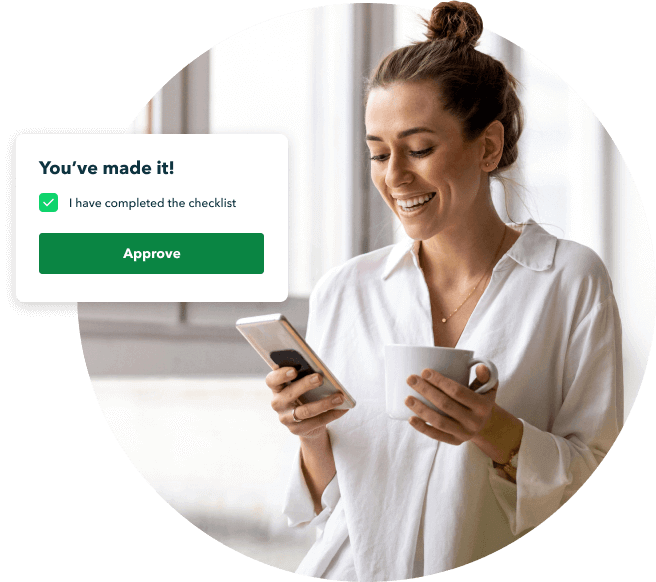
After you’ve reviewed the data in your new QuickBooks file you can approve your move.
Then, it’s time to get stuck in and enjoy running your business with QuickBooks. Book a free session with one of our experts to Get Started, or explore our Learn & Support hub.
Here’s what gets moved
Move all the info you need to get up and running with QuickBooks Online.
Basic conversionKeep it simple and only move the basics. Great for businesses who want a fresh start. |
|
Opening balances

|
|
Customers and suppliers
|
|
Chart of Accounts
|
|
Open invoices and credits
|
|
Open payments and credits
|
|
Product/Service info
|
|
| Extras | |
Year-to-date transactions
|
Please contact our team 1800 618 521 |
Frequently asked questions
Before you move your data you’ll need to choose the right QuickBooks plan for your business.
Moving from your old accounting software is free when you sign up on any QuickBooks Simple Start, Essentials, Plus or Advanced plans. Your data can also be moved within your free thirty-day trial so you can get up and running as soon as possible.
Before we begin your move with Dataswitcher, you’ll need to give your current books a quick tidy.
Take a look at our Moving to QuickBooks checklist to make sure your books are ready to move.
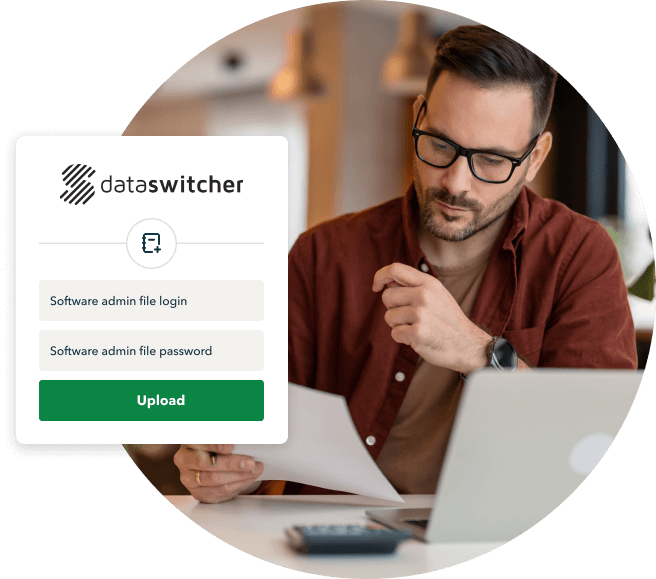
When you’ve completed the preparation checklist and your file is ready to go, it’s time to get started with the Dataswitcher wizard.
You'll get a notification from Dataswitcher when your migration is complete.
Now your migration is complete it is time for you to review your data. Follow the steps in our post-move checklist to confirm the data in your new QuickBooks Online file is correct.
We're here to help you get the most out of QuickBooks. Book a complimentary one-on-one session with an expert or explore our online self-paced learning to get started now.
Here’s what gets moved
Here’s an overview of what data can be moved to QuickBooks. See a detailed list here.
Data |
|
| Opening balances | |
| Invoices and credits (AR) | |
| Expenses and credits (AP) | |
| Bank account transactions including incoming and outgoing transactions and transfers | |
| Matched payments (AR and AP) | |
| Chart of Accounts | |
| Customer Lists | |
| Supplier List | |
You can convert up to 2 fiscal years of this data to QuickBooks at no charge.
Enter the email address you use to log into QuickBooks.
Then, you’ll be taken to Dataswitcher to start your move.
Frequently asked questions
Hear from consumers who made the switch
Discover what makes QuickBooks Online the #1 accounting software for small businesses.
See how teams moved from Xero and MYOB to QuickBooks—and what changed in their day-to-day:
“I would like to express my happiness from the quick solution to my client data conversion. I’ve experienced disappointment with another migration company in the past, but I’m overwhelmed by your quick service and reliable time lines.”
QuickBooks Desktop to QuickBooks Online
KMK Ventures customer
Frequently asked questions

Keep growing with Intuit Intelligence
Get started today and automate your path to growth with confidence.


Intuit helps put more money in consumers’ and small businesses’ pockets, saving them time by eliminating work, and ensuring they have confidence in every financial decision they make.
Award Winning Accounting Software


