Explore QuickBooks Desktop Enterprise and Intuit Field Service Management ES.**
Desktop Enterprise free product tour
demo and free 30-day trial*
QuickBooks Desktop Enterprise
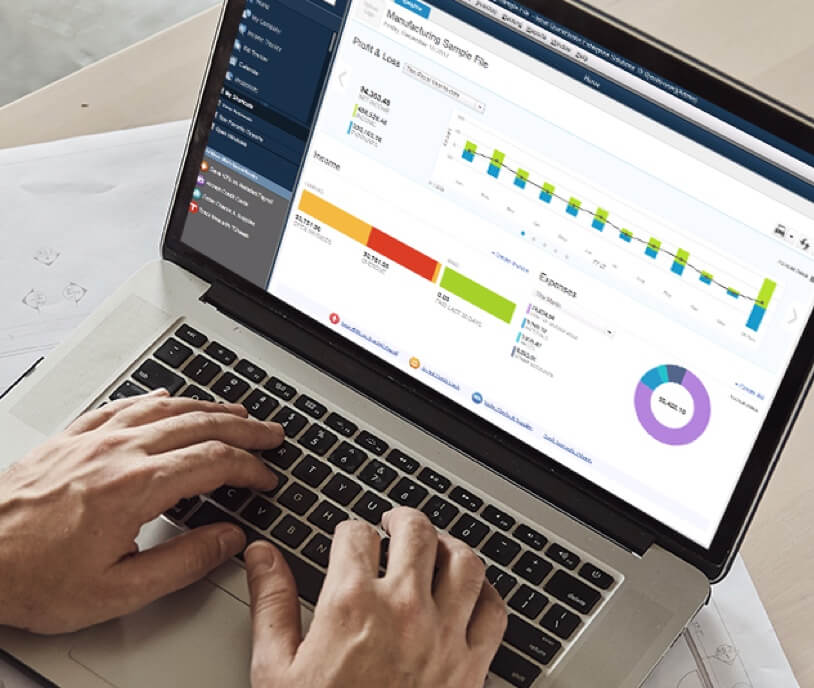
Take a product tour
The QuickBooks Desktop Enterprise Product Tour is an interactive demo, pre-loaded with sample data so you can immediately get started. The Product Tour does not allow you to upload your own data, print, or save any transactions. If you prefer to evaluate Desktop Enterprise in your own network environment, using your own data, download the free 30-day trial below.*
- No software to install
- Fully functional, using sample data
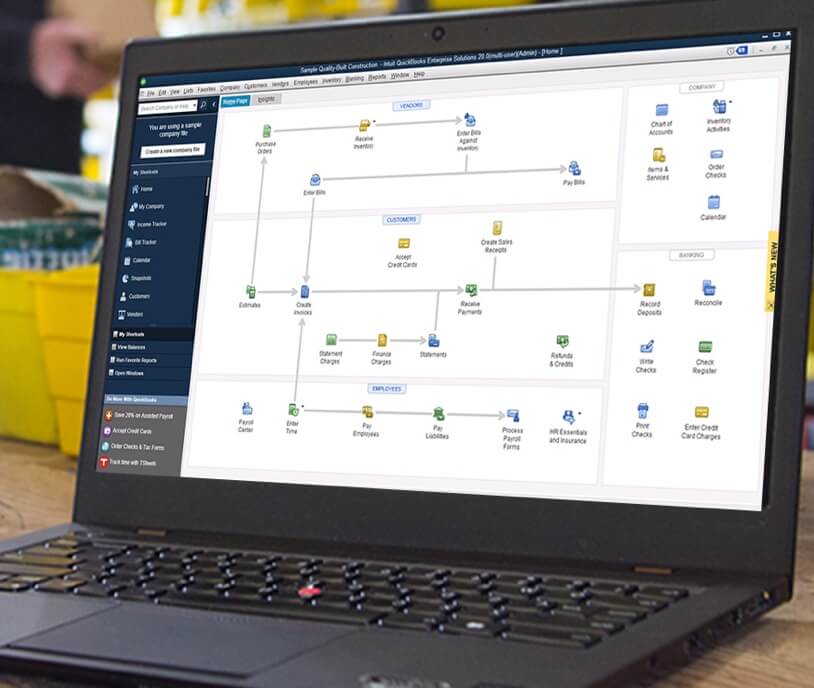
Free 30-day trial, using your own data
Get your free 30-day trial of QuickBooks Desktop Enterprise in your own network environment and using your own data.* After 30 days, you may purchase Desktop Enterprise and receive a license number and a product number that unlock the evaluation software for continued use.
- Download fully functional software
- Enter and use your own real data
- Enjoy for free for 30 days
Intuit Field Service Management ES
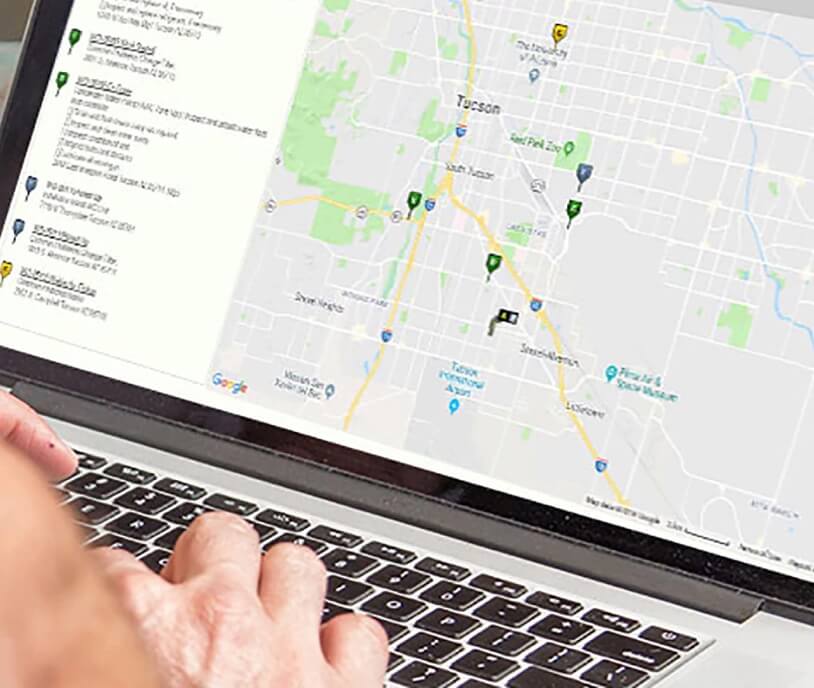
Intuit Field Service Management Enterprise — 7-day free trial
Find out how Field Service Management Enterprise can strengthen your business and your connections to the field.** Enjoy sample data, for seven days, for free. There’s no software installation necessary!
Frequently asked questions
Yes. If you'd like to try QuickBooks Enterprise before you buy it, we offer a free 30-day trial available for download.*
The system requirements for the trial are the same as the requirements of the full version of QuickBooks Desktop Enterprise.
Once you download the trial, it will either start automatically or you will have to open up the file “launch.exe” from the CD. Once that is done, here are the steps to install your trial:
- Click “Install Trial”
- Get latest updates from Intuit support
- Close any open windows
- Read and then accept terms & conditions
- Click “Client” installation
- When you are prompted to enter your “Source” and “Offer code, click “Next” to continue. You do NOT need to enter anything in these boxes
- Choose where you’d like to install your trial
- Decide whether you’d like to use Google Desktop or not. You can use this to quickly find a customer, vendor, or financial information within QuickBooks Desktop Enterprise. You have full control over the search and your information is never sent to other parties – ever
- Click “Install”
- Your QuickBooks Desktop Enterprise trial will install
- Choose which edition you’d like to use based on your industry. You can choose “Standard” if none of the industry editions match your business
- You now have the option to explore a sample company, create your own, or open up your existing QuickBooks data.
- Start using your trial!
Once you download the trial into the computer you wish to use as the dedicated “Server”, it will either start automatically or you will have to open up the file “launch.exe” from the CD. Once that is done, here are the steps to install your trial:
- Click “Install Trial”
- Get latest updates from Intuit support
- Close any open windows
- Read and then accept terms & conditions
- Click “Server” installation
- Click “Database Server Only” installation. There is a help screen to help you decide which is right for you and what to do if you have a Linux server.
- Choose where you’d like to install your trial
- Click “Install”
- Your QuickBooks Desktop Enterprise trial will install
- Configure the Database Server Manager as instructed
- You will now need to install the trial on each of the Client machines you wish to use as part of your Client/Server set-up. To do this, follow the instructions for “How do I install the trial on a single computer” from the question above.
- Start using your trial!
Once you download the trial into the computer you wish to use as the “Server”, it will either start automatically or you will have to open up the file “launch.exe” from the CD. Once that is done, here are the steps to install your trial:
- Click “Install Trial”
- Get latest updates from Intuit support
- Close any open windows
- Read and then accept terms & conditions
- Click “Server” installation
- Click “Database Server and QuickBooks Application” installation. There is a help screen to help you decide which is right for you and what to do if you have a Linux server
- When you are prompted to enter your “Source” and “Offer code, click “Next” to continue. You do NOT need to enter anything in these boxes
- Choose where you’d like to install your trial
- Decide whether you’d like to use Google Desktop or not. You can use this to quickly find a customer, vendor, or financial information within QuickBooks Desktop Enterprise. You have full control over the search and your information is never sent to other parties – ever
- Click “Install”
- Your QuickBooks Desktop Enterprise trial will install
- Choose which edition you’d like to use based on your industry. You can choose “Standard” if none of the industry editions match your business You now have the option to explore a sample company, create your own, or open up your existing QuickBooks data.
- Configure the Database Server Manager as instructed
- You will now need to install the trial on each of the other machines you wish to use as part of your network cloud access configuration. To do this, follow the instructions for “How do I install the trial on a single computer” answered above.
- Start using your trial!
First and foremost, back up and save your existing QuickBooks data file to either your hard drive or a backup disk before proceeding. Once a file is opened up in QuickBooks Desktop Enterprise, it cannot be converted back to QuickBooks Pro or Premier.
Once you have installed your trial and are ready to use a copy of your existing company file, follow these steps:
- Choose the option to “Open an Existing Company File” in your trial
- Locate the file on your computer
- Select your previous file and click “Open”
- If the “Move Company File Utility” opens, move the company file from the Program Files folder to the recommended location
- Enter your Administrator password if prompted
- When prompted, select the “I understand that my company file will be updated to this new version of QuickBooks” checkbox and then click “Update Now”
- When prompted to back up your data, click “OK”
- When prompted to confirm that you want to update your file, click “Yes”
- Begin using your existing QuickBooks file in QuickBooks Desktop Enterprise!
Certain functions have been limited or disabled in the trial version of QuickBooks Desktop Enterprise. These include payroll, direct deposit, online banking, document management, and TrueCommerce EDI.
Also, while the full version of QuickBooks Desktop Enterprise supports Remote Desktop Services, it is not currently possible to run the trial in this environment.
Please contact your sales consultant or local QuickBooks Solutions Provider if you have questions or would like a demo of any of these functions.
*Offer terms
Free trial download: The first 30 days of QuickBooks Desktop Enterprise free trial from the date of sign up is free. No credit card is required. After the 30 days, you can call to purchase.
**Product information
QuickBooks Desktop Enterprise: Your selected subscription plan for QuickBooks Desktop Enterprise Silver, Gold, Platinum or Diamond (“QuickBooks Desktop Product(s)”) will automatically be charged on a monthly (“Monthly Plan”) or annual (“Annual Plan”) basis until you cancel. You can cancel at any time by going to Account & Settings in QuickBooks and selecting “Cancel” or by calling 800-300-8179, prior to your renewal date.
The Annual Plan commits you to a 12-month term; fees vary per QuickBooks Desktop Product. If you cancel inside the 60 day money back guarantee period, you can opt to receive a refund. If you cancel outside of the 60 day money back guarantee period, you will not receive a prorated refund and you will have access to your QuickBooks Desktop Product for the remainder of the 12 month term for which you've paid.
With the Monthly Plan, your QuickBooks Desktop Product cancellation will become effective at the end of the then-current monthly billing period. You will have access to your QuickBooks Product for the remainder of the month and you will not receive a prorated refund.
See End User License Agreement for additional details.
Additional information about the latest version of your QuickBooks Desktop Enterprise product: The “Discontinuation Policy (Software End-Of-Life) for Intuit Software is subject to Intuit’s discontinuation policies then in effect and Intuit reserves the right to discontinue the Software, all support for the Software, and/or all access to and use of any Services, add-on paid services, features, online tools, Third-Party Applications or other services or content accessible through the Software in accordance with Intuit's then-current discontinuation policies or in connection with required Updates or Upgrades of the Software as part of a Subscription plan. For more details, see section 13 of the End User License Agreement.
Minimum requirements: technical requirements and system requirements
QuickBooks Desktop Enterprise Diamond subscription: QuickBooks Desktop Enterprise Diamond is sold in increments of 1-10, 20, 30, and 40 users. Desktop Enterprise Diamond is only available on a Monthly Payment Plan.
QuickBooks Desktop Enterprise with cloud hosting: The Cloud hosting service is a monthly subscription. Each month, your account will be automatically charged the agreed-upon price of the service unless and until you cancel. Cancel at any time by calling Intuit at 800-300-8179, prior to your monthly renewal date. Cancellations are refunded from the date canceled through the end of the then-current monthly billing period. The QuickBooks Desktop Enterprise software portion of the QuickBooks Desktop Enterprise with cloud hosting bundle is an Annual Subscription, paid monthly. If you choose to purchase a QuickBooks Desktop Enterprise subscription using the Monthly Payment Plan or QuickBooks Desktop Enterprise with cloud hosting, you elect to pay your annual subscription in equal payments over the course of 12 months. Cloud hosting support: Support for QuickBooks Desktop Enterprise with cloud hosting is provided by QuickBooks Support. Technical support for QuickBooks Desktop cloud hosting is powered by Rightworks and subject to the Rightworks Terms and Conditions. A valid QuickBooks Desktop Enterprise license number or key must be provided to a specialist to receive support. Internet connectivity required: Desktop Enterprise with cloud hosting is subject to availability of a reliable Internet connection. See detailed list of systems requirements, and a list of what RDP clients work with the hosting service. Remote Desktop Services compliant: QuickBooks Desktop Enterprise is Remote Desktop Services compliant. Microsoft Server operating systems, Microsoft Windows Server software licenses, and Remote Desktop Services Server Client Access Licenses, are sold separately. For multiple cloud hosting users, a Remote Desktop Services Client Access License is required for each user. Additional fees may apply. Requires certain hardware.
**Features
Intuit Field Service Management: Integrates with U.S. QuickBooks Desktop, QuickBooks Online, and Intuit Enterprise Suite. QuickBooks Desktop Enterprise subscribers receive one Intuit Field Service Manager user license at no cost. Fees apply for additional users. Optional Preventative Maintenance or Time Card Add-Ons must have the same number of paid users as Intuit Field Service Management. If you end your Desktop Enterprise Full Service Plan and want to maintain your Intuit Field Service Management, please call us to ensure no service interruption. Integration with Google Maps requires a high speed internet connection for the service manager/dispatcher role. Data network connection required for the field tech online functionality.
Additional terms, conditions and fees may apply with certain features and functionality. Feature availability varies by product and platform. Terms, conditions, pricing, subscriptions, packages, features, service and support options are subject to change at any time without notice.
Why Desktop Enterprise?
Call Sales: 800-450-8469





© 2026 Intuit Inc. All rights reserved.
Intuit, QuickBooks, QB, TurboTax, Credit Karma, and Mailchimp are registered trademarks of Intuit Inc.
Money movement services are provided by Intuit Payments Inc., licensed as a Money Transmitter by the New York State Department of Financial Services. For details about our money transmission licenses, or for Texas customers with complaints about our service, please click here.
By accessing and using this page you agree to the Website Terms of Service.
How can we help?
Talk to sales 1-800-450-8469