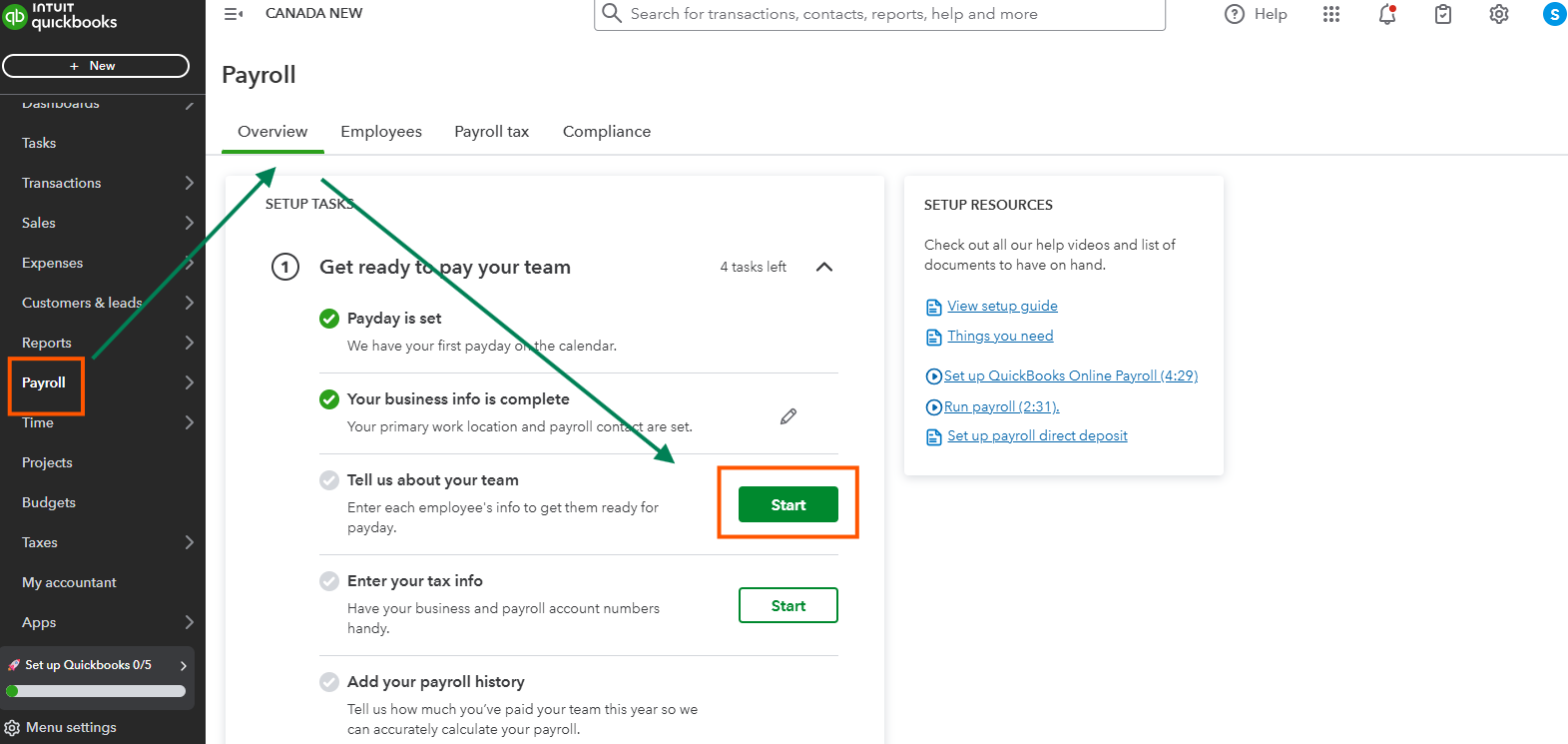
The Setup Tasks will display once you navigate to the Payroll menu and select the Overview tab. If you don't see the option, try refreshing the page so it loads properly, Jackie.
If it's not appearing, you can log out from your QuickBooks Online (QBO) and log back in. Once the option is visible, you can review and complete any missing information for your employees. Simply verify the specific sections that require action and finalize the setup directly on the page.
To access this, please follow the steps below:
- Go to the Payroll menu in the left panel.
- In the Overview page, you'll see the setup task you've previously completed.
- Go through each section and click Start to complete the steps. To enter employee information, navigate to the Tell us about team section.
On the other hand, if you need to update and add information about your employees after the set up, go to the Payroll menu and select Employees. From there, choose the specific employee whose detail you wish to update. Carefully review each section of their profile, and click Edit to make change or add new data.
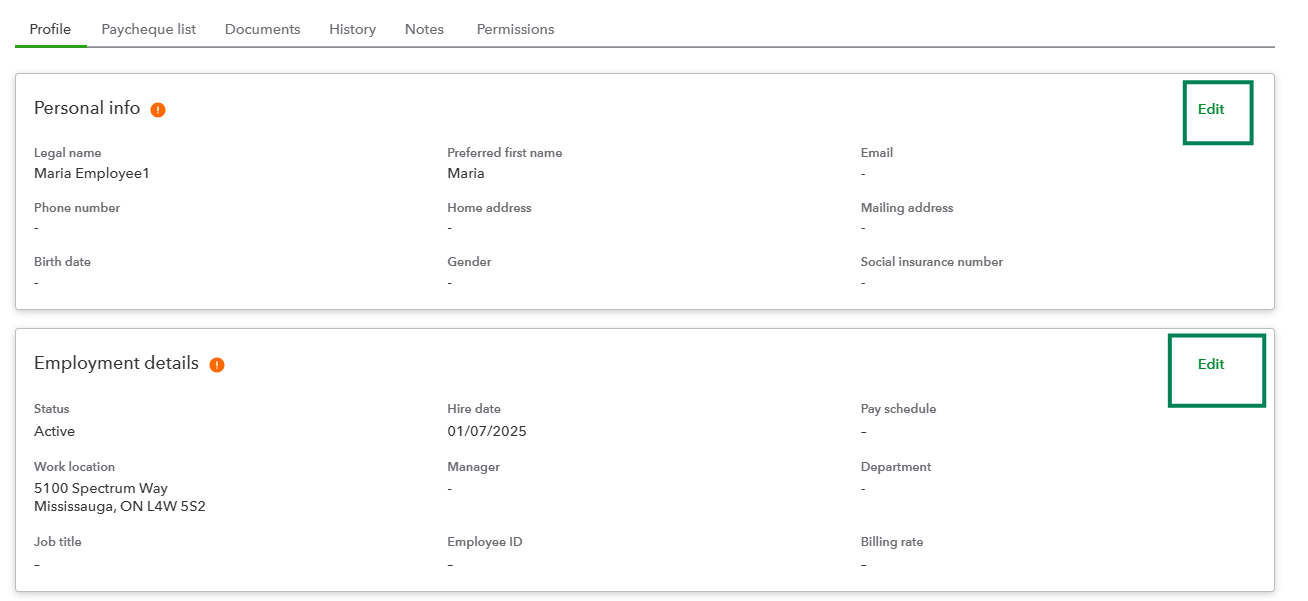
Make sure you save your updates once you're finished. However if the setup isn't still appearing, let's perform troubleshooting steps to fix the issue.
There are times your browser may encounter issues that prevent your page from loading. This happens due to outdated browser versions or compatibility problems.
You can delete the cache and clear Intuit-specific cookies to free up space and potentially improve your device performance. But if the problem persists, consider switching to another browser.
To know more on how to complete tasks before paying employees, I've got this article for your: Get Started with QuickBooks Online Payroll.
Please let me know if you have any other questions when setting up payroll or if you're referring to something else. We are always here to help you anytime.


