We can review your employees’ profile history to check if any salary changes were made by other users that might explain the higher paychecks for the period ending October 25, Mark.
To start, we can use the Audit Log to identify specific employees whose salaries may have been modified.
Here's how:
- Navigate to the Gear Icon.
- Under the Tools column, select Audit log.
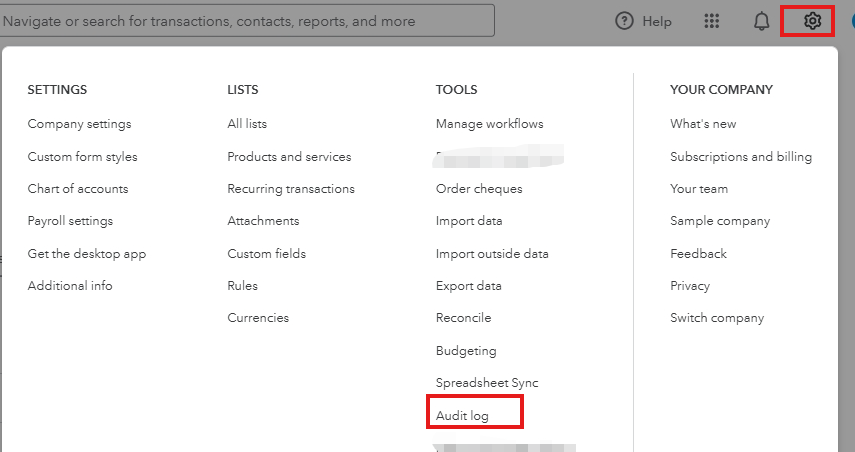
- From there, you can use the Date Changed filter to narrow down changes made before October 26.
- Once done, you’ll be able to see any changes made to employees under the Event column. The User column will show who made those changes.
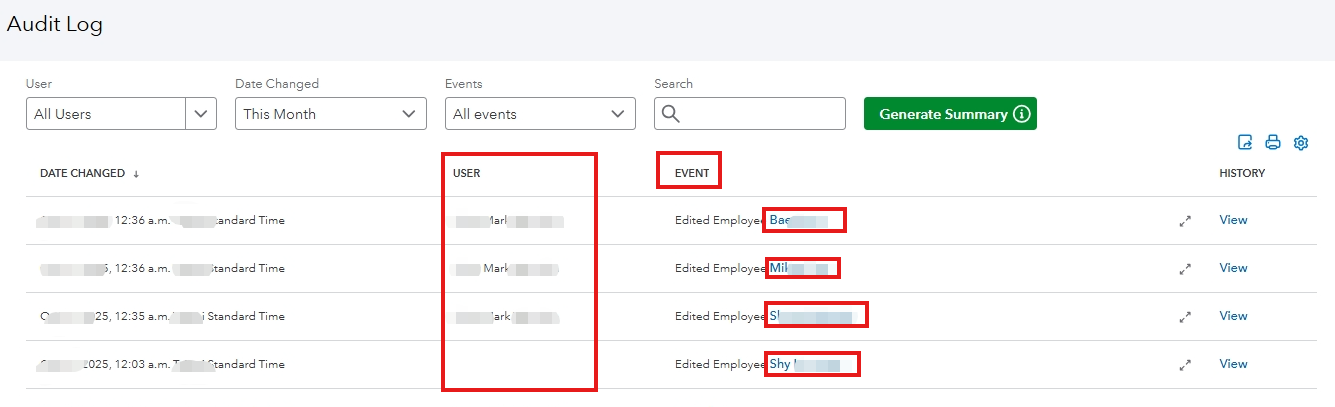
- Click on the Employee’s name to be routed to the Employee List, where you can select the specific employee whose details were modified.
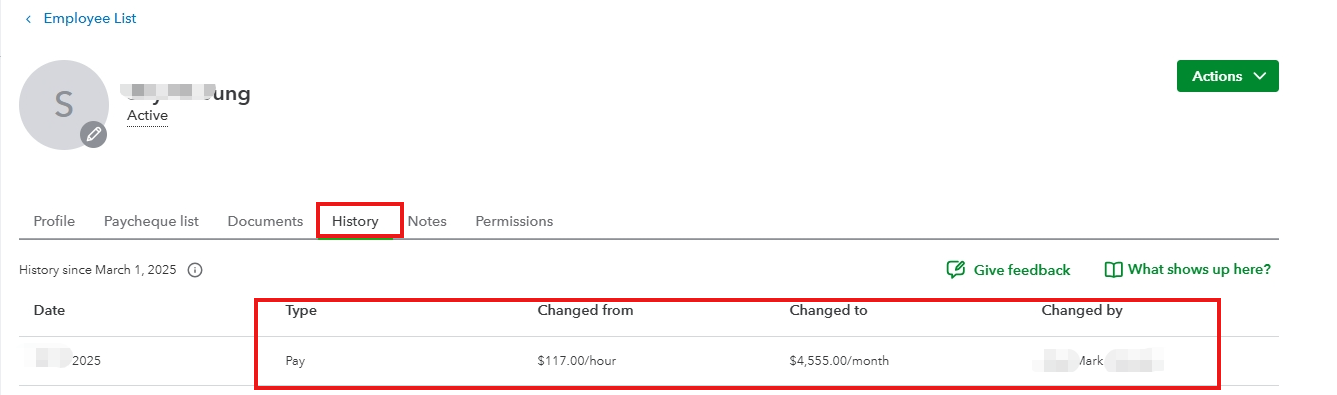
- In the employee’s profile, click History and review the salary or pay changes to see if they explain the higher paycheck.
If there are no salary changes, we recommend contacting our Live Support team during their support hours. They can securely access your account to investigate further and identify the root cause of the issue.
If you have other concerns, please don't hesitate to leave a reply below.


