Don't Miss Out

90% Off

Save big on QuickBooks plans

Confident young professional working in office
payments

A guide to recurring payments for your small business

Key Takeaways

  • Recurring payments let your business collect repeat client payments on a set schedule.
  • Customer authorization, clear terms, and secure payment details should come before any automatic charge.
  • Regular tracking can make recurring revenue easier to forecast and manage.
  • Accounting tools like Intuit QuickBooks connect invoices, payments, taxes, and reporting, making recurring revenue easier to manage.

Recurring payments get messy when invoices, approvals, and payment records live in different places. Even one missed charge can make cash flow harder to predict.

With repeat billing, cash flow strain can build up quickly. According to the Intuit QuickBooks Small Business Insights Survey, 48% of businesses face growing pressure from day-to-day cash flow issues. Intuit QuickBooks AI-powered tools keep payment details connected, so your team can spot gaps sooner and plan next steps with more confidence.

In this guide, see how recurring payments work, what it takes to collect them from clients, and where Intuit QuickBooks accounting software helps Canadian businesses keep billing workflows more organized.

What is a recurring payment?

Recurring payments are repeat payments collected on a set schedule after a customer agrees to ongoing charges.

The amount may stay the same or change based on usage, service level, or contract terms. This can work well for ongoing services, memberships, retainers, maintenance plans, and subscription-style offers.

For your business, the main benefit of recurring payments is consistency. You know when payment should happen, and your customer knows what to expect.

How recurring payments compare with one-time payments:

One-time payments Recurring payments
Paid once for a single product or service Paid on a schedule for ongoing goods or services
Requires a new payment action each time Requires customer approval before repeat charges begin
Works well for one-off purchases Works well for memberships, retainers, and ongoing service plans
Tracking usually ends after payment Tracking continues across invoices, payments, and renewals
note icon Recurring payment meaning: A recurring payment is an approved payment that repeats on a set schedule, often weekly, monthly, quarterly, or annually, for an ongoing product or service.

Examples of recurring payments

Recurring payments show up in everyday life, but they also fit many business models. If your customer receives the same type of product or service on a regular basis, recurring billing may make sense.

The most common examples:

  • Subscription services: A customer pays each month for access to a product, software, content, or delivery service. The payment continues until the customer cancels.
  • Memberships: Gyms, associations, clubs, and professional groups often charge monthly or annual fees. The schedule helps the business plan around expected income.
  • Retainer-based services: Agencies, consultants, bookkeepers, and maintenance providers may bill clients for ongoing support. Recurring invoices can help keep that billing consistent.
  • Ongoing client agreements: A landscaper, cleaner, tutor, or repair service may bill on a weekly or monthly schedule. This can reduce repeated payment requests.

Recurring payments can also work alongside other business payment methods, depending on how your customers prefer to pay and how your records are managed.

note icon Before offering recurring billing, write down the amount, schedule, payment method, renewal terms, and cancellation process. A short agreement can prevent awkward conversations later.

How to set up recurring payments

Setting up recurring payments starts before the first charge. You need the right payment method, a clear billing schedule, and customer authorization.

If your invoices repeat often, scheduling and automating billing can help reduce repeat setup work.

For most businesses, setting up recurring payments comes down to 5 practical steps.

1. Choose a payment method

Decide which payment options your business will accept. This could include a credit card, a bank payment, a digital wallet, or another approved option. Think about fees, timing, customer preference, and how each method connects to your accounting records.

2. Set the billing schedule

Choose how often the customer will be charged. Common schedules include weekly, monthly, quarterly, and annually. Keep the timing easy to explain. For example, "the first business day of each month" is usually clearer than a vague monthly date.

3. Get customer authorization

Ask the customer to approve the recurring charge before payment collection begins. The agreement should include the amount, timing, service details, and cancellation terms. Keep a record of the approval where your team can find it.

4. Automate payment collection

Once your customer has approved the arrangement, set up the recurring invoice or automatic payment. At this stage, it helps to review the steps for setting up automatic payments, including payment details, timing, and customer authorization.

5. Track payment activity

Check that each invoice, payment, fee, and tax amount is recorded correctly. This is where accounting software can make the process easier to review.


Intuit QuickBooks recurring payments workflow diagram

How to collect recurring payments

To collect recurring payments from clients, businesses should confirm the agreement, schedule the invoice or charge, offer a secure payment method, and track every payment in their accounting records.

If you're wondering how to collect recurring payments, start with the process, not the tool. The tool should support the agreement you already made with your customer.

The steps to take:

  1. Confirm the terms: List the service, price, billing date, payment method, and cancellation terms so your team and your customer share the same reference point.
  2. Create the invoice: Set up the recurring invoice template once, then review it before the first scheduled send.
  3. Add payment options: Give customers a practical way to pay from the invoice when possible.
  4. Monitor failed payments: Track expired cards, changed bank details, or missed payments so your team can follow up quickly.
  5. Review the records: Check what you billed, what customers paid, and what still needs attention.

Businesses trying to nail down the best invoicing software often look for recurring invoices, online payments, tax tracking, and reporting in the same system.

For larger recurring billing workflows, teams comparing top-rated recurring payment solutions may also want to check authorization tools, failed payment handling, and reporting.

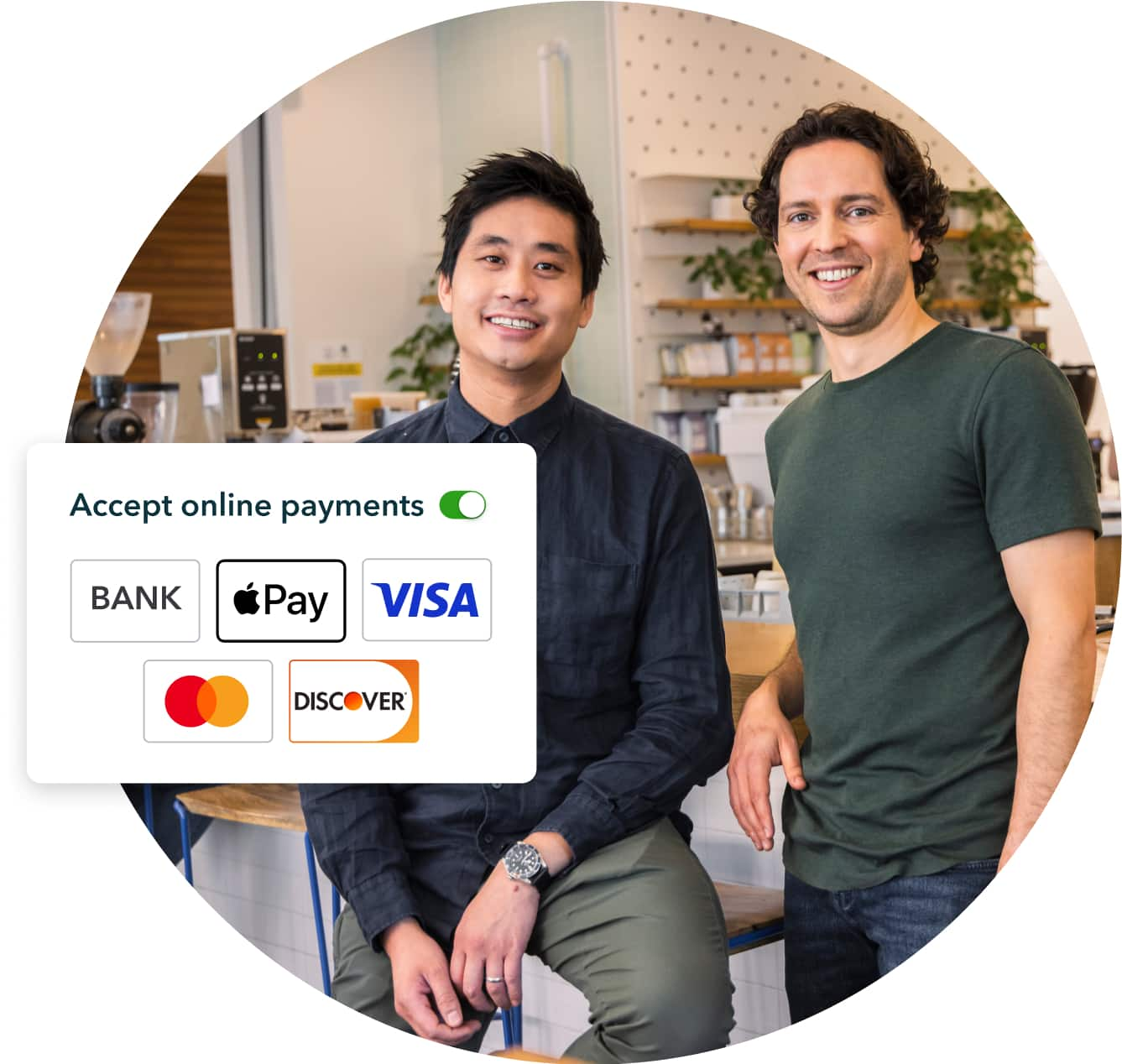
Two happy coffee owners side by side in shop

More ways to get any job paid

See your hard work pay off. Give your customers flexible payment options, so it’s easier for you to get paid—no matter where you work.

Best apps to accept recurring payments

The best apps for accepting recurring payments should help your business set up recurring billing, collect payments securely, and keep records organized.

For Canadian businesses, it may help to look for Canadian dollar handling, sales tax support, payment options your customers recognize, and clear data practices.

Recurring billing support Payment methods Reporting Accounting integration Ease of setup
Accounting software with AI-powered payments Supports recurring invoices and online payment workflows Bank payments, credit cards, and Apple Pay, depending on setup Connects invoices, payments, taxes, customer records, and reports Built into the same system your business may use for accounting workflows Works well when your team wants billing, payment tracking, and reporting in one place
Payment processor with invoicing May support repeat payment schedules Usually supports cards and online payments Reporting may focus mainly on transactions May require a connection to accounting software Setup depends on the provider
Subscription billing app Often supports recurring plans and customer updates Payment options vary by app May include plan, renewal, and failed payment reports May need an integration Better for complex subscription models
Accounting-connected app Depends on the app and setup Payment options vary Useful when data syncs correctly Can connect to accounting records May need setup support

Intuit QuickBooks may be a strong fit for your business if your team wants invoices, customer records, taxes, and reports in one place. When recurring billing connects with top-rated financial management tools, the work after payment can become easier to manage.

For businesses focused on collecting recurring payments, the right setup should also make approvals, invoices, and reporting easier to review.

How to stop recurring payments

Stopping recurring payments usually depends on who manages the billing schedule and what the customer agreed to when the arrangement started.

  • Business-managed charges: Cancel or pause the recurring payment in your billing system. Then, send written confirmation to the customer.
  • Customer cancellation requests: Explain when the cancellation takes effect, whether a final invoice applies, and where they can find a receipt or statement.
  • Notice periods: Some billing arrangements may require notice before the next scheduled charge. Include any cut-off dates in the original agreement.

A clear cancellation process can help reduce disputes, refund confusion, and chargeback risk.

Does cancelling a credit card stop recurring billing?

Cancelling a credit card may stop charges to that card, but it does not always cancel the customer's agreement with the business.

The safer step is to cancel the recurring payment with the business or service provider directly. If the charge continues after cancellation, the customer can contact their bank or card provider.

Stay on top of recurring payments checklist

How to manage recurring payments

Managing recurring payments is what happens after setup. This is where many businesses either gain control or lose track.

The goal is to keep payment status, customer details, invoices, and reports easy to review. That matters when someone needs to check cash flow, explain account activity, or prepare records for an accountant.

Use this checklist to manage recurring billing:

  • Payment status: Review paid, unpaid, failed, and upcoming payments on a regular schedule.
  • Failed payments: Follow up quickly when a payment fails because of an expired card, changed banking details, or insufficient funds.
  • Customer updates: Keep payment information, billing contacts, and service details current.
  • Revenue visibility: Use reports to see expected recurring income and outstanding balances.
  • Tax tracking: Make sure goods and services tax/harmonized sales tax (GST/HST) and provincial sales tax (PST) are handled properly for your business.

Bill tracking matters on the other side of your business, too. If recurring supplier bills affect your cash flow, managing bills in the same financial system may help you see what is coming in and going out.

Accounting software integrations can also reduce the need to move numbers by hand. When invoices, payments, expenses, and reports connect, your team can spend less time checking spreadsheets and more time making decisions.

note icon Keep recurring billing records easy to audit. Store customer approvals, invoice schedules, payment terms, receipts, and cancellation details where your team can find them.

Make recurring payments easier to manage with Intuit QuickBooks

Recurring payments are easier to manage when every payment connects back to the invoice, customer, and records behind it. That gives your team a clearer way to track expected income, payment status, and next steps.

QuickBooks Payments lets customers pay invoices by credit card, Apple Pay, or bank payment, depending on what you enable. When customers pay, Intuit QuickBooks AI-powered tools update your books and deposit funds into your bank account, making transactions easier to categorize and review.

Keep customer payments connected to the records your business uses every day with QuickBooks Payments.

Frequently asked questions

Disclaimer

Money movement services are provided by Intuit Canada Payments Inc.

This content is for information purposes only and should not be considered legal, accounting or tax advice, or a substitute for obtaining such advice specific to your business. Additional information and exceptions may apply. Applicable laws may vary by region, province, state or locality. No assurance is given that the information is comprehensive in its coverage or that it is suitable in dealing with a customer’s particular situation. Intuit does not have any responsibility for updating or revising any information presented herein. Accordingly, the information provided should not be relied upon as a substitute for independent research. Intuit does not warrant that the material contained herein will continue to be accurate nor that it is completely free of errors when published. Readers should verify statements before relying on them.

We provide third-party links as a convenience and for informational purposes only. Intuit does not endorse or approve these products and services, or the opinions of these corporations or organizations or individuals. Intuit accepts no responsibility for the accuracy, legality, or content on these sites.


Your privacy

We collect data when you use our website to improve its performance. Doing so also helps us provide a secure, personalized experience. Select 'Accept cookies' to agree or 'Cookies settings' to choose which cookies we use. You can change your preferences anytime by clicking the 'Manage cookies' link in the footer.

Choose your cookie preferences

Some cookies are needed to make our website work and can't be turned off. But we need your consent to use others that are not essential. You can make your choices below and update them at any time using the 'Manage Cookies' link. To find out more, visit our Cookies Policy.

These cookies are necessary for the site to function. They also help us keep your data safe.
These cookies allow us to enhance your experience and remember your preferences, region or country, language, and accessibility options.
These cookies tell us how customers use our website. We study and organize this data to help us optimise our content and provide you with personalised experiences.
These cookies help us provide you with relevant communications and ads in our products and on other sites.

Looking for something else?

Get QuickBooks

Smart features made for your business. We've got you covered.

Firm of the Future

Expert advice and resources for today’s accounting professionals.

QuickBooks Support

Get help with QuickBooks. Find articles, video tutorials, and more.