Two women doing their accounting with Quickbooks.
Expenses

How to automate expense reporting and management: A 5-step guide


Key Takeaways

  • Automated expense reporting captures, categorizes, and records business expenses digitally.

  • Expense management software automates receipt capture, categorization, card and bank syncing, and approvals.

  • AI improves expense workflows by reducing manual entry, flagging unusual activity, and supporting policy enforcement.

  • QuickBooks supports automated expense reporting by keeping expense tracking connected with your accounting and financial reporting.


  • As your business grows, you may find it harder to see where money is going. Expenses begin flowing in from multiple accounts, cards, and systems, which can make everyday spending more difficult to track.

    Automated expense reporting helps standardize how you capture and record expenses, making it easier to keep financial records accurate and up to date.

    In this guide, we explain what automated expense reporting is, when businesses benefit from using it, and how teams can move from manual tracking to more efficient expense workflows with QuickBooks.

    What is automated expense reporting and how does it work?

    Automated expense reporting is a way to capture, categorize, and record business expenses with minimal manual effort. Instead of collecting receipts and entering expenses later, automated workflows move expenses into the system as they occur, using connected accounts, cards, and receipt capture tools.

    Once expenses are captured, they are categorized using predefined rules. Receipts can be attached automatically and linked to the related transactions where available. Approval workflows then support a more consistent review process before expenses are finalized.

    Who benefits from expense management automation?

    Automated expense reporting is especially useful for growing teams, frequent reimbursements, and businesses with a high volume of expenses. It helps teams maintain accurate expense records and keep approvals moving smoothly.

    QuickBooks automation for expense management illustration

    How to choose expense software with audit-ready exports and receipt capture

    • Receipt capture and documentation: Expenses can be submitted with digital receipts. Receipts are captured through mobile upload or email and stored with the related expense. This makes documentation easier to track and reference later.
    • Automated expense categorization: Expenses are assigned to categories using predefined rules. This reduces manual sorting and keeps expense data consistent across reports and accounting records.
    • Credit card and bank transaction syncing: Business credit cards and bank accounts can be connected directly. Transactions flow into the system automatically. This helps reduce missed expenses and duplicate entries.
    • Approval workflows and controls: Expenses follow defined approval steps before being finalized. This helps ensure spending is reviewed consistently and remains aligned with company policies.
    • Audit-ready reporting and exports: Expense data can be compiled into structured reports. These reports can be exported for audits, reviews, or sharing with accountants.
    • Multi-user access and permissions: Access levels can be set by role. Employees submit expenses. Managers review them, and finance teams oversee records and reporting.
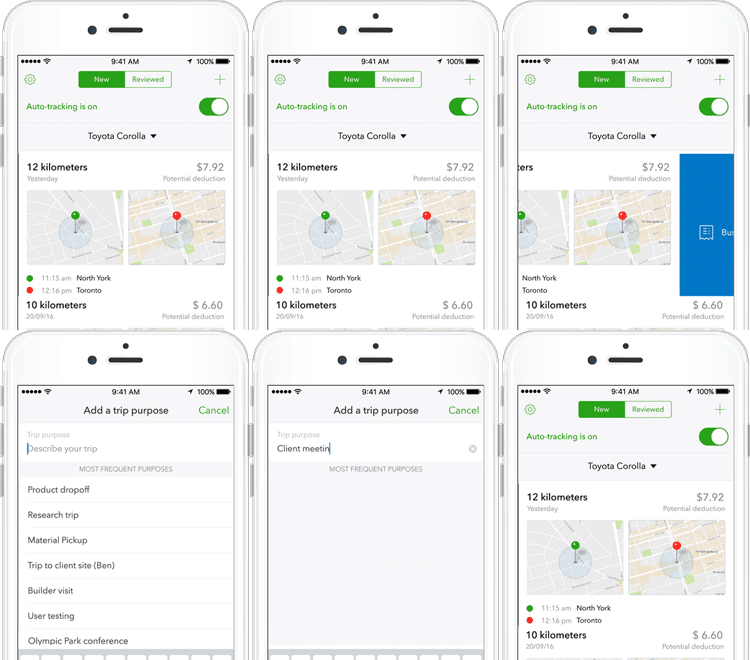
    • Mileage tracking: Some expense tracking tools support mileage tracking for business travel. Employees can record mileage from their trips, which is logged as an expense and included in reporting and reimbursements.
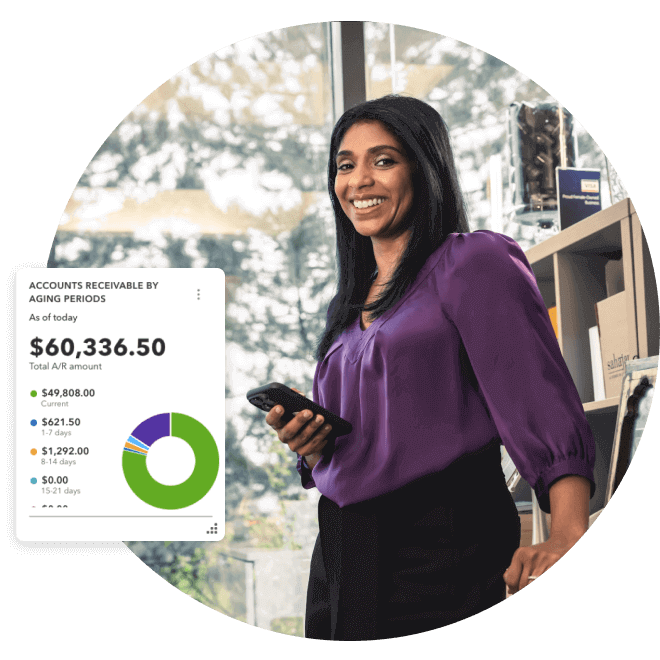
    Sahajan Beauty owner stands by the shelf with a confident smile and mobile in hand. A pop-up screenshot showing accounts receivable by aging periods.


    Work smarter, not harder

    Automate and organize your business on any device everywhere you go with QuickBooks Online.

    Why do businesses need to automate expense reporting?

    Automating expense reporting helps businesses manage spending more consistently. Expenses are recorded closer to when they occur, approvals follow structured workflows, and teams spend less time chasing receipts or correcting entries. This helps businesses stay on top of everyday spending while maintaining accurate, reliable financial records.

    Businesses often record expenses such as travel, meals, or mileage well after they occur. Reporting these expenses manually can limit how organized and up-to-date your spending tracking is.

    Receipts and supporting documents can be misplaced, and teams may spend extra time tracking down missing details. This can delay reimbursements and increase the chance of errors.

    Manual processes can also make it difficult to get a clear picture of spending. When you don’t capture expenses in real time, finance teams often review them only during month-end processes. This can make it harder to monitor operating costs or spot potential issues early.

    How to automate expense reporting: A 5-step implementation guide

    Moving from manual expense tracking to automated workflows doesn’t have to be complicated. Here’s a step-by-step approach to help you automate expense reporting and approvals more efficiently:

    1. Select the best expense management software

    The first step is choosing software that meets your current needs and supports your business as it grows. For Canadian small and mid-sized businesses, this means looking for tools that handle Canadian tax requirements, support multiple currencies if needed, and integrate with existing financial systems.

    Key capabilities to look for include receipt capture, automated categorization, approval workflows, and reporting. Mobile access is especially important, as it allows employees to submit expenses in real time instead of saving receipts for later.

    Cloud-based workflows also ensure finance teams can review and manage expenses from anywhere, without relying on manual spreadsheets or email approvals.

    2. Set clear expense rules and controls

    Clear expense policies are essential before automating workflows. This includes defining standard expense categories, setting spending limits by role or expense type, and outlining documentation requirements such as receipt uploads or notes.

    Automated rules apply these policies consistently. Expenses that exceed limits, fall outside approved categories, or are missing documentation can be flagged automatically or routed for review. This helps maintain control without adding extra manual checks or delays.

    3. Connect your business accounts and cards

    Connecting business bank accounts and payment methods, like credit cards, to your expense management software lets you automatically capture transactions as they occur. This removes the need for manual entry and reduces the risk of missing or duplicate expenses.

    Real-time syncing improves accuracy and gives finance teams faster visibility into spending. It also helps ensure expenses are recorded in the correct period, which supports more reliable reporting and reconciliation.

    4. Set up employee access and permissions

    Automation works best when everyone has the right level of access. Employees should be able to submit and track their own expenses, while managers can review and approve spending for their teams. Finance teams need broader visibility to manage policies, review reports, and reconcile accounts.

    Role-based permissions support accountability by ensuring each user only sees and edits what’s relevant to them. Approval routing can also be set up based on team structure, so expenses move automatically to the right reviewer without manual handoffs or delays.

    5. Sync approved expenses to your accounting system

    Once expenses are approved, they should flow directly into your accounting records. This eliminates manual re-entry and helps keep financial data up to date.

    Syncing approved expenses with accounting software like QuickBooks ensures transactions are categorized consistently and reflected accurately in financial reports. This supports smoother month-end close processes and reduces reconciliation time.


    Which platforms automate expense reports for tax filing and audit readiness?

    Automating expense reporting helps Canadian small and mid-sized businesses manage expenses more accurately and consistently. Capturing and categorizing expenses digitally reduces errors and helps teams work with more reliable financial data.

    Automation also improves visibility into spending. Finance teams can review expenses as they occur instead of waiting until month-end, making it easier to monitor costs and respond to issues earlier. Approval workflows move more smoothly, helping reimbursements happen faster and reducing follow-ups for employees.

    From a tax and compliance perspective, automated expense tools help businesses stay prepared throughout the year.

    Features like receipt capture, consistent categorization, and audit-ready reports make it easier to share expense reports with accountants and respond to CRA requirements. This reduces the stress of tax season and minimizes the risk of missing or unsupported expenses.

    How Automation Transforms Expense Reporting Processes

    How AI supports automated expense reporting workflows

    Some advanced expense reporting systems now include AI-driven features, including AI agents, that help businesses manage expenses with less manual review. These tools go beyond automation by helping analyze expense activity, identify patterns, and highlight transactions that may need attention.

    AI helps improve accuracy by learning how expenses are categorized over time. For example, the QuickBooks AI accounting agent can automatically categorize transactions and match them to bank feeds, reducing manual review.

    The technology also adds another layer of oversight by surfacing anomalies and unusual spending activity. Instead of manually scanning reports, teams can focus on flagged items that may indicate errors, duplicate entries, or policy exceptions. AI-generated insights can also help businesses identify spending trends earlier and respond more quickly.

    Compared to manual expense reporting, AI-driven workflows are more consistent and scalable as expense volumes grow.

    Manual expense reporting Automated expense reporting
    Higher risk of errors and inconsistencies Improved accuracy and audit readiness
    Limited visibility until month-end Real-time visibility into spending
    Inconsistent approvals and policy enforcement Standardized approval workflows and controls
    Manual entry and reconciliation Automatic categorization and transaction matching
    Difficult to scale as teams grow Scales easily as expense volume increases

    How QuickBooks supports automated expense management

    For teams evaluating the best expense management software, QuickBooks helps manage expenses within a connected accounting system, rather than through separate tools. It offers cloud-based expense tracking that records expenses as they occur, with digital receipt capture to help keep expense information organized.

    QuickBooks also syncs with business credit cards and bank accounts to automatically import transactions in real time. This reduces manual entry and helps keep expense records current and consistent.

    Expense tools in QuickBooks support multi-user access across the business. Employees can submit expenses, managers can review and approve them, and finance teams can maintain oversight from a single platform. These workflows help keep approvals moving while maintaining visibility and internal control.

    QuickBooks also includes AI-driven capabilities that support expense workflows. For example, the AI accounting agent helps categorize transactions automatically, explain transaction details, and surface unusual activity through anomaly detection.

    Your business can use this robust solution to maintain more accurate records and resolve discrepancies more efficiently, especially during month-end reviews.

    Simplify your workflow with QuickBooks

    Managing expenses manually or across multiple tools can make it harder to keep records organized and up to date. QuickBooks brings expense tracking directly into your accounting system, helping expense data stay aligned with overall business records.

    With QuickBooks, expense information is easier to track and review, helping teams clearly understand where money is being spent. This supports clearer insights through financial reporting, allowing teams to review expense data in context and make more informed decisions.

    Ready to simplify automated expense reporting? Explore QuickBooks to find tools that help manage expenses more efficiently and keep financial information organized as your business evolves.

    Frequently asked questions

    Disclaimer

    Money movement services are provided by Intuit Canada Payments Inc.

    This content is for information purposes only and should not be considered legal, accounting or tax advice, or a substitute for obtaining such advice specific to your business. Additional information and exceptions may apply. Applicable laws may vary by region, province, state or locality. No assurance is given that the information is comprehensive in its coverage or that it is suitable in dealing with a customer’s particular situation. Intuit does not have any responsibility for updating or revising any information presented herein. Accordingly, the information provided should not be relied upon as a substitute for independent research. Intuit does not warrant that the material contained herein will continue to be accurate nor that it is completely free of errors when published. Readers should verify statements before relying on them.

    We provide third-party links as a convenience and for informational purposes only. Intuit does not endorse or approve these products and services, or the opinions of these corporations or organizations or individuals. Intuit accepts no responsibility for the accuracy, legality, or content on these sites.


    Related Articles

    Your privacy

    We collect data when you use our website to improve its performance. Doing so also helps us provide a secure, personalized experience. Select 'Accept cookies' to agree or 'Cookies settings' to choose which cookies we use. You can change your preferences anytime by clicking the 'Manage cookies' link in the footer.

    Choose your cookie preferences

    Some cookies are needed to make our website work and can't be turned off. But we need your consent to use others that are not essential. You can make your choices below and update them at any time using the 'Manage Cookies' link. To find out more, visit our Cookies Policy.

    These cookies are necessary for the site to function. They also help us keep your data safe.
    These cookies allow us to enhance your experience and remember your preferences, region or country, language, and accessibility options.
    These cookies tell us how customers use our website. We study and organize this data to help us optimise our content and provide you with personalised experiences.
    These cookies help us provide you with relevant communications and ads in our products and on other sites.

    Looking for something else?

    Get QuickBooks

    Smart features made for your business. We've got you covered.

    Firm of the Future

    Expert advice and resources for today’s accounting professionals.

    QuickBooks Support

    Get help with QuickBooks. Find articles, video tutorials, and more.

    Don't Miss Out

    90% Off

    Save big on QuickBooks plans