A person in a yellow shirt smiles.
taxes

What is a T4: A guide for employers and employees


Key Takeaways

  • A T4, or Statement of Remuneration Paid, is a tax slip that shows how much you paid to and the deductions you withheld from an employee during the tax year

  • T4 is also known as a Statement of Remuneration Paid.

  • Employers issue T4 slips to employees and T4A slips to contractors or self-employed individuals when required by the CRA.

  • Employers must file and distribute T4 slips by February 28, 2026.

  • QuickBooks helps with T4 online filing and distribution.


  • From reconciling payroll to keeping up with CRA filing requirements, there's a lot to manage during tax season. On top of that, the tax forms can be complex and take time to get right.

    A T4 slip is one of the key forms used in T4 Canada reporting. It shows an employee’s total earnings and deductions, such as income tax, CPP, and EI and helps ensure payroll is reported accurately to the CRA.

    This guide breaks down what goes into a T4 slip, when you need to issue one, and how to file it correctly. We’ll also break down how QuickBooks can make T4 online filing easier.

    What is the T4 slip?

    A T4, officially known as a Statement of Remuneration Paid, summarizes how much you pay your employees in a calendar year. Though small in size, it contains some of the most important payroll details, including amounts withheld for income tax, Canada Pension Plan (CPP), and Employment Insurance (EI).

    As an employer, it’s important to know what you’re required to report and where to record it on the form. For employees, reviewing what’s listed on a T4 helps confirm their income and deductions match what was reported to the Canada Revenue Agency (CRA).

    A small plastic bag with a small scissors on it.

    When to issue a T4?

    You have to fill out a T4 if you pay your employees a salary, wages, bonuses, vacation pay, taxable benefits, retiring allowances, fishing income, or any other form of remuneration.

    You also have to file a T4 slip if any of the following apply:

    • You deduct CPP, EI, or income tax. If you are in Québec, you deduct Quebec Pension Plan (QPP) or Provincial Parental Insurance Plan (PPIP) premiums
    • The total remuneration you pay to your employee in a calendar year is more than $500
    • You provide group term life insurance 

    The T4 must be prepared and distributed to employees by the last day of February following the calendar year it applies to. This deadline stays the same whether you complete your T4 slips manually or file them online.

    Items to report on a T4 slip

    A T4 slip contains a lot of information. As an employer, you're responsible for reporting the relevant items as outlined by the Canada Revenue Agency.

    Items may include:

    • Salary or wages
    • Tips or gratuities
    • Bonuses
    • Vacation pay
    • Employment commissions
    • Gross and insurable earnings of self-employed fishers
    • Taxable benefits
    • Taxable allowances
    • Retiring allowances
    • Deductions withheld during the year
    • Pension adjustment (PA) amounts for employees who accrued a benefit for the years under your registered pension plan (RPP) or deferred profit sharing plan (DPSP)
    • Security options benefits provided to an employee, former employee, or non-resident employee. 

    Items you don't report on a T4 slip

    The CRA also outlines the items you don't need to report.

    These include:

    • Pensions, lump-sum payments, annuities, or other income — use T4A
    • Paid amounts from a retirement compensation agreement — use T4A-RCA
    • Paid fees (except director fees), commissions, or other amounts to a non-resident for services in Canada — use T4A-NR slips
    • Payments to contractors if construction is your primary source of business income. Use T5018.
    • Taxable group term life insurance benefits provided to former employees or retirees (over $50). Use T4A slips.
    • Government service contracts reported by federal departments, agencies, or Crown corporations. Use T1204.

    Double-check that employee names, SINs, and payroll totals match before filing. Small entry errors can lead to corrections and delays.

    T4 employer considerations

    To help ensure the accuracy of information on your employee T4 slips, the CRA provides several guidelines, including:

    • Complete a T4 return for each CRA payroll account
    • Report income for the year it was paid, regardless of when it was earned
    • Complete a T4 slip for each province/territory your employee worked in during the year
    • Report using dollars and cents (except pension amounts, which only use dollars)
    • Box 14 (employment income) allows a maximum of 10 digits
    • Report all amounts in Canadian dollars, even if they were paid in another currency

    There are also rules for what you shouldn't do when completing a T4 slip, including:

    • Don't use negative dollar amounts
    • If a box doesn't have a value, leave it blank
    • Don't change any headings
    • Don't use hyphens or dashes between numbers
    • Don't enter the dollar sign ($)

    Using payroll software can also make this process easier by keeping payroll taxes, deductions, and year-end totals organized throughout the year. With everything in one place, completing and filing T4 slips becomes more accurate and efficient.

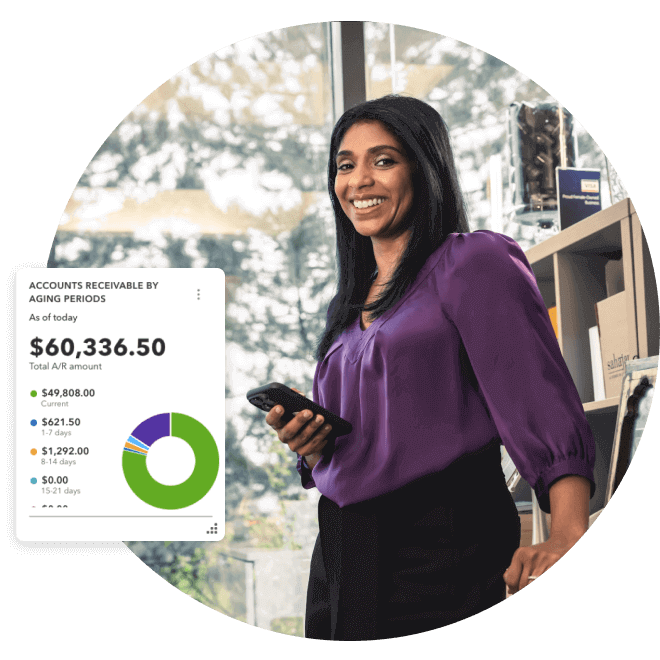
    Sahajan Beauty owner stands by the shelf with a confident smile and mobile in hand. A pop-up screenshot showing accounts receivable by aging periods.


    Work smarter, not harder

    Automate and organize your business on any device everywhere you go with QuickBooks Online.

    How to complete a T4

    When it comes time to complete T4s for your employees, here's the information you need to include:

    Identification information

    • Year: The 4-digit year in which the payment was made to your employee.
    • Employer name: Either your legal name, operating or trade name, and address.
    • Employee's name and address: In capital letters, enter the employee's last name followed by their first name. Don't include titles such as Mr., and Mrs. Also include the employee's address.
    • Province of employment (box 10): Enter the provincial or territorial abbreviation where the employee worked. For instance, AB for Alberta, ON for Ontario. This isn't always the same as the employee’s province of residence.
    • Social insurance number (SIN): Enter your employee's 9-digit SIN.
    • CPP/QPP (box 28): Enter exemptions for CPP contributions, EI premiums, and Provincial Parental Insurance Plan (PPIP) premiums. If you didn't have to withhold these amounts, mark the box with an X.
    • Employment code (box 29): Fill out this box if an employee has a specific employment code associated with their job, including:
    • 11- Placement or employment agency
    • 12 - Self-employed taxi driver or driver of other passenger-carrying vehicle
    • 13 - Barber or hairdresser
    • 14 - Prescribed salary deferral plan or arrangement
    • 15 - Seasonal agricultural workers program
    • 16 - Detached employee
    • 17 - Self-employed fishing income
    • Employer-offered dental benefits (box 45): As of 2023, it's mandatory to indicate if your employee or their family members were eligible for dental insurance or dental coverage of any kind. Codes to enter include:
    • 1. Not eligible for any coverage
    • 2. Payee only
    • 3. Payee, spouse, and dependent children
    • 4. Payee and their spouse
    • 5. Payee and their dependent children
    • Employer's account number (box 54): Enter your 15-character CRA payroll account number. Don't include this on the copies you give employees.

    Income and source deductions

    • Employment income (box 14): Here you report your employee's total income. This includes salary, wages, commissions, taxable benefits, tips and gratuities, and more.
    • Employee's CPP or QPP contributions (box 16/17): Report the amount deducted for CPP or QPP contributions. If you didn't deduct CPP/QPP, leave the box blank.
    • Second CPP or QPP contributions (box 16A/17A): For 2024 and later slips, report any CPP2 or QPP2 contributions you deducted. Use Box 16A for employees outside Quebec and Box 17A for those who worked in Quebec.
    • Income tax deducted (box 22): Report how much federal, provincial (except Quebec), and territorial tax you deducted.
    • CPP/QPP pensionable earnings (box 26): Report total pensionable earnings, which is the amount you use to calculate your employee's CPP/QPP contributions in box 16 and box 17.
    • Provincial parental insurance plan (PPIP) premiums (box 55): Report any deductions for the employee's share of PPIP premiums. Don't report the employer’s share.

    Registered pension plan (RPP) or deferred profit sharing plan (DPSP)

    • RPP contributions (box 20): Report the total amount contributed to an RPP, including any installment interest.
    • RPP or DPSP registration number (box 50): Enter the 7-digit registration number from the CRA.
    • Pension adjustment (box 52): Report the amount in dollars of any pension adjustment (PA) under an RPP or DPSP.

    Union dues or charitable donations

    • Union dues (box 44): Report any amount deducted for tax-deductible union dues.
    • Charitable donations (box 46): Report any amounts deducted for donations to registered Canadian charities.

    Other information

    There's also a box on the T4 slip for "other information." Here, you can enter codes and corresponding amounts related to employment commissions, deductions, taxable allowances and benefits, and other applicable income details.

    A white table topped with lots of paperwork.

    When do you have to file T4s?

    As an employer, it's up to you to keep track of when to file your employees’ T4s. For most employers, the 2025 tax year T4 filing date is February 28, 2026.

    You have to provide your employees with their T4 slips and file your T4 return with the CRA on or before this date.

    If you choose T4 filing online, you can submit your slips and complete your T4 Summary filing online through the CRA’s electronic services.

    Note: If the deadline falls on a Saturday, Sunday, or a CRA-recognized statutory holiday, it automatically moves to the next business day. Since February 28, 2026, is a Saturday, the filing deadline shifts to Monday, March 2, 2026.

    Late filing penalty

    If you miss this deadline, the CRA may apply a daily late-filing penalty based on the number of T4 slips filed late.

    Penalties range from $10 to $75 per day, with a minimum penalty of $100 and a maximum penalty of $7,500, depending on how many slips are late.

    table that includes info on t4s

    How to give your employees their T4 slips

    You have a few different options for how to get your employees their T4s.

    Options include:

    • Email. You have to get written consent from your employees if you want to email their T4.
    • Electronic portal. If you have a secure portal with a secure printer, you can share slips this way. If your employee asks for a paper T4, you must provide it.
    • Paper. If you provide paper T4s, you have to include two copies, either in person or by mail. For security, don't include your payroll account number in box 54. 

    How to use QuickBooks Online for T4 filing

    If you file more than 5 informational returns in a calendar year, you must submit them electronically. Failing to do so can result in a penalty from the CRA. The minimum penalty is $250, and it increases with the number of returns filed on paper.

    QuickBooks Payroll automatically fills out and calculates your T4 forms so they’re ready to print, send, or file when you need them.

    Before submitting, review each employee’s earnings, deductions, and benefits. When everything looks correct, QuickBooks generates a single XML file that includes both your T4 slips and T4 Summary for CRA upload.

    After filing, you can send T4 slips to employees through Workforce or by secure email with consent. QuickBooks also lets you review and adjust T4s when needed, giving you more control and fewer year-end errors.

    Double-check that employee names, SINs, and payroll totals match before filing. Small entry errors can lead to corrections and delays.

    T4 employee considerations

    As an employee, you might have questions about your T4 as tax time approaches, such as:

    Why is a T4 important?

    If you're an employee who earns $500 or more in a calendar year, you can expect to receive a T4. You need this slip to file your annual tax return.

    Your T4 slip details important information, such as total income earned, mandatory deductions like EI and CPP/QPP, as well as any union dues, pension adjustments, or charitable donations made during the year.

    When can you expect your T4 slip?

    Your employer must provide your T4 slip on or before February 28, 2026. You can usually access your slip electronically, through your company's online payroll portal, or by email. You can also request a paper copy, which you can give in person or send by mail.

    Can I have more than one T4 slip?

    Yes, you can have multiple T4 slips. You should receive one from each employer you worked for during the calendar year.

    T4 vs T4A: What's the difference?

    While the T4 and T4A may sound similar, they serve different purposes.

    If you're an employee, your income is reported on a T4. If you're self-employed or receive other types of income, it's reported on a T4A slip.

    The T4A, also known as the Statement of Pension, Retirement, Annuity, and Other Income, is responsible for reporting all of the income that doesn't belong on a T4.

    If you work for a company as an employee and also have a side hustle, you'll receive a T4 from your employer and must report your self-employment income on a T4A.

    What income to report on a T4A

    According to the CRA, you or the payer (employer, trustee, estate executor, administrator, or corporate director) should report the following sources of income on your T4A:

    • Pension or superannuation
    • Lump sum payments
    • Self-employed commissions
    • Annuities
    • Patronage allocations
    • Registered education savings plan (RESP) income payments
    • RESP educational assistance payments
    • Fees or other amounts for services
    • Income replacement payment under the Veterans Well-being Act
    • Research grants
    • Payments from a registered disability savings plan (RDSP)
    • Wage-loss replacement plan payments if not required to hold CPP contributions and EI premiums
    • Death benefits
    • Certain benefits paid to partnerships or shareholders

    Streamline T4 prep and filing

    T4 filing doesn’t need to be stressful. QuickBooks Payroll gives you accurate and up-to-date payroll data when it’s time to prepare your T4 slips.

    It guides you through CRA filing and helps you avoid common reporting errors. You can also share T4 slips with employees securely, so compliance feels easier at every step.

    Sign up for QuickBooks now to manage your year-end tax forms and stay compliant.

    Frequently asked questions

    Disclaimer

    Money movement services are provided by Intuit Canada Payments Inc.

    This content is for information purposes only and should not be considered legal, accounting or tax advice, or a substitute for obtaining such advice specific to your business. Additional information and exceptions may apply. Applicable laws may vary by region, province, state or locality. No assurance is given that the information is comprehensive in its coverage or that it is suitable in dealing with a customer’s particular situation. Intuit does not have any responsibility for updating or revising any information presented herein. Accordingly, the information provided should not be relied upon as a substitute for independent research. Intuit does not warrant that the material contained herein will continue to be accurate nor that it is completely free of errors when published. Readers should verify statements before relying on them.

    We provide third-party links as a convenience and for informational purposes only. Intuit does not endorse or approve these products and services, or the opinions of these corporations or organizations or individuals. Intuit accepts no responsibility for the accuracy, legality, or content on these sites.


    Your privacy

    We collect data when you use our website to improve its performance. Doing so also helps us provide a secure, personalized experience. Select 'Accept cookies' to agree or 'Cookies settings' to choose which cookies we use. You can change your preferences anytime by clicking the 'Manage cookies' link in the footer.

    Choose your cookie preferences

    Some cookies are needed to make our website work and can't be turned off. But we need your consent to use others that are not essential. You can make your choices below and update them at any time using the 'Manage Cookies' link. To find out more, visit our Cookies Policy.

    These cookies are necessary for the site to function. They also help us keep your data safe.
    These cookies allow us to enhance your experience and remember your preferences, region or country, language, and accessibility options.
    These cookies tell us how customers use our website. We study and organize this data to help us optimise our content and provide you with personalised experiences.
    These cookies help us provide you with relevant communications and ads in our products and on other sites.

    Looking for something else?

    Get QuickBooks

    Smart features made for your business. We've got you covered.

    Firm of the Future

    Expert advice and resources for today’s accounting professionals.

    QuickBooks Support

    Get help with QuickBooks. Find articles, video tutorials, and more.