Free bi-weekly timesheet template
Time tracking

Free bi-weekly timesheet template


Key Takeaways

  • A bi-weekly timesheet tracks employee hours over a 14-day pay cycle, capturing everything from clock-in/out times, breaks, overtime, and PTO.

  • Using an Excel template automates math and can reduce the risk of payroll mistakes common with paper forms.

  • Bi-weekly tracking often makes payroll preparation easier for businesses with hourly workers across multiple shifts or locations.

  • QuickBooks' free template includes the essential fields you need and is customizable to your business needs.


  • Between tracking overtime, managing different shifts, and staying CRA-compliant, manual payroll tasks can pile up quickly. And making errors doesn't just lead to headaches, but can result in costly mistakes and frustrated employees.

    To help you reclaim your time, we've created a free, customizable template you can download and start using today.

    In this guide, we’ll show you how to use the template to maintain accurate records and recognize when it's time to move from spreadsheets to automated software.

    What is a bi-weekly timesheet?

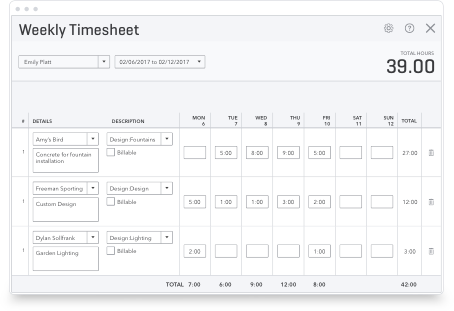
    A bi-weekly timesheet is a record used to track employee hours over a 14-day pay cycle. Instead of submitting hours every week, employees log their time over 2 weeks, capturing everything from clock-in/out times to unpaid breaks and overtime.

    While some businesses still use paper forms, Excel templates are more common since they automate calculations and can reduce manual entry errors.

    This format tends to be useful for businesses with hourly workers because it mirrors a common 26-period pay schedule, making it easier to manage cash flow and administrative deadlines.

    Download the free bi-weekly timesheet template

    Our free bi-weekly timesheet template captures all the data you need for accurate payroll and CRA record-keeping in one simple, printable spreadsheet.

    What the template includes:

    • Employee information: Employee name, manager, company name
    • Pay period details: Pay period start date, standard pay rate, overtime pay rate
    • Daily tracking (14 days): Day, date, job/shift, job/shift code
    • Time entries: Time in/out for shifts and breaks
    • Signatures: Employee and manager signature fields
    • Hour categories:
    • Total hours worked
    • Overtime hours
    • Sick hours
    • Holiday hours
    • Vacation hours

    The template is Excel-optimized for automatic calculations, but it's also formatted to be clean and legible if you prefer to print it out for manual entry.

    bi-weekly-timesheet-template-image-ca-en

    How to use the bi-weekly timesheet template

    Using the bi-weekly timesheet template is simple. Follow these 4 steps to get started:

    Step 1: Download the template

    Download the bi-weekly timesheet and save a copy to your computer. You can fill out the Excel file digitally to automate calculations, or print a hard copy for your team to complete by hand. Just be sure to keep a blank "master" version saved so you can easily reuse it for every new pay period.

    Step 2: Enter employee and pay details

    Fill in the header with the employee's name, their manager, and your company name. You'll also need to add the pay period start date and the employee's specific pay rates. Entering both the standard and overtime rates upfront helps the template calculate the final totals accurately.

    Step 3: Track daily hours and time off

    Have employees record their hours for each of the 14 days, including their "Time In," "Time Out," and any unpaid breaks. Use the specific columns for overtime, sick time, and vacation hours to make sure every hour is categorized correctly for your records.

    Step 4: Review and approve for payroll

    Once the pay period ends, have the employee sign and date the timesheet to confirm their hours are accurate. You should then review the entries to verify overtime and totals before adding your own signature. The completed timesheet is then ready for payroll processing.

    Want to eliminate manual timesheet entry? QuickBooks Time automates time tracking by letting employees clock in and out digitally, automatically calculating totals and syncing with payroll.

    A person sitting in front of a laptop computer.

    Payroll made easy

    Simplify your payroll processes and taxes with QuickBooks - effortlessly complete forms and quickly run payroll with auto payroll and direct deposit.

    Benefits of using a bi-weekly timesheet

    Managing payroll efficiently starts with accurate time tracking, and switching to a bi-weekly cycle offers several advantages that can simplify your operations.

    Those benefits include:

    • Improved payroll accuracy: A 2-week window gives you more time to review entries and catch errors before processing paycheques.
    • Reduced administrative work: You only process payroll 26 times a year instead of 52, which cuts your data entry and filing time in half.
    • Lower processing costs: Many payroll providers charge per pay run. Moving to a bi-weekly schedule can significantly reduce your annual processing fees.
    • Easier overtime management: Tracking hours over 14 days makes it easier to spot patterns in overtime and adjust schedules before labour costs climb.

    Bi-weekly timesheet best practices for businesses

    Getting the most out of your bi-weekly timesheets requires clear policies and consistent processes to stay compliant with Canadian regulations.

    Some best practices you can follow include:

    • Set clear submission deadlines: Require employees to submit their timesheets at least 2 days before you process payroll. This gives you a buffer to fix errors without delaying paycheques.
    • Review timesheets promptly: Most provinces calculate overtime on a daily or weekly basis. Check each day's entries, not just the 2-week total, to make sure you're paying overtime correctly.
    • Keep records for 6 years: The CRA requires you to keep all payroll records (including timesheets) for 6 years from the end of the tax year they relate to. Store them in a secure, organized folder for easy access.
    • Address errors immediately: If you spot a mistake, clarify it with the employee right away. Once corrected, have both parties initial or re-sign the final version.
    • Consider automated tracking: Manual timesheets work fine for small teams, but as your business grows, payroll automation may become necessary. Software like QuickBooks Time eliminates manual entry, calculates totals automatically, and reduces errors.

    Manage your time tracking with QuickBooks

    Bi-weekly timesheets are a solid way to keep your payroll records organized. But as you hire more people, manual entry can take up more of your time.

    QuickBooks time tracking eliminates the back-and-forth by letting employees clock in and out digitally. Hours sync directly with payroll, so you don't have to enter data twice. The system also calculates totals automatically and helps keep your records organized for CRA compliance.

    If you're ready to save time on payroll, download our free bi-weekly timesheet template to get started, or explore QuickBooks Time to see how automation fits your business.

    Frequently asked questions

    Related Articles

    Your privacy

    We collect data when you use our website to improve its performance. Doing so also helps us provide a secure, personalized experience. Select 'Accept cookies' to agree or 'Cookies settings' to choose which cookies we use. You can change your preferences anytime by clicking the 'Manage cookies' link in the footer.

    Choose your cookie preferences

    Some cookies are needed to make our website work and can't be turned off. But we need your consent to use others that are not essential. You can make your choices below and update them at any time using the 'Manage Cookies' link. To find out more, visit our Cookies Policy.

    These cookies are necessary for the site to function. They also help us keep your data safe.
    These cookies allow us to enhance your experience and remember your preferences, region or country, language, and accessibility options.
    These cookies tell us how customers use our website. We study and organize this data to help us optimise our content and provide you with personalised experiences.
    These cookies help us provide you with relevant communications and ads in our products and on other sites.

    Looking for something else?

    Get QuickBooks

    Smart features made for your business. We've got you covered.

    Firm of the Future

    Expert advice and resources for today’s accounting professionals.

    QuickBooks Support

    Get help with QuickBooks. Find articles, video tutorials, and more.