Hi there, stefanie.
Thank you for reaching out to us. I understand that you are looking for a way to batch-delete or exclude transactions in SoloPreneur, and I apologize for any inconvenience this may have caused you. Let me explain why this feature is unavailable and provide you with an alternative solution.
SoloPreneur is designed to provide a simple and streamlined accounting solution for small businesses and solo entrepreneurs. As such, certain advanced features, such as batch deleting or excluding transactions, are not currently available in the software.
The reason behind this limitation is to ensure data integrity and prevent accidental deletion or exclusion of transactions, which could potentially lead to significant accounting errors. SoloPreneur focuses on providing accurate and reliable financial information by promoting a more controlled and deliberate approach to managing transactions.
While there is no built-in option for batch deleting or excluding transactions in SoloPreneur, you can still manually delete or exclude individual transactions. To do this, here's how:
- Go to Transactions.
- Find the transaction you want to exclude, then select the Edit icon.
- Choose Delete.
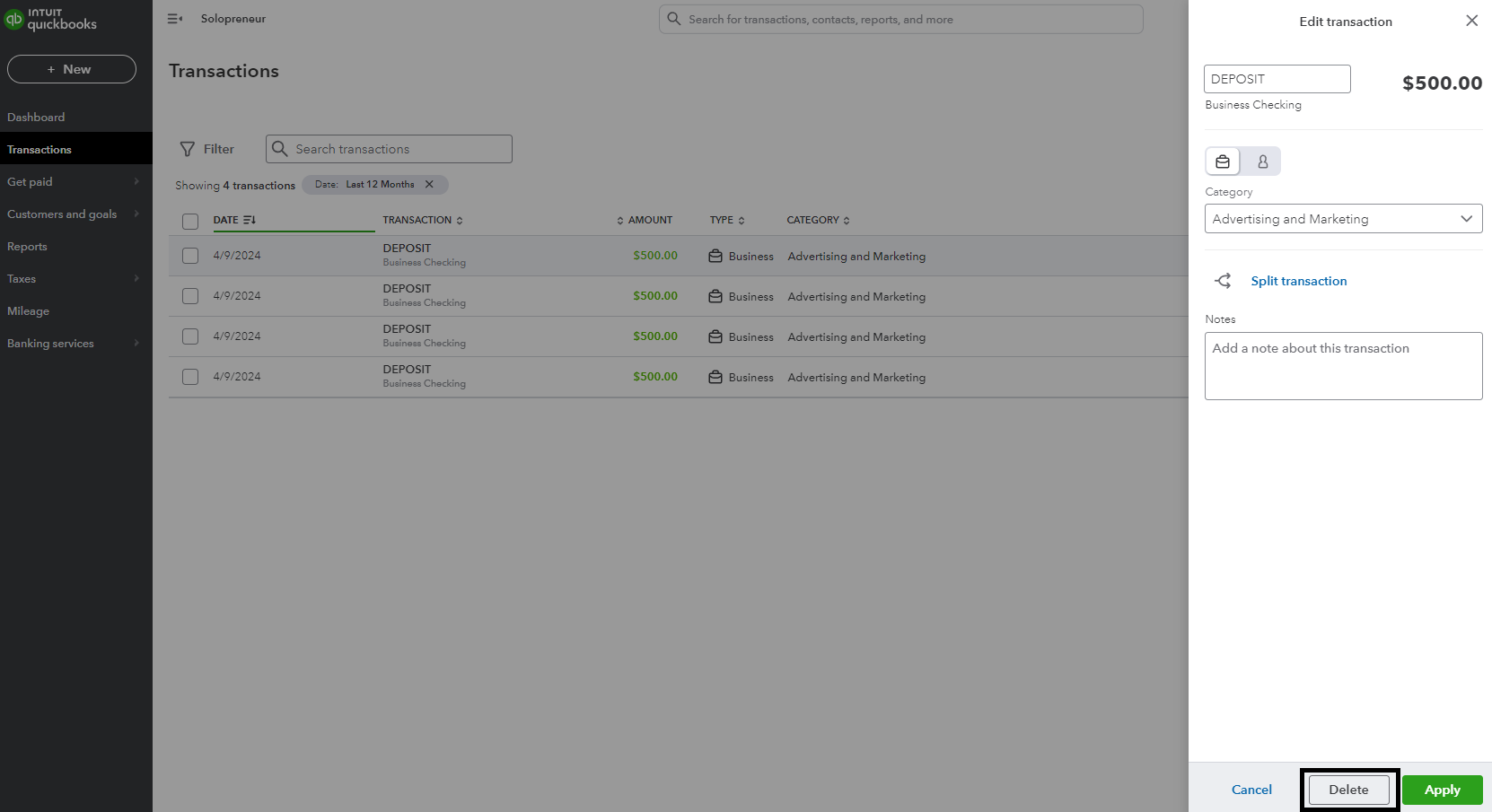
If you need to delete or exclude multiple transactions, I recommend sending feedback to our engineering team. Our engineering team continuously works to improve our services and add more user features. We highly value your suggestions. All your ideas will be carefully evaluated and considered for inclusion in our future product developments. So, please share your thoughts with us. We appreciate your valuable input.
To submit feedback for QuickBooks, here's how:
- Go to the Gear icon and select Feedback.
- Provide your product suggestion.
- Click on Next to submit feedback.
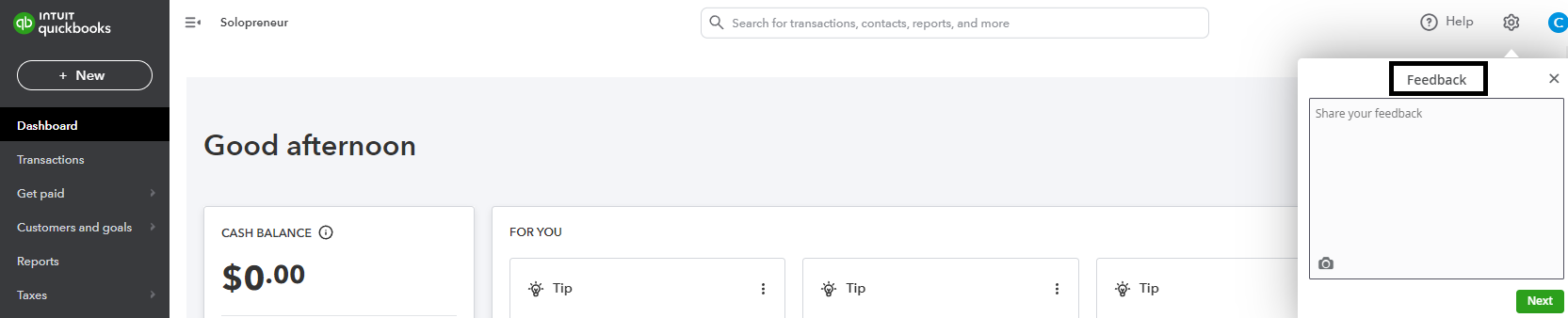
To learn about QuickBooks Solopreneur and how it's different from similar QuickBooks products, refer to this article: Introduction to QuickBooks Solopreneur.
I appreciate your understanding in this matter, and I assure you that our team continually works to improve SoloPreneur based on customer feedback. Your input is crucial in shaping the future development of our software.
If you have any further questions or need assistance with any other aspect of SoloPreneur, please do not hesitate to contact us here in the Community. We are here to help you make the most of your accounting experience. Take care, and have a great day!




