Hello, Royalaffairsct! To disconnect a bank account in QuickBooks Online, simply check the box for Disconnect this account on save on your Bank Transactions page.
Before you proceed, keep in mind that disconnecting the account will cause any transactions in the Pending tab to vanish. Additionally, if any transactions are older than 90 days, you won’t be able to download them again after reconnecting, but you can manually upload older transactions if necessary.
Also, if you're experiencing a connection error, please resolve that issue before disconnecting to avoid downloading duplicate transactions when you reconnect.
Here's how:
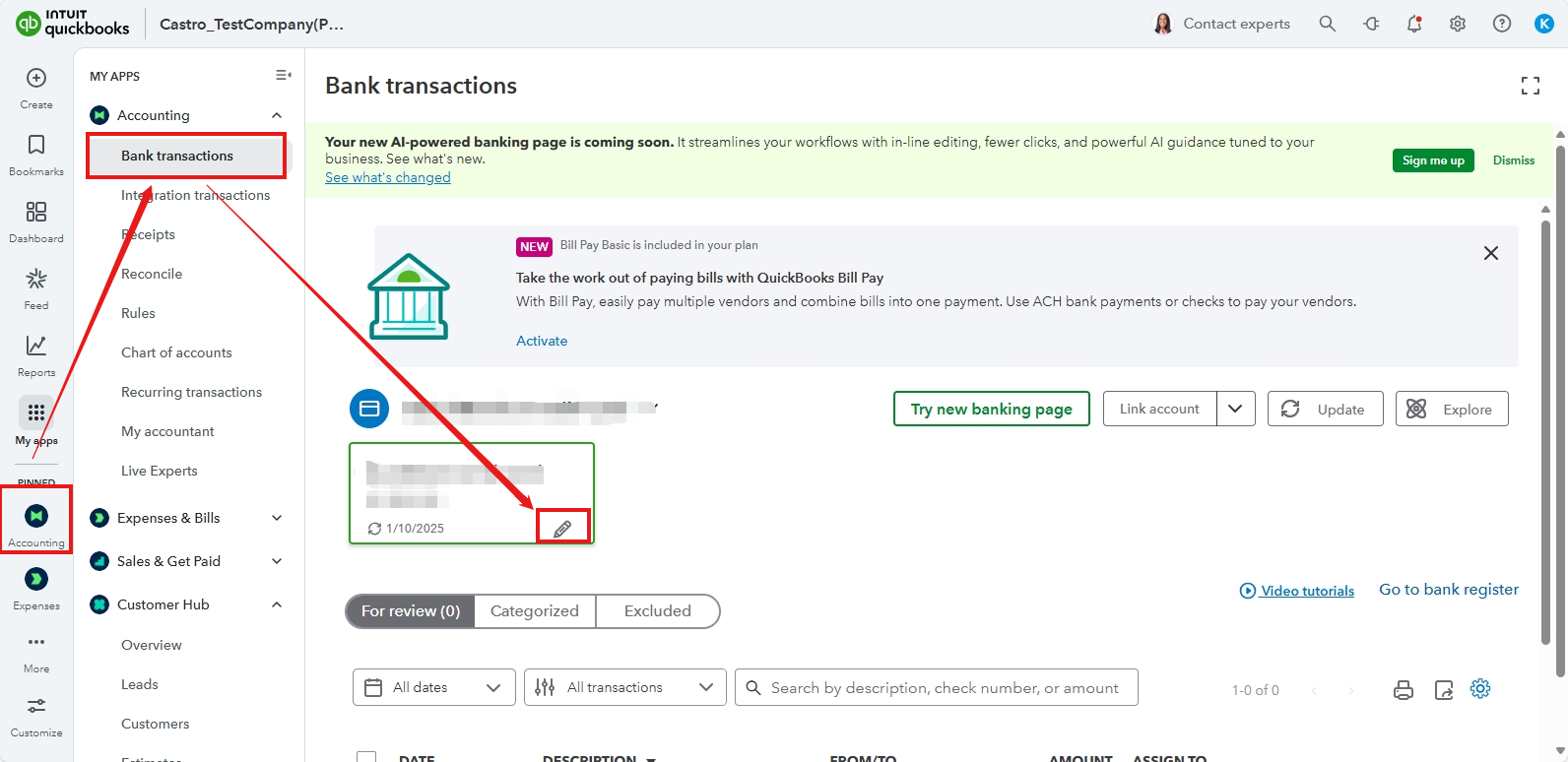
- Navigate to the Accounting tab, then select Bank Transactions.
- Select the bank account you want to disconnect.
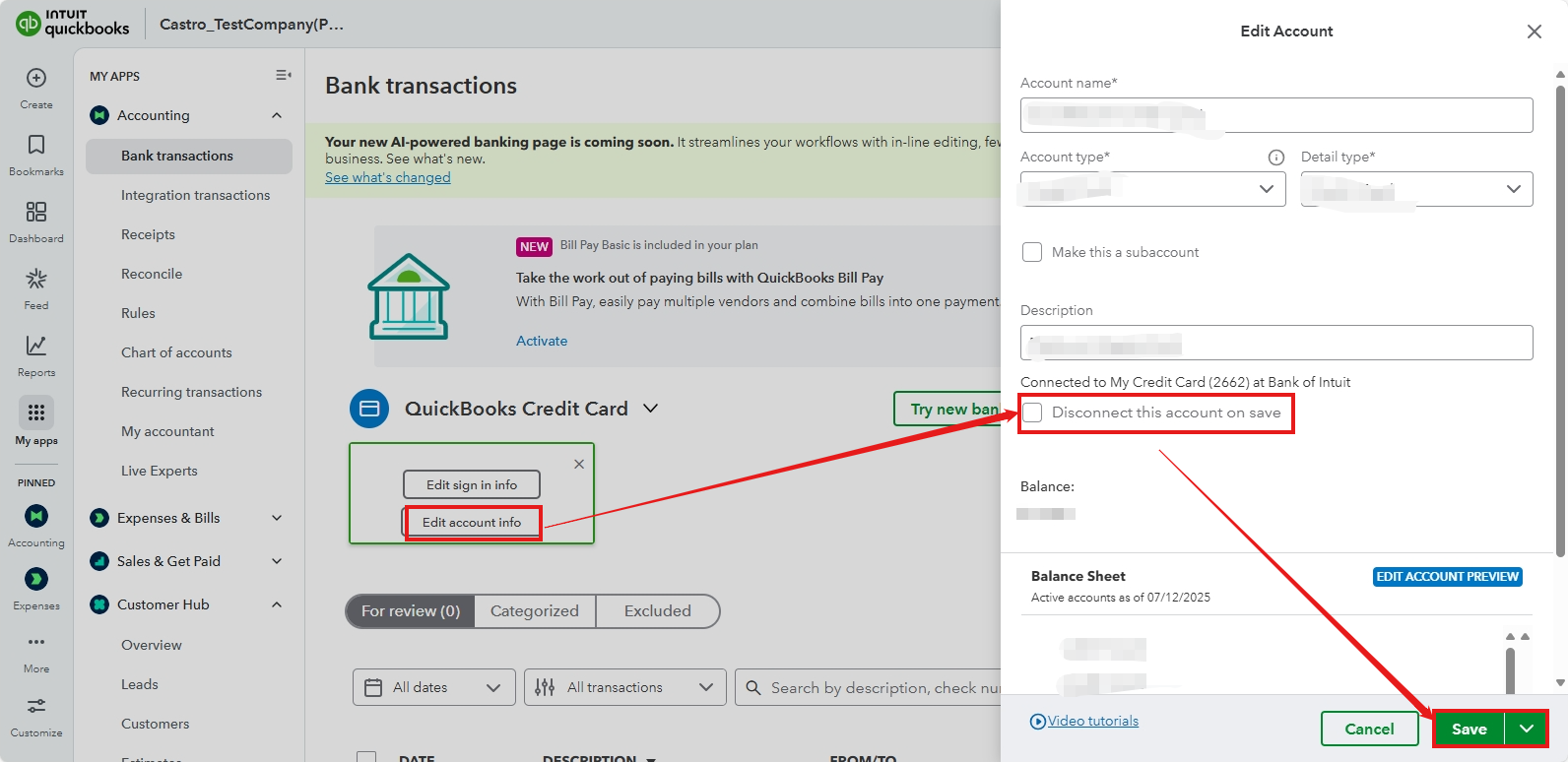
- Click the Pencil icon and select Edit account info.
- Tick the box for Disconnect this account on save.
- Once done, click Save.
After saving, refresh the page to verify that the bank account has been disconnected.
If you decide to reconnect your account, please refer to this article for more instructions: Connect bank and credit card accounts to QuickBooks Online.
For an enhanced QuickBooks experience, consider contacting our QuickBooks Live Expert Assisted team, who can assist you with managing transactions and maintaining accurate account information.
Please feel free to click the Reply button if you have any more questions. We're here to help!


